Graphics Settings
The Graphics settings change how the scene view is drawn: the quality level, the light effects, the grass, the water, the clouds and the frame rate limit. Lower settings make RustEdit run faster on a slower computer. Higher settings show the map closer to how the game looks on high settings.
These settings only change what you see in RustEdit. They never change the map.
Open the graphics settings
- Open .
- Click Graphics in the list on the left. Or type a setting's name in the search box above the list.
Most settings take effect at once. A setting that is not at its default value has a reset icon at the end of its row: click it to put the default back.
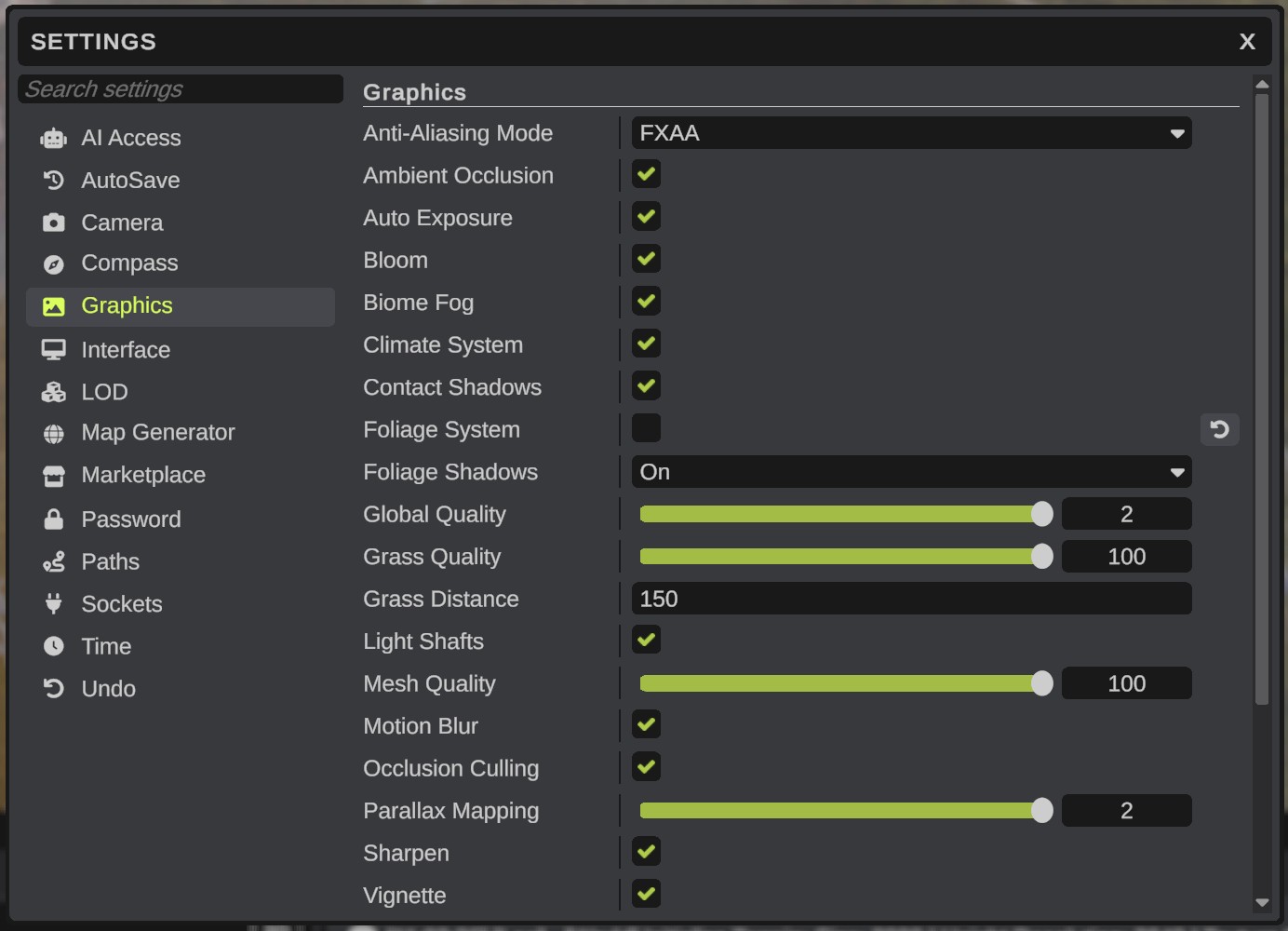
Quality and performance
| Setting | Default | What it does |
|---|---|---|
| Global Quality | 2 | The overall quality level: 0 is Low, 1 is Medium, 2 is High. Higher levels draw shadows farther away and use sharper textures. A change takes effect at once. |
| Mesh Quality | 100 | 0 to 100. Lower values switch prefabs to their simpler models closer to the camera. |
| Occlusion Culling | On | Skips objects that are hidden behind other objects, so there is less to draw. |
| Target Frame Rate | 100 | 15 to 240. The most frames per second RustEdit draws. A lower limit keeps your graphics card cooler and quieter. |
| Lower FPS Minimized | On | Reduces the maximum framerate when the editor is not focused: RustEdit draws 10 frames per second while you work in another window. |
Anti-aliasing and screen effects
| Setting | Default | What it does |
|---|---|---|
| Anti-Aliasing Mode | FXAA | Smooths jagged edges: None, FXAA, SMAA or TSSAA (temporal anti-aliasing). |
| Ambient Occlusion | On | Soft shadows in corners and where objects meet. |
| Auto Exposure | On | The view gets brighter or darker by itself, like an eye that adjusts to the light. |
| Bloom | On | A glow around bright light. |
| Contact Shadows | On | Fine shadows close to objects, from the sun. |
| Light Shafts | On | Rays of sunlight. |
| Motion Blur | On | Blurs the view while the camera moves fast. |
| Sharpen | On | Makes the image a little sharper. |
| Vignette | On | Darkens the corners of the view a little. |
Sky, fog and climate
| Setting | Default | What it does |
|---|---|---|
| Volume Clouds | Medium | The quality of the volumetric clouds: Off, Low, Medium, High or Ultra. Off shows Rust's flat cloud layer instead. The Clouds rows in Time and weather change the flat cloud layer. |
| Biome Fog | On | The fog of each biome. |
| Climate System | On | The look of each biome, which blends as the camera moves between biomes. |
| Volume Effects | On | The light and fog changes in caves, tunnels and other places, as in the game. Off: the scene is always lit as outdoors. |
See Sky and lighting.
Grass and plants
| Setting | Default | What it does |
|---|---|---|
| Foliage System | On | Draws grass and small plants on the terrain. Turning it off or on works at once. |
| Foliage Shadows | On | Whether grass and plants cast shadows: Off, On, TwoSided or ShadowsOnly. |
| Grass Quality | 100 | 0 to 100. Lower values draw grass with less detail away from the camera. |
| Grass Distance | 150 | How far from the camera grass is drawn, in meters, from 100 to 200. Drag the slider or type the number. |
Water
| Setting | Default | What it does |
|---|---|---|
| Water Quality | High | Low, Medium or High. On Low, the waves do not move. |
| Water Reflections | On | Reflections of the sky on the water. |
See Water.
Terrain
| Setting | Default | What it does |
|---|---|---|
| Parallax Mapping | 1 | The depth detail of the terrain: 0 is off, 1 is parallax offset, 2 is parallax occlusion. Higher values cost more. |
Other settings that change the view
These are in other groups of the Settings dialog. See Settings.
| Setting | Default | What it does |
|---|---|---|
| 2500 | 100 to 6000. How far the camera sees, in meters. Things farther away are not drawn. | |
| 70 | 60 to 120. The camera's field of view, in degrees. | |
| 1 | 1 to 10. A multiplier for the default LOD distances in Rust: higher values keep detailed models on screen farther away. |
Tips for slower computers
Try these one at a time, and keep the ones that help most:
- Set Volume Clouds to Low or Off.
- Set Water Quality to Low.
- Lower Grass Quality and Grass Distance, or turn off Foliage System.
- Turn off Ambient Occlusion, Contact Shadows, Light Shafts and Motion Blur.
- Lower Mesh Quality.
- Lower .
- Set Global Quality to 1 or 0.
Keep Occlusion Culling on: it saves work.