Procedural Generation
The Procedural Generation panel runs Rust's own map generator on the open map, one step at a time, in the order Rust runs them. You choose which steps run, change their settings and the world settings, and add steps that place your own custom monuments. Everything you change is kept in a preset.
The steps and their default settings come from the Rust game files on your computer, so they match your Rust version.
Before you start
- Open a map, or make a new one. The steps run on the open map.
- RustEdit needs the Rust game files. The step list fills once they are loaded.
Open the panel
Click the Procedural Generation button in the toolbar on the left, or open .
The panel
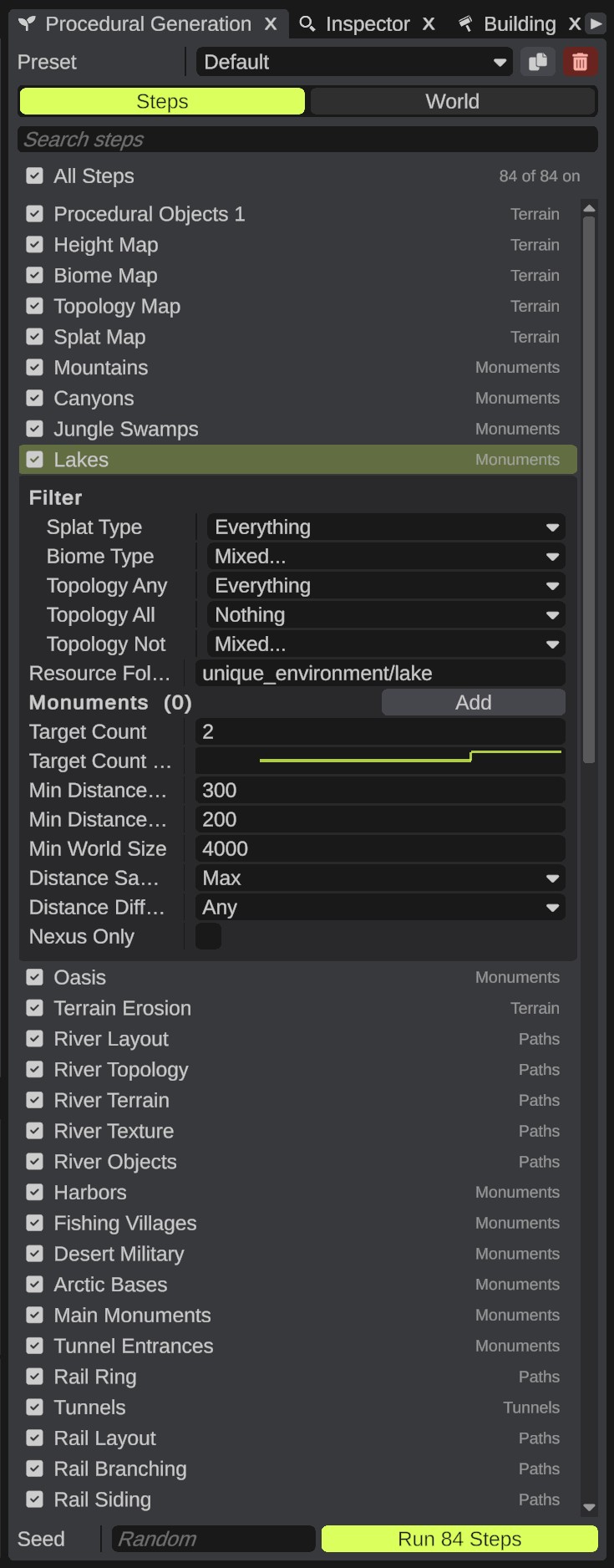
From top to bottom:
| Part | What it does |
|---|---|
| Preset | The preset in use, with Save As and Delete buttons beside it. See Steps and presets. |
| Steps / World | Switches between the step list and the world settings. |
| Search box | Shows only the steps with this text in their name. |
| All Steps | Its check box turns every step on or off. It shows how many steps are on, such as "84 of 84 on". |
| Step list | One row for each step, in the order they run. |
| Add Monument Step | Adds a step for your custom monuments. See Custom monument steps. |
| Seed | The seed for the run. Leave it empty for a new random seed each time. |
| Run | Runs the steps that are on. The button says how many, such as Run 84 Steps. |
Each step row has:
- A check box that turns the step on or off.
- The step's name. Click it to show the step's settings under the row.
- A dot when the step's settings differ from the default settings.
- The step's group, dim on the right, such as Terrain, Paths or Monuments. See Steps and presets for the groups.
Right-click a row for more: Run This Step, Reset to Default Settings, Add Monument Step Here, Turn All On and Turn All Off.
Run the steps
- Turn on the steps you want, and turn off the rest.
- Type a seed in Seed, or leave it empty for a random one.
- Click Run. RustEdit asks "Run N procedural steps on this map?".
- Confirm. A loading screen shows each step as it runs. When the run ends, the log says how many steps ran and which seed was used.
To run one step on its own, right-click its row and pick Run This Step.
The terrain steps, such as Height Map and Splat Map, write new maps for the whole map. The other steps add prefabs. A run does not remove the prefabs that are on the map already. To generate a whole new map, start from a new, empty map.
Undo a run
The whole run is one undo step. Press Ctrl+Z to undo it. Undo puts back the height, splat, biome, topology and alpha maps, and removes the prefabs the run placed.
When a step fails
A step that fails is skipped, and the others still run. The log names the step and the error, and the run ends with "Procedural generation ran N steps, M failed. See the errors above".
Seeds
- With Seed empty, every run uses a new random seed. The log says which one, so you can type it in later to get the same map again.
- The same seed and the same settings, run on the same starting map, make the same map again.
- Each step runs with its own seed, made from the run's seed and the step's place in Rust's list, as in Rust.
- A custom monument step keeps its own seed when you move it to another place in the list.
- The seed is saved in the preset.
Step settings
- Click a step's name. Its settings open under the row.
- Change a setting. The row gets a dot, and the preset saves the change.
- Point at a setting to see what it does. The tooltip ends with its default value, such as "Default: On".
- Lists have Add and Remove buttons. A prefab is typed as its path, such as
assets/.../name.prefab. A path that is not a prefab is marked "No prefab has this path". - To put a step back to its default settings, right-click its row and pick Reset to Default Settings.
Some settings skip a step. For example, a step with Min World Size does not run on maps smaller than that size.
World settings
Click World at the top of the panel to see the settings for the whole map. Click Reset World Settings at the bottom to put them all back.
| Setting | What it does |
|---|---|
| Percentage Tier0, Percentage Tier1, Percentage Tier2 | The share of the map for each loot tier band. Jungle can only appear in the Tier 0 band. |
| Percentage Biome Arid, Percentage Biome Temperate, Percentage Biome Tundra, Percentage Biome Arctic | The share of the map for each biome band, in the order arid, temperate, tundra, arctic. |
| Percentage Biome Jungle | The width of the band where temperate ground in Tier 0 turns into jungle. Bigger values give more jungle. |
| Main Roads | Off skips the Road Ring step. |
| Side Roads | Off skips the Road Layout step for roads. |
| Trails | Off skips the Trail Layout step. |
| Rivers | Off skips the River Layout step. |
| Powerlines | Off skips the Power Line Layout step. |
| Above Ground Rails | Off skips the Rail Ring and Rail Layout steps. |
| Below Ground Rails | Off skips the Tunnels step, and roadside monument folders with tunnel-entrance in their path are not loaded. |
| Underwater Labs | Off skips the Underwater Entrances step, and monument folders with underwater_lab in their path are not loaded. |
| Prefab Blacklist | Prefabs whose path has any of these texts are skipped when steps load prefabs from folders. |
| Prefab Whitelist | When not empty, only prefabs whose path has one of these texts are loaded from folders. The blacklist is checked first. |
Point at a setting in the panel for its full description.
Custom monument steps
Your custom monuments can be placed by the generator in two ways.
Join one of Rust's steps
Give the custom monument a Spawn Folder in its Map Generation settings, and turn on Enabled. Rust's monument step for that folder then places it with Rust's own monuments. Its Count says how many times it is in that step's list; at 0 it is left out.
Click the step to see which of your custom monuments join it. The settings start with "Your custom monuments in this step, by their Spawn Folder".
Add a step of your own
A monument step of your own places a list of custom monuments with Rust's monument placer, at any place in the order.
- Click a step's row. The new step goes after it.
- Click Add Monument Step at the end of the list, or right-click the row and pick Add Monument Step Here. A step called Custom Monuments appears, marked Custom. Its settings open.
- Change Name if you like.
- Pick a custom monument in the Add list. Add as many as you want. A monument that is in the list twice can be placed twice.
- Change the placer's settings under the list if you need to. They start as the Main Monuments step's default settings, with Target Count at 0, so every monument in the list gets a try.
To move a custom step, drag its row up or down. A bar shows where it will go, and the list scrolls when you drag near its top or bottom. Only custom steps move: Rust's steps keep Rust's order. To remove one, right-click it and pick Delete Step, then confirm. To put its placer settings back, right-click it and pick Reset Settings.
If a monument in the list is not in your custom monuments folder any more, it shows in a warning color, and the step leaves it out.
How the terrain is handled during a run
- Each step sees the map as the earlier steps left it, including the terrain changes of the prefabs they placed.
- What the steps before Terrain Erosion place, such as Mountains, Canyons, Jungle Swamps, Lakes and Oasis, is baked into the map's terrain. Erosion and the later steps then work on that ground, as in Rust. Custom monument steps that you drag above Terrain Erosion are baked too.
- What later steps place keeps its terrain changes on the prefab itself. Move or delete the prefab, and its terrain changes go with it.
Monuments already on the map
The steps see Rust's monuments, train tunnel entrances and underwater lab entrances on the map, as in Rust. This counts the ones you placed by hand and the ones earlier steps placed:
- The road, rail, power line and trail steps lead their paths to the monuments' connection points.
- The monument steps keep their distance from them.
- The Tunnels step starts its train tunnels at the tunnel entrances, and Underwater Entrances builds the labs out from their entrances.
Your own custom monuments are not seen this way. No generated path leads to them. See Monument attributes.
Tips
- Turn off the steps you do not need while you try settings, then run them all at the end.
- Steps that place nothing on small maps, such as some monument steps, may have a Min World Size. Check their settings.