Create, Open and Save
RustEdit works on one map at a time. You keep your work in a scene file, and you export a .map file for Rust when the map is ready.
The working file and the game file
| File | What it is |
|---|---|
.scene | Your working file. RustEdit's own file. It keeps everything you made. Save and Save As write it. |
.map | The game file. Rust loads it. Save and Export writes it next to your scene file. It does not keep everything, see Save and Export. |
Always keep the .scene file. Make your changes in it, and export again when you want a new .map.
The window title shows the name of the file you work on. It says Untitled until you save.
File types
| Type | What it is | RustEdit | What it keeps |
|---|---|---|---|
.scene | A map scene | Opens and saves | The terrain, every prefab, path and group with its name and place in the hierarchy, placed monuments as links to their files, socket links, painted custom topology maps, loot and vending profiles, and the map password. |
.map | A Rust map | Opens, and writes with Save and Export | Rust's data: the terrain, the water, the prefabs and the roads, rivers, rails and powerlines. A map that RustEdit exported also has RustEdit's own data. See Save and Export. |
.asset | A monument file | Opens and saves | One monument: its terrain, prefabs, paths and settings. It is saved in the Custom Monuments folder and never has a password. See Monuments. |
.prefab | An older custom prefab | Opens, never changes it | See Older maps and prefabs. |
A map keeps only the custom topology maps you painted on it. Your list of custom topology maps is shared by every map, in Configuration/custom_topology.json in the RustEdit folder. See Custom topology layers.
Some tools keep their own files:
| Type | What it is | More |
|---|---|---|
.terraingraph | A terrain graph | Graph editor |
.terrainnode | A custom terrain graph node | Custom nodes |
.palette | A prefab brush list | Prefab brush |
.lprof | A loot profile | Loot profiles |
.vprof | A vending profile | Vending profiles |
Create a new map
When RustEdit starts, it opens a new empty map. To start another one:
- Click . RustEdit asks if you want to start a new scene, because unsaved changes are lost.
- Click Confirm. The Create Scene dialog opens.
- Click World at the top.
- Set the options. See the table below.
- Click Create. RustEdit makes a flat map with the base height, splat and biome you picked. The map has no file yet.
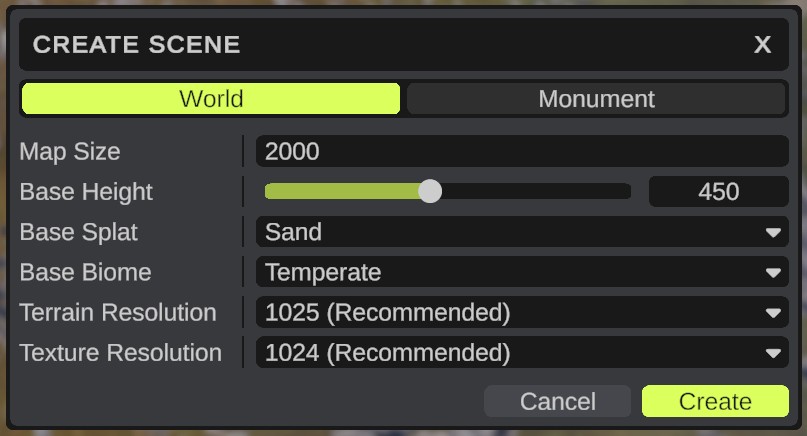
Create Scene options
| Option | What it does |
|---|---|
| World / Monument | Makes a map, or a monument. |
| Map Size | The width of the map in meters, from 1000 to 8000. A larger or smaller number changes to the nearest limit. Above 6000 a warning icon shows: the server needs the RustEdit 2 server extension to run maps larger than 6000. Only for World. |
| Monument Size | The width of the monument's terrain: 64, 128, 256, 512, 1024 or 2048 meters. Only for Monument. |
| Base Height | The height of the flat terrain, from 0 to 1000. The default is 450. 500 is sea level. |
| Base Splat | The ground texture that covers the whole terrain. |
| Base Biome | The biome that covers the whole terrain. |
| Terrain Resolution | The size of the height map: 513, 1025, 2049 or 4097. (Recommended) marks the best fit for the map size. A higher resolution gives finer detail and a bigger file. Only for World. |
| Texture Resolution | The size of the splat, biome, topology and alpha maps: 512, 1024, 2048 or 4096. (Recommended) marks the best fit. Only for World. |
Both resolutions start on the recommended ones for the map size. When you change Map Size, they change to the recommended ones again. A monument gets its resolutions from its size.
Create a monument
Click Monument in the Create Scene dialog, pick a Monument Size, and click Create. The new monument opens on top of your map, and your map waits behind it. Monuments you had open are closed first, without saving. See Create and edit monuments.
Open a file
- Click , or the open button on the toolbar.
- Click Confirm. Unsaved changes are lost.
- Pick a
.scene,.mapor.assetfile and open it. - If the file has a password, the Password Required dialog opens. Type the password and click Submit. See Map password.
What you get depends on the file:
- A
.scenefile opens with everything it keeps. - A
.mapfile can come from Rust, from another editor, or from RustEdit. RustEdit reads Rust's data, and RustEdit's own data when the map has it. Roads, rivers, rails and powerlines become splines named after the path, such as "Road 1". Older maps open too, see Older maps and prefabs. - An
.assetfile opens as a monument on top of your map.
Opening a file closes any monuments you have open, without saving them.
Open Recent
lists the last 10 maps and scenes you opened, the newest first.
- Hold the pointer over an entry to see the full path.
- When two files have the same name, the folder name shows after the file name.
- A file that was moved or deleted is taken off the list when you click it.
- Monument files are not on the list.
Reload
opens the file again as it was last saved. Your unsaved changes are lost, so RustEdit asks first. It uses the same password as before.
A map that was never saved cannot reload.
Save
(Ctrl+Shift+S) saves what you see: the map, or the monument that is open on top of it.
- The first save opens the Save Scene dialog. A map is saved as a
.scenefile. A monument is saved as an.assetfile, and the dialog opens in the Custom Monuments folder. - Later saves write to the same file and ask nothing.
- A map you opened from a
.mapfile is saved as a.scenefile. The first Save opens the Save Scene dialog in the map's folder, with the map's name. Pick a name and click Save. From then on, that scene is your working file. - With RustEdit Plus, the first save asks for a map password. See Map password.
Save As
(Ctrl+Alt+S) always asks for a file name. The dialog starts in the open file's folder, with its name. The new file becomes your working file. With RustEdit Plus, it also asks for the map password, so you can change or remove it.
Save and Export
saves the scene and writes the .map file for Rust. See Save and Export.
Unsaved changes
New, Open, Open Recent, Reload and Quit always ask before they drop your changes. RustEdit never saves your file by itself, so save often. Auto save can keep backup copies of the map in another folder.
Troubleshooting
| Problem | What to do |
|---|---|
| "The selected map is already loaded" | The file is open already. Use to go back to the last save. |
| The file does not open and you get a new empty map | RustEdit could not read the file. It writes "Failed to load scene" in the Notifications panel. Check that the file is a map, scene or monument file and is not damaged. |
| The password dialog opens again | The password was wrong. Type it again. Cancel stops opening the file, and the map you had open stays. |