Loot Profiles
A loot profile is your own list of items for loot containers, such as crates and barrels. You make it in the Loot Profile Editor and save it as a .lprof file. Then you pick it in a container's Loot Container panel. The map carries a copy of every profile its containers use.
On the server, the RustEdit 2 server extension fills each container from its profile. Without the extension, containers keep Rust's own loot. See The RustEdit 2 server extension.
Open the editor
Click . The editor opens as a panel, which you can dock like any other panel. It opens the profile you had open last time, or a new one.
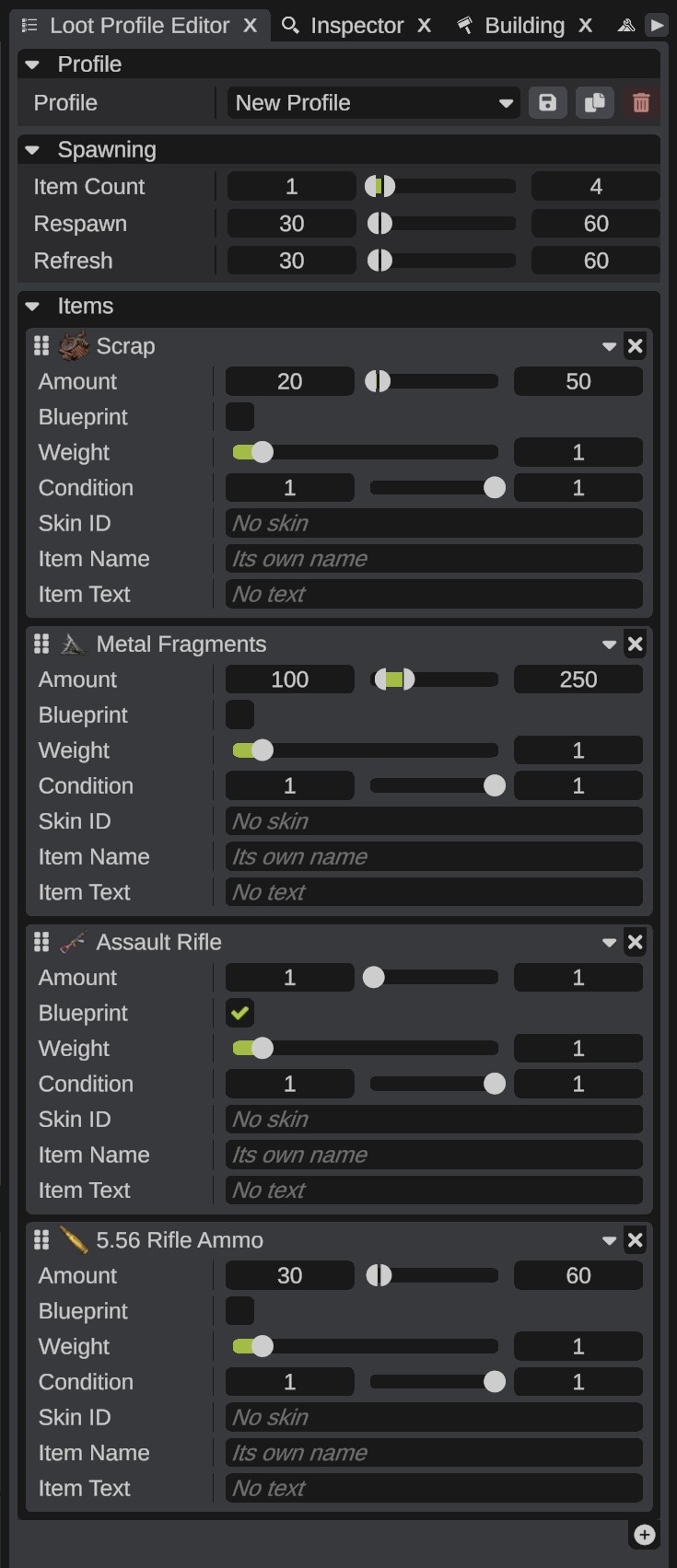
How the game uses a profile
Each time a container fills, the game gives it a random number of items, between the two Item Count values. Each item is a different item from the profile's list, picked by its Weight, with a random stack between its two Amount values. A destroyed container comes back after the Respawn time, and a container refills its loot after the Refresh time.
How to make a profile
- Click .
- In the Profile list, pick New Profile. An empty profile shows.
- Under Spawning, set Item Count, Respawn and Refresh.
- Under Items, click +. The item picker covers the panel.
- Type in the search box, or pick a Category, to find an item.
- Click an item to add it. The picker stays open, so you can add more. Items the profile has already show a check mark.
- Close the picker with its close button.
- Open each item's card and set its options.
- Click the Save icon next to the Profile list. Type a name and confirm. RustEdit writes the file and logs "Saved the profile ...".
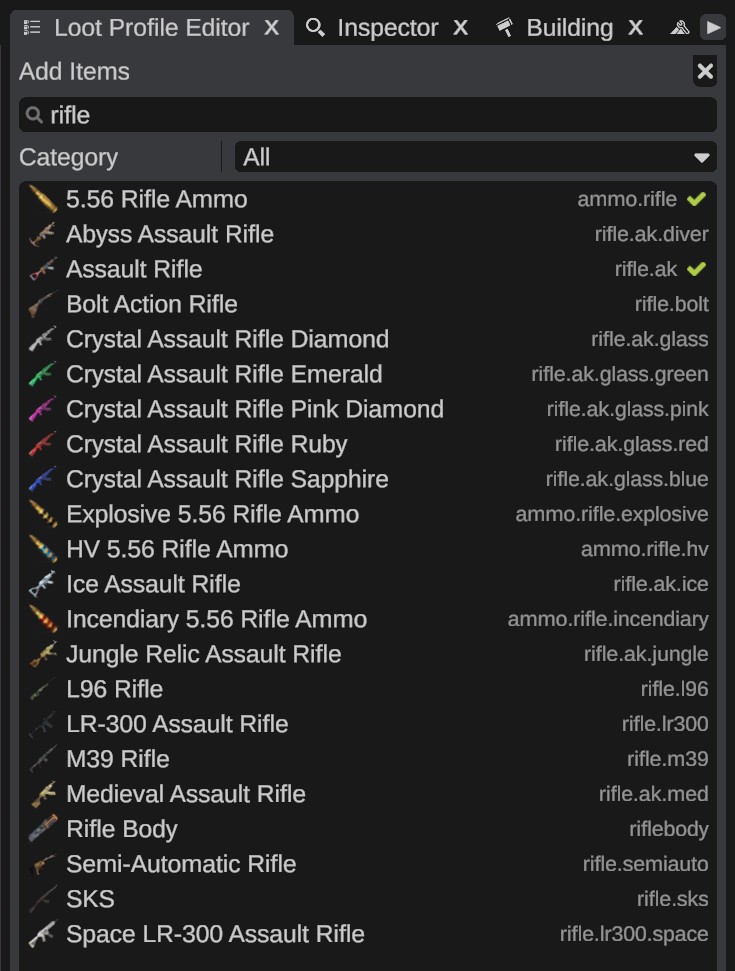
The search finds an item by its name or by its short name, for example rifle.ak. The picker lists every item of your Rust install, A to Z.
Spawning options
| Option | What it does |
|---|---|
| Item Count | How many different items of the list the container gets, from 1 to 48. The game picks a number between the two values each time the container fills. |
| Respawn | Minutes until a destroyed container comes back, from 0 to 1440. The game picks a time between the two values. 0 uses the server's default. |
| Refresh | Minutes between two refills of the container's loot, from 0 to 1440, picked between the two values each time. |
A new profile starts with an Item Count of 1 to 4, and Respawn and Refresh of 30 to 60 minutes.
Item options
Each item is a card. Its header shows the item's icon and name. Drag the grip to change the order of the list, click the arrow to fold the card, and click the remove button to take the item out of the profile.
| Option | What it does |
|---|---|
| Amount | The smallest and the biggest stack of the item, picked at random each time it spawns. The slider goes to 1000. Type a bigger number if you need one. |
| Blueprint | Spawns the item's blueprint instead of the item. |
| Weight | How likely the item is picked next to the others of the profile, from 0 to 10. A higher weight is picked more often. 0 is never picked. |
| Condition | The lowest and the highest condition the item spawns with, from 0 (broken) to 1 (full). |
| Skin ID | The workshop skin the item spawns with. Leave it empty for no skin. |
| Item Name | A name the item shows instead of its own. Leave it empty to keep its own name. The card then shows the new name with the item's own name after it. |
| Item Text | The text the item holds, for items such as notes. |
Give a container a profile
- Select one or more loot containers.
- In the Inspector, find the Loot Container panel.
- In Custom Loot Profile, pick the profile.
None gives the container Rust's own loot again.
Manage profiles
The Profile list shows New Profile first, then the saved profiles, A to Z. Next to it are three icons:
| Icon | What it does |
|---|---|
| Save | Saves the profile under its name. A profile that was never saved asks for a name first. |
| Save As | Saves the profile under a new name. If another profile has that name, RustEdit asks before it replaces it. |
| Delete | Deletes the open profile's file, after it asks. Containers that use the profile keep its name, and a map that has a copy keeps the copy. |
- If you open another profile while the open one has changes that are not saved, RustEdit asks first.
- Containers use a profile by its name. If you save a profile under a new name, the containers still use the old name.
- Characters that a file name cannot have are left out of the name.
Where the files are
RustEdit saves profiles in the LootPresets folder next to the app. To use another folder, set it in , under Paths > Loot Presets. A change to this setting needs a restart. See Settings.
Profiles in the map
- When you save a scene or export a map, RustEdit writes a copy of each profile that its containers use into the map.
- When you open a map, its profiles come with it. A profile that has no file on your computer shows as (from map) in the list. Click Save to write its file.
- If a file on your computer has the same name as a map's profile, RustEdit uses the file.
- In a multiplayer session, RustEdit sends the profiles that containers use to the other people.
A profile that RustEdit cannot find when you save or export is left out of the map. The containers that use it get Rust's own loot in the game.
Troubleshooting
| Problem | What to do |
|---|---|
| The log says "The loot profile ... was not found. The ... loot containers that use it keep their default loot" | The profile's file is missing and the map has no copy. Make the profile again under the same name, or pick another profile for the containers. |
| An item card says (not found) | Your Rust install has no item with that short name, for example after a Rust update renamed or removed it. Remove the item and add the new one. |
| A profile is missing from the Custom Loot Profile list | Save it in the editor first. Only saved profiles and the map's own profiles are listed. |