AI Access
RustEdit PlusAI Access lets an AI app on your computer work with the map you have open in RustEdit. The AI can look at the map, measure it, and change it: place prefabs, shape and paint the terrain, draw roads and more. You talk to the AI in its own app. RustEdit does the work live, in front of you.
RustEdit offers its tools through MCP (Model Context Protocol), an open standard that many AI apps support, such as Claude and Cursor.
What you can ask for
Some examples of requests:
- "Show me the map and tell me where the big flat areas are."
- "Find a flat spot near the middle of the map for a base, and select it."
- "Scatter pine trees over the hills in the north-west, but keep them off the roads."
- "Draw a road from the harbor to the nearest town."
- "Paint the beach on the east coast as sand."
The AI sees only what the tools tell it. See AI tools for the full list.
Turn on AI access
- Open , then the AI Access group.
- Turn on Allow AI Apps.
- RustEdit starts AI access. The Notifications panel says "AI access is on at http://127.0.0.1:47950/mcp".
- The first time, RustEdit makes an Access Key. You need it to connect your AI app.
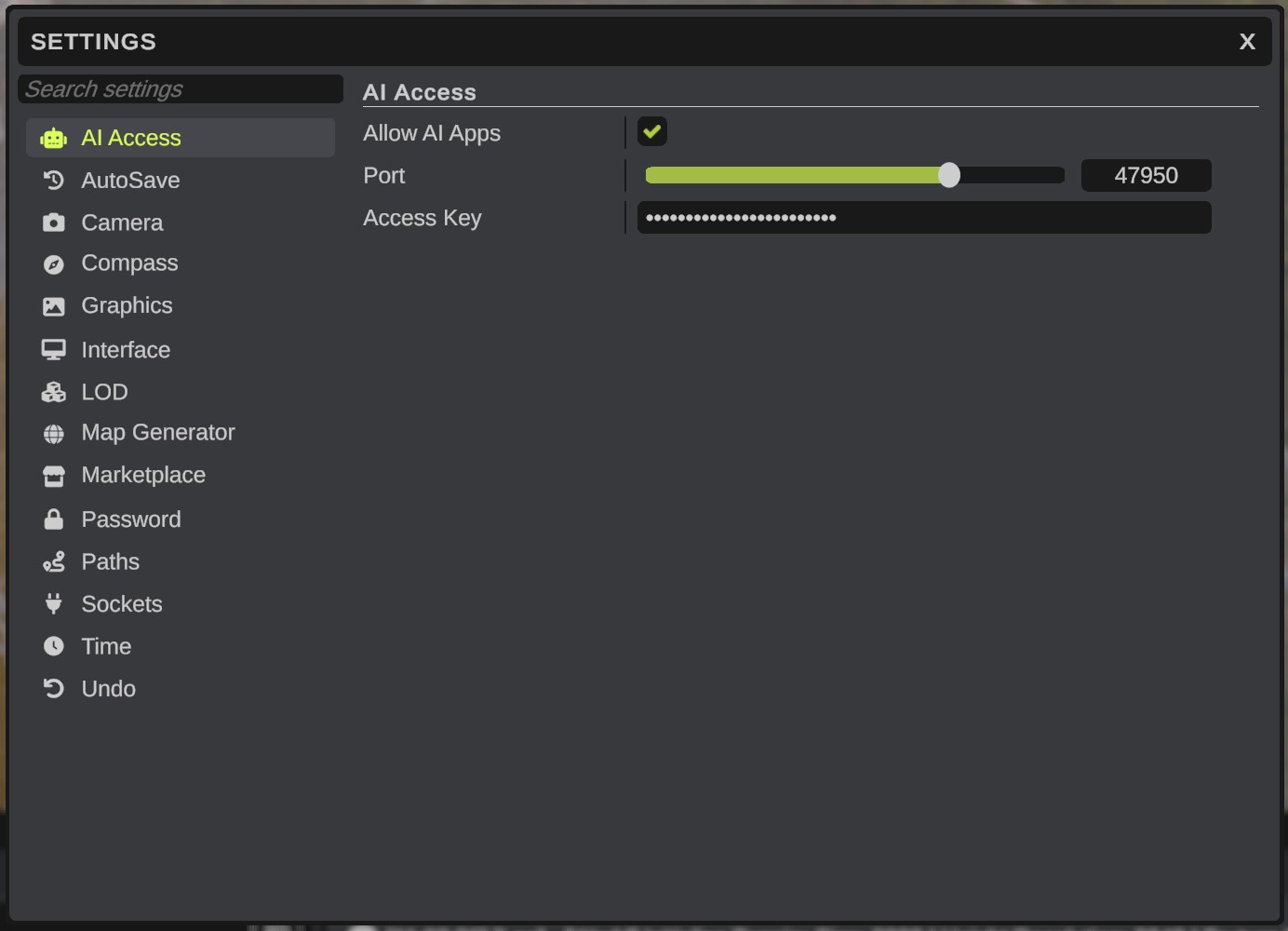
| Setting | What it does |
|---|---|
| Allow AI Apps | Turns AI access on and off. Off by default. |
| Port | The port AI apps connect to, from 1024 to 65535. The default is 47950. The address is http://127.0.0.1:<port>/mcp. |
| Access Key | The key the AI app sends with every request. RustEdit makes it the first time AI access starts. Clear it, or click its reset icon, to make a new one. |
AI access needs RustEdit Plus. Without it, RustEdit leaves AI access off and says "AI access is off. This feature requires RustEdit Plus". A few tools need RustEdit Pro: the AI app sees only the tools your license includes.
Connect an AI app
Every app needs the same two things:
- Address:
http://127.0.0.1:47950/mcp(use your own port if you changed it). - Header:
Authorization: Bearer <your access key>.
The connection type is called "HTTP" or "Streamable HTTP" in most apps. Below are examples for some apps. Replace YOUR_KEY with the Access Key from the settings. These steps belong to the AI apps, which can change them: if a step does not work, check that app's own help.
Claude Code
Run this in a terminal:
claude mcp add --transport http rustedit http://127.0.0.1:47950/mcp --header "Authorization: Bearer YOUR_KEY"
Claude Desktop
Claude Desktop starts local servers from its config file. Use the mcp-remote helper, which needs Node.js. Open in Claude Desktop and add:
{
  "mcpServers": {
    "rustedit": {
      "command": "npx",
      "args": ["mcp-remote", "http://127.0.0.1:47950/mcp", "--header", "Authorization:${AUTH_HEADER}"],
      "env": { "AUTH_HEADER": "Bearer YOUR_KEY" }
    }
  }
}
Restart Claude Desktop after you save the file.
Cursor
Add this to .cursor/mcp.json in your project, or to .cursor/mcp.json in your Windows user folder to use it in every project:
{
  "mcpServers": {
    "rustedit": {
      "url": "http://127.0.0.1:47950/mcp",
      "headers": { "Authorization": "Bearer YOUR_KEY" }
    }
  }
}
Other MCP apps
Add an HTTP MCP server with the address and the header above.
When an app connects, the Notifications panel in RustEdit names it: "... connected to RustEdit through AI access".
Ask the AI to start with a look at the map, for example "Get the map info and show me the map". The AI then knows the map's size and where things are before it changes anything.
Safety
- Only this computer. RustEdit listens on
127.0.0.1, so other computers cannot connect. Web pages from other sites cannot use it either. - The access key. Every request must carry the key. Treat it like a password: anybody with the key and access to your computer can edit your open map. To lock out an app, make a new key.
- One undo step for each AI change. Each tool call that changes the map is one undo step. Press Ctrl+Z to take back the whole call, for example 200 trees at once.
- Locked objects stay as they are. The AI cannot move or delete objects you locked, or the parts of a placed custom monument.
- Your work in progress comes first. While you are in the middle of a brush stroke, changes from the AI are refused, and the AI is told to try again. While RustEdit loads a map or runs a map tool, the AI is told RustEdit is busy.
- The AI does not save. No tool saves or exports the map. You decide when to save.
- Your camera comes back. When the AI takes a 3D picture, it moves the scene camera for a moment, then puts it back.
RustEdit tells AI apps which tools only look and which change the map. Many apps run the looking tools without asking you, and ask before a change. That depends on the app and its settings.
AI changes are real changes to your map. Save your map before a big request, so you can go back to it.
Turn off AI access
Turn off Allow AI Apps. RustEdit stops listening at once: "AI access is off".
Troubleshooting
| Problem | What to do |
|---|---|
| "AI access could not start on port ..." | Another program uses the port. Pick another Port, then change the address in your AI app too. |
| "RustEdit refused the access key." | The key in the AI app is wrong or old. Copy the Access Key from RustEdit into the app again. |
| "AI access is off. This feature requires RustEdit Plus" | Sign in with an account that has RustEdit Plus or Pro. See RustHQ Account. |
| The AI app cannot connect at all. | Check that RustEdit is running, Allow AI Apps is on, and the port in the app matches the setting. |
| The AI says no map is ready. | Wait until the map has loaded, or open a map. |
| A tool the AI wants is missing. | It needs RustEdit Pro. See AI tools. |