Rotate Map
Rotate Map turns the whole map around its center: the terrain, and every prefab, path and group on it. Use it when you want the map to face another way.
How to rotate the map
- Click . The Rotate Map dialog opens.
- Pick the turn: Clockwise, Half Turn or Counter-clockwise.
- Leave Terrain and Prefabs and Paths on to turn everything.
- Click Rotate. RustEdit turns the map. The Notifications panel shows how many degrees clockwise it turned.
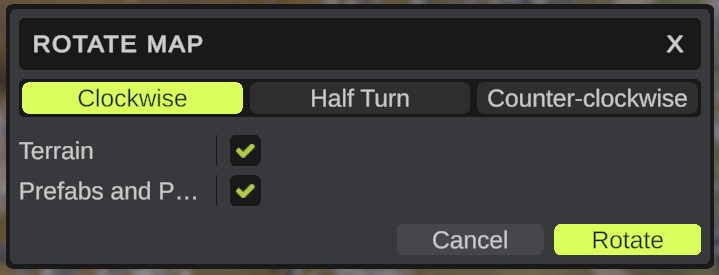
Options
| Option | What it does |
|---|---|
| Clockwise | A quarter turn clockwise, seen from above. This is the default. |
| Half Turn | Half a turn. |
| Counter-clockwise | A quarter turn counter-clockwise, seen from above. |
| Terrain | Turns the terrain maps (height, splat, biome, topology and alpha) and the custom topology maps. On by default. |
| Prefabs and Paths | Turns every prefab, path and group with the map. Children, the parts of placed monuments, path knots and APC nodes go with their parent. On by default. |
If both Terrain and Prefabs and Paths are off, nothing happens.
What changes
- The map turns around its center. Its size and resolutions stay the same.
- Each prefab, path and group at the top of the hierarchy turns around the map's center. Everything under it turns with it.
- The map is marked as changed. Save it to keep the result.
Undo
The whole turn is one undo step. Press Ctrl+Z to turn it back.
Tips
- Keep both options on. If you turn only the terrain, the prefabs no longer sit on the ground they were made for.
- Rotate does not work while a monument is open, or while the terrain graph shows a preview. See Map tools.