Merge Map
Merge Map copies an area of another map into the map you have open. It can copy the terrain, the custom topology, the prefabs and the paths. The maps can have different sizes and resolutions.
Before you start
- Save the map you have open.
- Go back to the map if a monument is open.
- Have the other map as a
.mapor.scenefile.
How to merge a map
- Click , or the Merge Map button on the toolbar. The Merge Map panel opens.
- Click Other Map and pick the map to copy from. If it has a password, type it. The other map shows on the left, under Source. Your map shows on the right, under Target.
- On the Source map, drag the box to the area you want to copy. Drag its sides and corners to change its size.
- On the Target map, drag the box to the place where the area should land.
- Set the turn, the shape, the fade and the lift in Box.
- Pick what to copy in Copy.
- With Preview on, look at the result on the terrain in the scene view.
- Click Merge. RustEdit copies the area into your map. The line under the button says "Merged from" and the map's name.
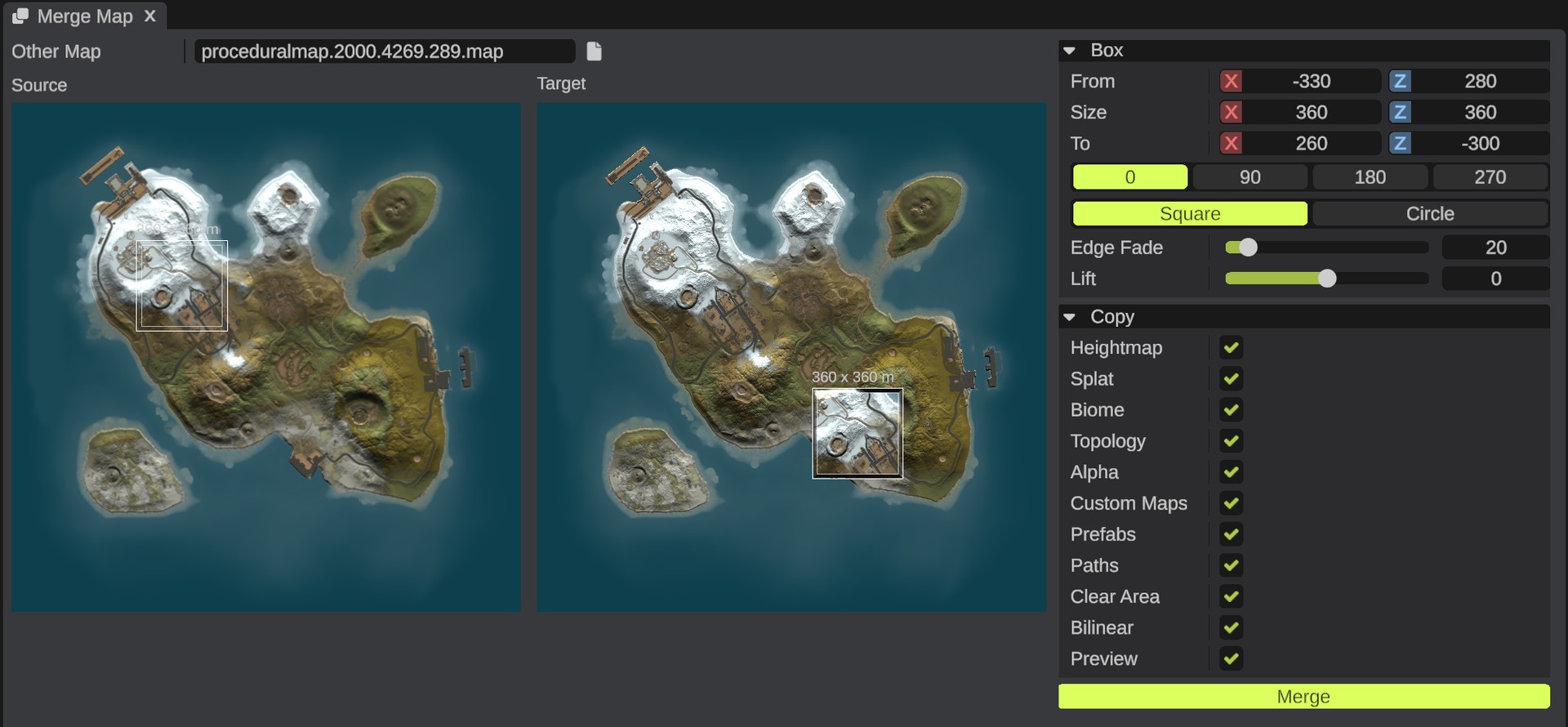
A click on a map picture moves the box to that place. The box on the Source map stays on that map. The box on the Target map may hang over the edge of your map: the part off the map is left out.
Box options
| Option | What it does |
|---|---|
| From | The middle of the box on the other map, in meters from its center (X and Z). |
| Size | The box's width and depth in meters. A new source map starts with a box a quarter of its width, in its middle. |
| To | Where the box's middle lands on your map, in meters from its center (X and Z). |
| 0, 90, 180, 270 | Turns the area clockwise by that many degrees. At 90 and 270 the box's width and depth swap on your map. |
| Square | Copies the whole box. This is the default. |
| Circle | Copies the circle that fits in the box. |
| Edge Fade | Meters inside the box's edge over which the copied terrain blends into your map, from 0 to 200. The default is 20. A fainter inner line on the box shows where the fade starts. |
| Lift | Meters added to the copied heights, from -200 to 200. Below 0 lowers them. The default is 0. |
The area is the same size in meters on both maps. It is not stretched when the maps have different sizes.
Copy options
Everything is on by default.
| Option | What it does |
|---|---|
| Heightmap | Copies the heights. |
| Splat | Copies the ground textures. |
| Biome | Copies the biomes. An older map with four biomes and no jungle copies an empty jungle biome. |
| Topology | Copies the topology. Topology does not fade: it is copied up to the middle of the fade. |
| Alpha | Copies the alpha map. |
| Custom Maps | Copies the custom topology maps. A map with the same name takes the area. A new name makes a new map and adds it to your list. See Custom topology layers. |
| Prefabs | Copies the prefabs, groups and placed monuments whose place is in the box. |
| Paths | Copies the parts of paths that are inside the box. |
| Clear Area | Before the copy, removes your map's prefabs in the box, and its paths that lie wholly in it. It only clears the kinds you copy. Locked prefabs stay. |
| Bilinear | On: blend between pixels when the maps have different resolutions. Off: take the nearest pixel. |
| Preview | Shows the merged heights, splat and biome on the terrain and on your map's picture. Off: the other map's area shows in the target box instead. Your map does not change until you click Merge. |
What changes
- The terrain maps you picked change inside the box.
- The copied prefabs and paths go into a new group named "Merged from" and the other map's name. The group sits at the middle of the target box. See Hierarchy.
- Wires and parent links between the copied prefabs are kept. The copies get new IDs.
- Prefabs and paths that land off your map are left out.
You can merge the same map more than once, for example into two places.
Undo
The whole merge is one undo step. Press Ctrl+Z to take it back.
Tips
- Turn Preview off to see the other map's area inside the target box. This helps you line up roads and coasts.
- Use Lift when the other map's land is higher or lower than yours.
- A wider Edge Fade hides the seam between the maps.
- The preview shows only while the panel is open, and not while the terrain graph shows its own preview.
Troubleshooting
| Problem | What to do |
|---|---|
| Merge is greyed out | Pick a map in Other Map first. |
| "... could not be read" | The file is not a map or scene, or it is damaged. Pick another file. |
| "No preview while the terrain graph shows its own preview" | Apply or stop the terrain graph preview. See Apply and preview. |
| "The map tools work on a map. Close the open monument first" | Go back to the map. |