Prefab Brush
The Prefab Brush paints prefabs onto the map with a brush, the way the terrain tools paint the ground. Use it to fill an area with trees, rocks, bushes or debris in a few strokes instead of placing each one. You choose the prefabs in a list, and the brush picks from the list at random.
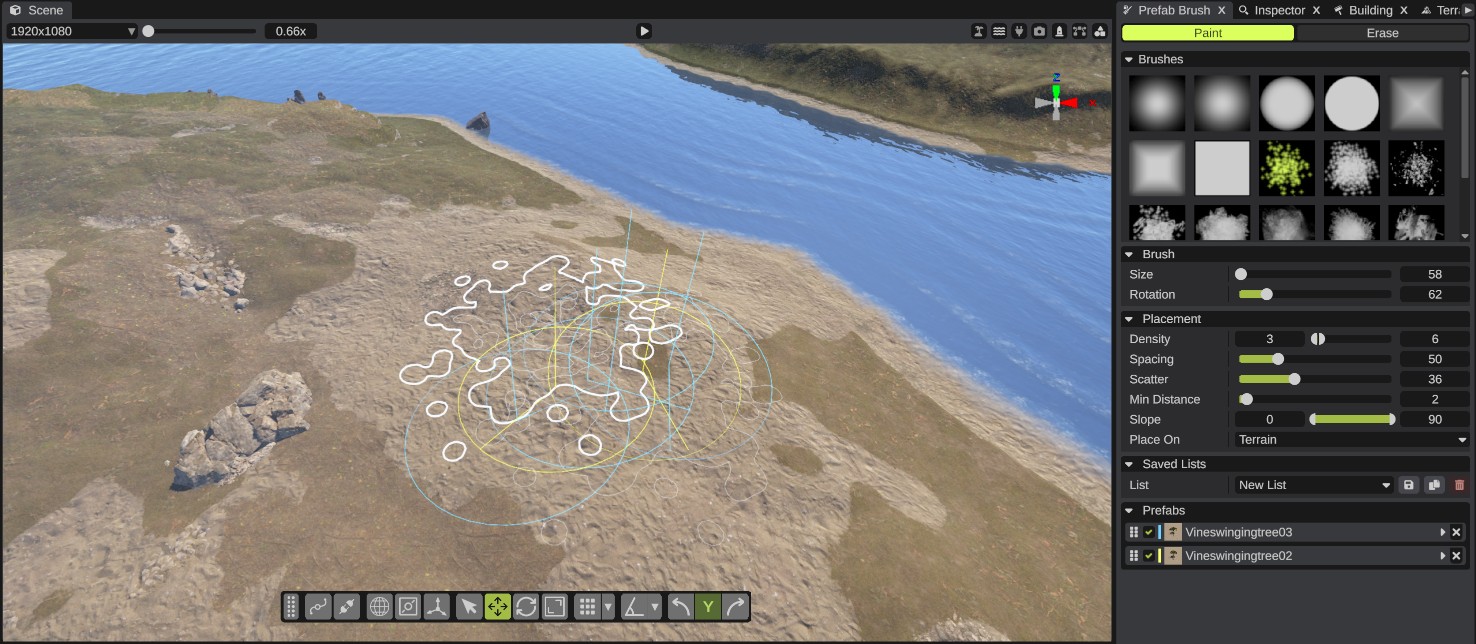
Open the Prefab Brush
Click the Prefab Brush button on the toolbar, or open .
The panel has these parts, from top to bottom: the Paint and Erase buttons, Brushes, Brush, Placement, Saved Lists and the Prefabs list.
Add prefabs to the list
The brush paints the prefabs in the Prefabs list. To add one:
- Drag a prefab from the Content Browser onto the list. While you drag, a ring shows around the list, and a line shows where the prefab will go when you drop it.
- Or right-click a prefab in the Content Browser and click Add to Prefab Brush. It goes to the end of the list. This item shows only while the Prefab Brush panel is the visible tab.
Each prefab can be in the list once. Monuments can be in the list too. To change the order, drag a card by its grip. The order does not change what the brush paints. To remove a prefab, click the X on its card. There is no undo for this.
Prefab cards
Each card's top row has a check box that turns the prefab on or off, a color mark (the color of its rings in the scene view), a picture and the name. Point at the name to see the prefab's path. Click the arrow to open the card.
| Option | What it does |
|---|---|
| Weight | How often this prefab is picked next to the others in the list. 0 to 10, default 1. A prefab with weight 0 is not painted. |
| Scale | The smallest and the biggest size of the prefab, picked at random for each one. 0.05 to 10, default 1 to 1. |
| Random Rotation | How each prefab is turned at random: None (every prefab faces the same way), Around Up (turns each prefab around its up axis, the default) or All Axes (turns each prefab around every axis, for rocks and debris). |
| Align to Surface | Tilts the prefab to the slope of the ground under it. Off by default. |
| Height Offset | Meters up from the ground. Below zero sinks the prefab into it. -20 to 20, default 0. With Align to Surface on, the offset goes along the slope's up direction. |
A prefab that is not found (for example, after a Rust update) shows "(missing)" after its name and is not painted.
How to paint
- Add prefabs to the list.
- Click Paint.
- Pick a brush picture under Brushes, and set Size.
- Move the pointer over the terrain. The scene view shows the brush outline and a ring for each prefab the next stamp will place.
- Hold the left mouse button and drag over the terrain. The first stamp lands when you press. Then a new stamp lands each time the brush has moved the Spacing distance. Holding the mouse still does not keep painting.
- Release the button. The notifications say how many prefabs were placed ("Placed ... prefabs").
Each stroke is one undo step: press Ctrl+Z to take the whole stroke back.
While the brush is on, a click in the scene view paints instead of selecting. The brush shows what it will do before you press: the rings are exactly where the next stamp places its prefabs. A new random layout is rolled after each stamp, and when you move the pointer a little.
How to erase
- Click Erase, or hold Shift while you paint.
- Drag over the prefabs you want to remove. Prefabs that will be removed show a red ring with a cross.
- Release the button. The notifications say how many prefabs were removed.
Erase only removes prefabs that are in the list and turned on (checked, with a weight above 0). It never removes locked or hidden objects, or parts of a linked monument. A prefab is removed when its pivot is inside the brush outline.
Stop the brush
Click the mode button that is on (Paint or Erase) again. The brush also stops when you close the panel, switch to another tab in the same window, turn on another painting tool (such as the terrain tools, the Cliff Brush or the Building tool), or start play mode. Only one painting tool works at a time.
Esc does not stop the Prefab Brush.
The scene view preview
| You see | It means |
|---|---|
| A light line around the brush | The edge of the brush picture. Nothing is placed outside it. A fainter inner line shows where the picture is half strength. The lines turn red while you erase. |
| A faint second outline | Where the stamp can land when Scatter is above 0. |
| A ring in the prefab's card color | A prefab the next stamp places. The ring shows its size. A line shows which way is up and another which way it faces. |
| A red ring with a cross | A spot that is blocked: off the map, outside the Slope range, or too close to another prefab (Min Distance). In erase mode, a prefab that will be removed. |
The brush outline is always drawn on the terrain, even when Place On is Everything, so it can be hidden under roofs or rocks.
Options
Brush
| Option | What it does |
|---|---|
| Brushes | The brush picture. It is the same set of pictures as the terrain tools, including your own pictures in the Brushes folder. See Brushes. |
| Size | The width of the brush in meters. 1 to 500, default 20. |
| Rotation | Turns the brush picture, in degrees. It does not turn the prefabs. 0 to 360, default 0. |
Placement
| Option | What it does |
|---|---|
| Density | How many prefabs each stamp tries to place: a number between the low and the high end, picked for each stamp. 1 to 100, default 3 to 6. |
| Spacing | How far the brush moves between two stamps, in percent of the brush size. 0 to 200, default 50. At 0, every mouse move is a stamp. |
| Scatter | How far each stamp can land from the pointer, in percent of the brush size. 0 to 100, default 0. |
| Min Distance | The closest two prefabs of the list can be, in meters. Prefabs already in the world count too. 0 to 50, default 2. |
| Slope | The slopes of ground a prefab is placed on, in degrees from flat. 0 to 90, default 0 to 90 (any slope). |
| Place On | What the prefabs stand on: Terrain (on the ground only, also under other prefabs) or Everything (on top of whatever is there, prefabs too). Default Terrain. |
RustEdit remembers these settings and the brush picture the next time you start it.
How the brush picture works as a mask
The brush picture is a mask. Its brightness at a spot is the chance that a prefab lands there: in white areas, most tries land, in gray areas fewer do, and where the picture is almost black (outside the outline) nothing lands. So a stamp often places fewer prefabs than Density: Density is how many it tries.
Which prefab goes at each spot is picked by Weight. A soft brush picture gives a thick middle and a thin edge, which looks more natural than a hard circle.
The brush has no topology, biome or height filter. To keep prefabs off roads or rivers, use Slope and a smaller brush, or erase them after.
Saved lists (palettes)
A list of prefabs with their card settings can be saved as a palette (a .palette file), so you can use it again in other maps. Palettes from RustEdit 1 open too: their prefabs get the default weight and no height offset.
| Control | What it does |
|---|---|
| List | Open a saved list, or pick New List to start a new one. |
| Save (disk icon) | Save the list under its name, in the Prefab Palettes folder. A new list asks for a name first. |
| Save As (copy icon) | Save the list under a new name. The old file stays. |
| Delete (trash icon) | Delete the open list's file. Its prefabs stay in the panel until you open another list. |
- Saving under the name of another list asks: "A list named ... is saved already. Replace it?"
- Opening another list while the open one has changes that are not saved asks you to confirm.
- The last saved list opens again when you start RustEdit. Changes you did not save are lost when you close the app.
- There is no rename: use Save As, then delete the old list.
Palettes are in the Prefab Palettes folder. Set it in the settings under Paths > Prefab Palettes. When no folder is set, RustEdit uses the PrefabPalettes folder next to the app.
Troubleshooting
| Problem | What to do |
|---|---|
| "Add prefabs to the prefab brush list first, drag them in from the Content Browser" | The list is empty, or every card is off, has weight 0 or is missing. Add prefabs or turn cards on. |
| Nothing lands, or fewer prefabs than expected. | Raise Density, lower Min Distance, widen Slope, or use a brighter brush picture. Red crosses show blocked spots. |
| A press does nothing. | The pointer must be over the ground when you press. |
| "... is already in the prefab brush list" | Each prefab can be in the list once. |
| "... prefabs of the list ... were not found" | The palette has prefabs that are not in your Rust install, for example after an update. They show as "(missing)". |