Sockets
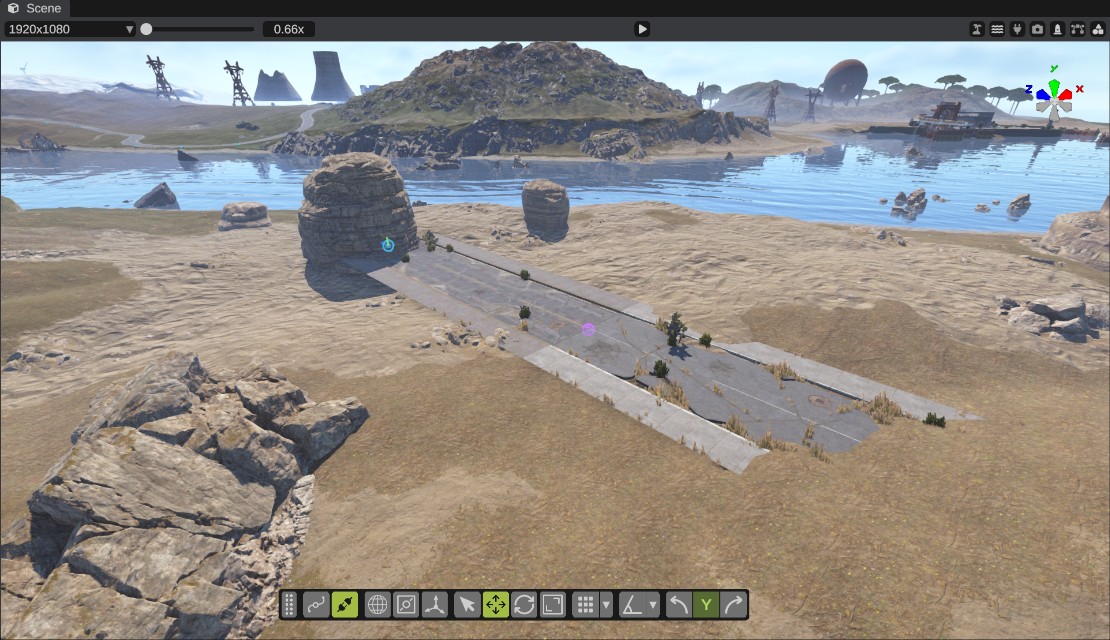
Sockets are points on a prefab where it joins another prefab, such as the ends of a road piece, a tunnel or a pipe. Drag one socket onto another and RustEdit moves the prefab so the two pieces meet exactly. The two prefabs then stay linked: when you move one, the other moves with it.
Which prefabs have sockets
RustEdit comes with sockets for about 380 Rust prefabs, including:
- roads, rail tracks and train tunnels
- tunnels, tunnel links and stations
- caves, sewers, pipelines and pipes
- the timber mine, bunker rooms and perimeter walls
- building foundations, floors, walls and stairs
You can give any other prefab sockets with the socket editor.
Show sockets
Click the sockets button (the socket icon) on the transform widget in the scene view. Its tooltip starts with "Show sockets". Click it again to hide them. RustEdit remembers the setting.

Links keep working while sockets are hidden: linked prefabs still move together.
What the markers mean
| Marker | Meaning |
|---|---|
| Light blue dot and ring | A free socket. The color is the socket's type color; built-in sockets are light blue. |
| Blue arrow | The way the socket faces: out of the prefab, toward the piece it joins. |
| Green line | The socket's up direction. |
| Purple dot and ring | Two linked sockets. A link is drawn as one marker. |
| Red dot and ring with a red line | A link whose sockets no longer meet. |
| Orange ring | The active socket: the one you clicked last. |
| White ring and a label | The socket under the pointer, with its name and type. |
Markers keep the same size on the screen and fade out far from the camera. Sockets of hidden prefabs are not drawn.
Connect two prefabs
- Turn on the sockets button on the transform widget.
- Place the two prefabs near each other.
- Point at a free socket of the prefab you want to move.
- Hold the left mouse button and drag onto a free socket of the other prefab. Sockets that cannot join dim while you drag.
- Release the button. The prefab you dragged from (and everything already linked to it) moves and turns so the two sockets meet. The other prefab does not move. The sockets turn purple, and the notifications say "Connected the sockets".
To cancel a drag, press the right mouse button or Esc. Each connect is one undo step.
To connect, you drag from a free socket. To move a socket that is already linked, disconnect it first.
Disconnect
- Alt and click a linked socket to break its link.
- Or select the prefab and click Disconnect in the Sockets panel of the Inspector.
Move linked prefabs
Linked prefabs move as one piece. When you move or turn a prefab, everything linked to it, directly or through other links, moves with it. This works for the gizmo, typed values in the Inspector, Snap to Ground and the other move tools.
- To move one prefab on its own, turn on Move Individually in the Sockets panel. Links between the moved prefabs and the ones left behind break when you start the move. Undo brings them back.
- Linked prefabs cannot be scaled. Turn on Move Individually to scale one on its own.
- If a prefab in the group is locked, nothing in the group can move.
- Click Select Connected in the Sockets panel to select every prefab joined to the selection.
Turn a linked piece (Spin)
Some sockets can join at more than one angle, for example square pieces that fit at every 90 degrees. Click the linked socket to make it active, then click Spin in the Sockets panel. The piece on that side of the link turns by one step around the socket. Spin does not work on a link that is part of a loop.
How links are saved
Links are saved in the scene file. They are not in the exported map: Rust does not use them. Copies made with Duplicate keep the links between the copies. When you delete a linked prefab and undo, its links come back.
If a saved link's prefab or socket is gone (for example, a socket was renamed in a socket file), the link is dropped when the scene opens, and a warning says how many.
Edit a prefab's sockets
You can add, move, turn and delete the sockets of any prefab. The change applies to every copy of that prefab.
- Turn on the sockets button on the transform widget. The Sockets panel only shows while sockets are shown.
- Select one prefab.
- In the Sockets panel, click Edit Sockets. The socket editor opens. The selection is locked, and the move and rotate gizmo now works on the active socket.
- Click a socket in the scene to pick it, or click Add Socket to add one in the middle of the prefab.
- Move and turn the socket with the gizmo, or type its Position and Rotation.
- Set its Name, Type and Roll Step if you need to.
- Click Save.
- Click Stop Editing, or press Esc.
The socket editor has no undo. Revert reads all socket files again, which throws away unsaved socket changes on every prefab. If you close the editor without saving, the changes stay until you reload the socket files or restart RustEdit, and they are then lost.
Socket editor fields
| Field | What it does |
|---|---|
| Name | The socket's name. Links find their socket by name. |
| Type | Sockets connect when their types allow it. The default type connects to everything. |
| Position | Position in the prefab's space. |
| Rotation | Rotation in the prefab's space. The socket's forward axis points out of the prefab. |
| Roll Step | Above 0, the socket can join at every multiple of this many degrees around its forward axis. 0 to 180. |
| Add Socket | Adds a socket in the middle of the prefab. |
| Delete Socket | Deletes the active socket and its links. |
| Save | Writes this prefab's sockets to its socket file. |
| Revert | Reads the socket files again. Unsaved socket changes are lost. |
Socket files
Socket definitions are JSON files in the Configuration/sockets folder next to the app.
default.jsonholds the built-in sockets. RustEdit replaces it when a new version has newer built-in sockets, and keeps the old one asdefault.json.bak. Do not edit it.- The socket editor saves your changes to
custom.json(or to the file the prefab's sockets came from, when that is notdefault.json). - Other
.jsonfiles load afterdefault.json, in name order. A later file replaces a prefab's whole socket list.
After you edit a socket file by hand, click . The notifications say how many prefabs and sockets were loaded.
A socket file looks like this:
{
    "version": 1,
    "types": {
        "pipe": { "color": "1 0.5 0 1", "connects": [ "pipe" ] }
    },
    "prefabs": {
        "assets/bundled/prefabs/example/pipe_straight.prefab": [
            { "name": "front", "type": "pipe", "position": "0 0 4", "rotation": "0 0 0", "rollStep": 90 },
            { "name": "back", "type": "pipe", "position": "0 0 -4", "rotation": "0 180 0", "rollStep": 90 }
        ]
    }
}
types: each type has acolor(red, green, blue and alpha, 0 to 1) and the types itconnectsto."*"connects to every type. Two sockets can join when either type lists the other. The built-indefaulttype connects to everything.prefabs: the full prefab path, then its sockets.typecan be left out (it is thendefault), and so canrollStep(0).- Numbers in
position,rotationandcolorare written with spaces between them, and with a dot as the decimal mark on every computer. A file written with decimal commas by an older version still reads.
Settings
Under Sockets in the settings:
| Setting | What it does |
|---|---|
| Draw Distance | How far from the camera sockets are drawn, in meters. 10 to 2000, default 150. |
| Handle Size | The size of the socket markers on the screen, in pixels. 4 to 48, default 16. |
Building blocks
The Building tool snaps building blocks with Rust's own building sockets, not with these sockets, and it does not link them. Placed blocks still show their free sockets, often two at the same spot. Building blocks only move together if you link them yourself.