Gallery
The Gallery panel shows screenshots that RustEdit users uploaded, newest first. Use it to see what other people build, and to share a picture of your own map. Everyone can look at the gallery. To upload a picture, you need RustEdit Plus and a RustHQ account.
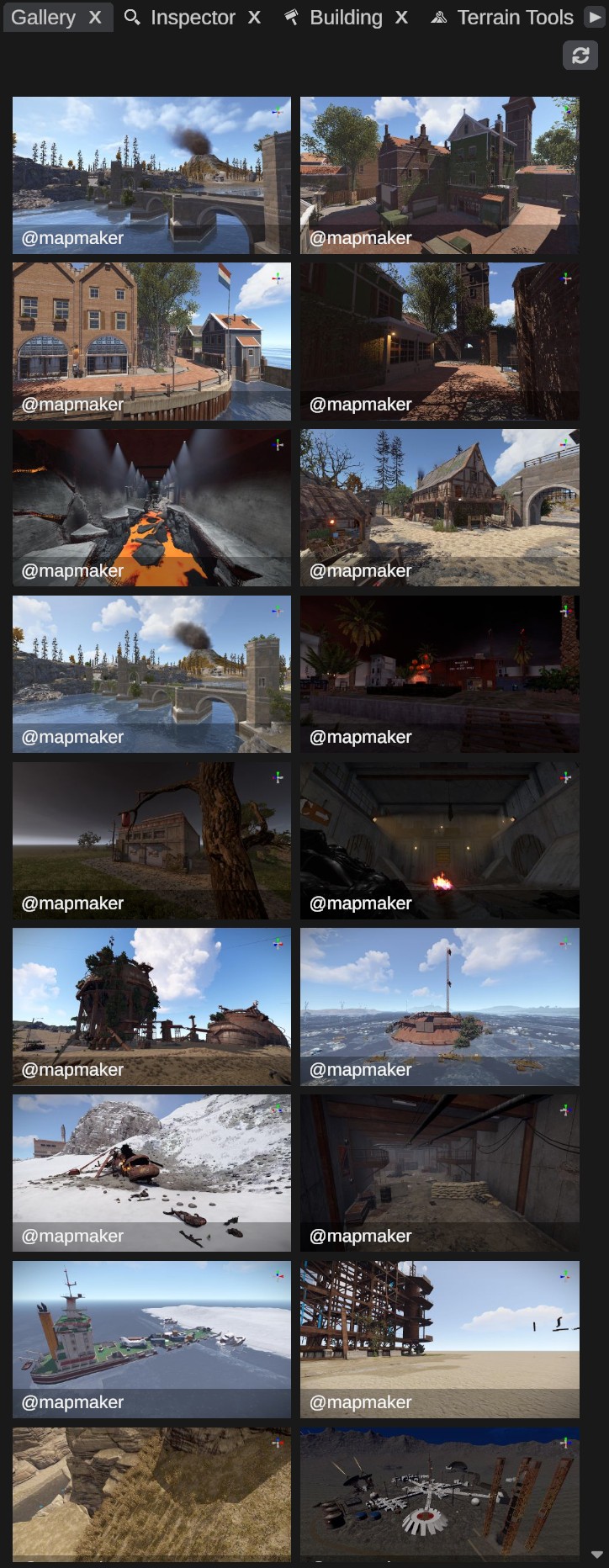
Open the gallery
- Open .
The panel also opens by itself when you take a screenshot to upload.
The panel shows a grid of pictures, with the name of the person who uploaded each one ("@name"). The grid fits as many pictures in a row as the panel's width allows.
- Click a picture to open it big. The viewer shows the name and the date it was uploaded. Use the arrow buttons to go to the previous or next picture, and the close button to go back to the grid.
- Click Refresh to load the list again.
RustEdit keeps the pictures it has downloaded in the Images/Gallery folder next to the app, so they open faster the next time. When the gallery cannot be reached, the panel says so and shows the pictures saved on your computer.
Upload a screenshot
RustEdit PlusBefore you start
- You need RustEdit Plus or higher.
- Sign in to your RustHQ account. See Account and sign-in. Your RustHQ name shows under the picture.
How to upload
- Set up the view you want in the scene view.
- Click the camera button in the scene view's header. The button's tooltip says "Upload a screenshot of the scene view to the gallery". RustEdit takes a picture of the scene view without the editor's drawings: no gizmos, handles, placeholders, splines, selection outline or brush. The Gallery panel opens with the picture.
- Check the picture. The viewer reminds you: "Everyone can see an uploaded picture".
- Click Upload, or click Cancel to throw the picture away. When the upload is done, the app says "Screenshot uploaded to the gallery" and the picture is first in the grid.
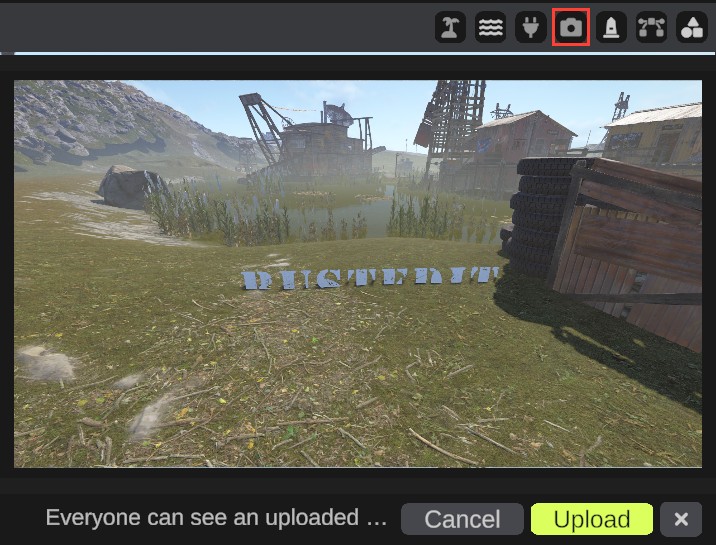
Without RustEdit Plus, the camera button is greyed out. Its tooltip says which tier it needs.
Cancel throws the picture away: nothing is saved on your computer.
To save a picture on your computer instead, press F12. RustEdit saves a 1920 x 1080 JPG in the Images/Screenshots folder next to the app and says where. This picture is not uploaded. The F12 picture shows the scene view as it is, with the transform gizmo, the selection outline and the placeholders, but no panels. The camera button's picture leaves those out.
Limits
| Limit | Value |
|---|---|
| Picture width | A wider scene view is made smaller to 1920 pixels wide. |
| File size | The picture is saved as a JPG of at most 1 MB. RustEdit lowers the quality until it fits. |
| How often | One upload a minute. |
Troubleshooting
| Message | What to do |
|---|---|
| "Sign in to RustHQ to upload a screenshot" | Sign in to your RustHQ account, then click the camera button again. |
| "You can upload another screenshot in ... seconds" | Wait, then try again. |
| "The screenshot is too big to upload" | The picture did not fit in 1 MB even at the lowest quality. The picture has the size of the scene view (at most 1920 pixels wide), so make the scene view smaller and try again. |
| "The gallery could not be reached. Showing the pictures saved on this computer." | Check your internet connection, then click Refresh. |
| "You are not allowed to upload screenshots" | Your account or computer cannot upload to the gallery. Ask for help in the RustEdit forum or on the Discord server. |