Custom Data
Custom data lets you add your own fields to prefabs. You write a small JSON file, a manifest, that lists the fields and the prefabs that get them. The Inspector then shows a section with those fields on each of those prefabs. The values are saved with the scene and the exported map, for server plugins.
Use it when a plugin needs settings for each object on the map: a loot tier for a crate, a patrol mode for a spawner, a message for a sign.
Where manifests go
RustEdit reads every .json file in the Custom Prefab Fields folder, sub folders too. Set the folder in the settings, under Paths > Custom Prefab Fields. When no folder is set, RustEdit uses the CustomPrefabFields folder next to the app and makes it if it is missing. A change to this setting needs a restart.
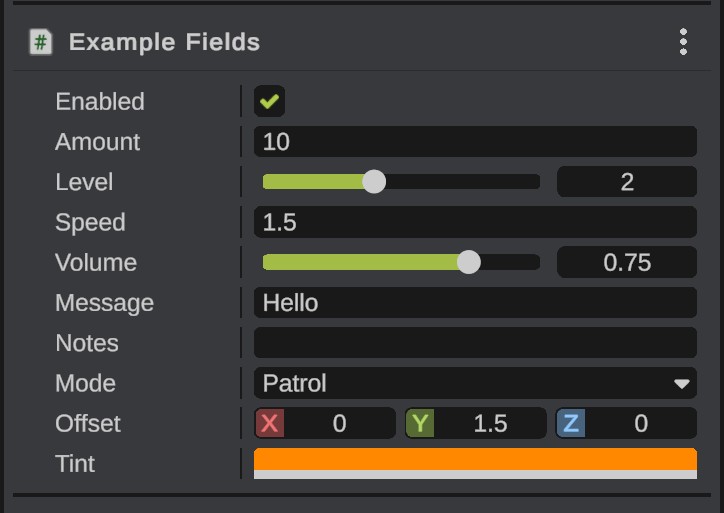
At start, RustEdit writes an example manifest, example.json, into the folder when the file is missing. It has every field type. Its prefab paths match no prefab, so it adds nothing to your maps. Copy it to start your own manifest.
How to add fields to prefabs
- Open the Custom Prefab Fields folder.
- Copy
example.jsonand give the copy a new file name. - In the copy, set a unique
name, for example"MyPlugin.CrateSettings". - Put the prefab paths in
prefabs. To get a prefab's path, select it in the scene and use Copy Asset Path(s) in the Name row of the Inspector. - Edit the
fieldslist. - Save the file.
- Click . RustEdit reads the manifests again.
- Select one of the prefabs. The Inspector shows a section with your fields.
The manifest file
A manifest is one JSON object. This is a short one:
{
    "name": "MyPlugin.CrateSettings",
    "title": "Crate Settings",
    "description": "Settings the MyPlugin server plugin reads for each crate.",
    "author": "Your name",
    "version": "1.0.0",
    "url": "https://example.com/myplugin/help",
    "prefabs": [
        "assets/bundled/prefabs/radtown/crate_normal.prefab",
        "assets/bundled/prefabs/radtown/crate_*"
    ],
    "fields": [
        { "name": "lootTier", "type": "int", "default": 1, "min": 1, "max": 3 },
        { "name": "mode", "type": "enum", "options": [ "Off", "Patrol", "Guard" ], "default": "Patrol" },
        { "name": "message", "type": "string", "default": "", "multiline": true, "label": "Message", "description": "Shown to players who open the crate." }
    ]
}
Top-level keys
| Key | What it does |
|---|---|
name | Required. The key the values are saved under. It must be unique, so use a form like "PluginName.DataName". |
title | The section's title in the Inspector. When it is empty, the name is the title. |
description | Shown when the pointer is on the section's title. |
author, version | For you and the people who use your manifest. |
url | A help page. The section's ? button opens it. Without a url, the section has no ? button. |
prefabs | Required. The paths of the prefabs that get the fields. A * stands for any text and a ? for one character, so "assets/prefabs/deployable/*" matches every prefab in that folder and its sub folders. Paths are not case-sensitive. |
fields | Required. The list of fields. |
Field keys
| Key | What it does |
|---|---|
name | Required. The key the value is saved under. It must be unique in the manifest. |
type | Required. One of the types in the next table. |
default | The value a prefab starts with. When it is left out, the type's own default is used. |
label | The field's name in the Inspector. When it is empty, RustEdit makes the name readable: lootTier and loot_tier both show as "Loot Tier". |
description | Shown when the pointer is on the field. |
min, max | Numbers only: the lowest and highest value. A value outside them changes to the nearest limit. With both, the field is a slider. If min is bigger than max, they are swapped. |
options | Enums only: the choices. |
multiline | Strings only: true makes a text box with more than one line. |
Field types
| Type | Other names | Value | Default when left out |
|---|---|---|---|
bool | boolean | true or false | false |
int | integer | A whole number. A number with decimals is rounded. | 0 (or min) |
float | number | A number with decimals | 0 (or min) |
string | text | Text | Empty |
enum | One of the options. The value is saved as the option's text. If you rename or remove an option, prefabs that had it get the default. | The first option | |
vector3 | vector | X, Y and Z. Write the default as [0, 1.5, 0] or {"x": 0, "y": 1.5, "z": 0}. | 0, 0, 0 |
color | colour | "#RRGGBB", "#RRGGBBAA" or a name such as "red" | White |
Edit the values
A manifest's section shows when every selected object is a prefab that the manifest lists. One prefab can get sections from more than one manifest. The sections come after the prefab's own panels, in the order of their file paths.
- Each field type has its own control: a toggle for
bool, a number box or slider forintandfloat, a text box forstring, a dropdown forenum, X, Y and Z boxes forvector3, and a color picker with alpha forcolor. - Select several prefabs to edit them together. A field shows a dash when the selected prefabs have different values. A change goes to all of them.
- Each change is one undo step. Changes to the same field within a second join into one step, so a slider drag is one step.
- To go back to the manifest's defaults, click the gear button on the section's title row, then click Reset to Defaults. It resets every field of the section on the selected prefabs, as one undo step.
- Parts of a linked monument show their values, but you cannot change them. Their values come from the monument's file.
How values are saved
Each prefab saves every field of every manifest that lists it, also fields you did not change. The values go into the scene file and into the RustEdit data of the exported map, for prefabs that Rust places itself too. If the map has a password, this data is locked with it. When you open an exported RustEdit 2 map, the prefabs get their values back.
On the server, the RustEdit 2 server extension reads the custom data of the map. See The RustEdit 2 server extension. Plugin developers will read the values through the extension, in a later version of it.
Duplicate copies the values to the new objects.
Because every value is saved, changing a default in the manifest does not change prefabs in scenes you saved before. They keep the old value.
Values are kept when a manifest is missing. If you open a scene on a computer without the manifest, or a manifest no longer lists a prefab, the values stay on the prefab and are saved again. The Inspector shows them in the Unused Custom Data panel, where you can remove them.
The value of a field that you took out of a manifest is kept and saved again too, but the Inspector does not show it.
Troubleshooting
RustEdit checks each manifest when it loads it. A file or field it cannot use is left out, and a warning in the Notifications panel says why. After loading, a line says how many manifests were loaded, for example "[Custom Data] Loaded 2 manifests from ...". The example manifest counts too.
| Warning says | What to do |
|---|---|
| "is not loaded. It could not be read" | The file is not valid JSON. Check the commas, quotes and brackets. |
| "is not loaded. It has no name" | Add a name. |
| "is not loaded. The name ... is used by ..." | Two manifests have the same name. The file that comes first by file path is used. Give the other one its own name. |
| "is not loaded. It lists no prefabs" | Add at least one prefab path. |
| "is not loaded. It has no fields that can be used" | Add fields, or fix the warnings about them. |
| "a field has no name" / "is in the list more than once" | Give every field its own name. |
| "has the type ..." | Use one of the types in the table above. |
| "the enum field ... has no options" | Add options. |
| "the default ... cannot be read as its type" | Fix the default. Until then, the type's own default is used. |
If a section does not show, check that the prefab path is right and that all selected objects are prefabs the manifest lists.