Building Tool
The Building tool builds with Rust's own building blocks: foundations, floors, walls, stairs and roofs. You place pieces in the scene view the way you do in the game, and they snap to each other on Rust's building sockets. Use it to put bases, ruins or player-style buildings on your map.
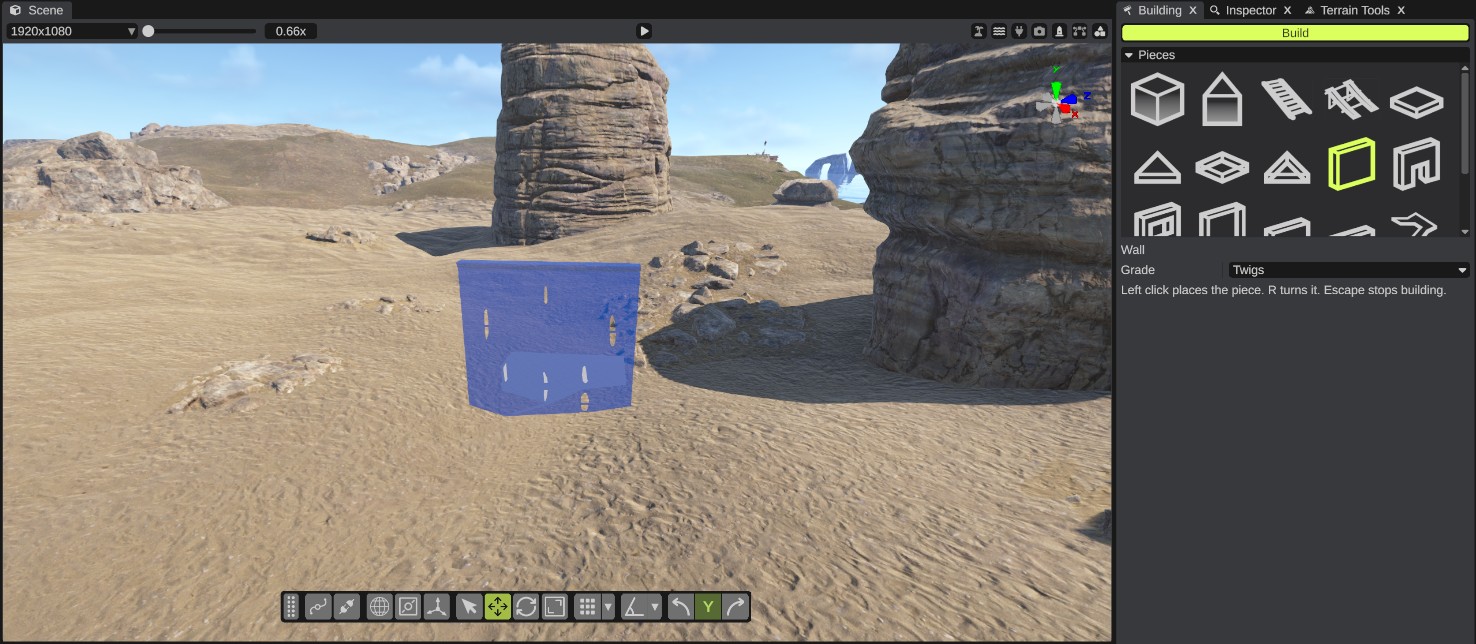
Open the Building tool
Click the Building button on the toolbar, or open .
The panel has:
| Control | What it does |
|---|---|
| Build | Turns the tool on and off. |
| Pieces | The building pieces. Click one to pick it; this also turns the tool on. The name of the picked piece shows under the grid. |
| Grade | The grade new pieces get: Twigs, Wood, Stone, Sheet Metal or Armored. Default Twigs. |
The panel reminds you of the keys: "Left click places the piece. R turns it. Escape stops building."
Pieces
The pieces are Rust's building pieces. The panel shows these names, in this order:
- Foundations: Foundation, Triangle Foundation, Steps, A ramp
- Floors: Floor, Floor Triangle, Floor Frame, Floor Triangle Frame
- Walls: Wall, Doorway, Window, Wall Frame, Half Wall, Low Wall
- Stairs: U Shaped Stairs, Stairs L Shape, Stairs Spiral, Stairs Spiral Triangle
- Roofs: Roof, Roof Triangle
The names come from the game's files. Pieces that a newer Rust version adds come at the end of the list.
How to build
- Open the Building panel.
- Pick a piece, for example a foundation.
- Pick a Grade.
- Move the pointer over the scene view. A see-through copy of the piece follows the pointer. It is blue where the piece can go and red where it cannot. When it is red, the reason shows above it.
- Press R to turn the piece. Each press turns it by Rust's step for that piece.
- Left-click to place the piece.
- Pick the next piece, for example a wall, and point at the foundation. The piece snaps to the nearest free spot on the pieces you already placed.
- Press Esc with the pointer over the scene view to stop building.
Each placed piece is one undo step: press Ctrl+Z to take it back.
The see-through preview always shows the Twigs look. The placed piece gets the grade you picked.
How pieces snap
The tool uses Rust's own building rules:
- A new piece snaps to a free building socket of a placed piece near the pointer (within 3 m). The piece and the socket must fit, as in the game: a wall goes on a foundation edge, a floor on top of walls.
- When no socket fits, foundations go on the surface under the pointer: terrain, rocks or other prefabs. A foundation faces away from the camera.
- Corner and edge parts of foundations, walls and roofs show up on their own when pieces meet, as in the game. They can take a moment to appear.
RustEdit does not check building privilege or other player permissions: there is no player and no tool cupboard in the editor. You can build anywhere the building rules allow.
Why a piece is red
| Reason | What to do |
|---|---|
| "Not in terrain" | A foundation must touch the ground. Point lower, or at the terrain. |
| "Placing through rock", "Placing through wall", "object in placement path" | Something is in the way. Move the pointer or remove the object. |
| "Placing too close to road" | Roads and rails block building, as in the game. Build farther away. |
| "Not enough space" | Another piece or object is too close. |
| "Too close to another building" | A separate building is too close, as in the game. Build farther away from it. |
| "Must be placed on a construction" | This piece needs another building piece under or next to it. |
| "Invalid angle" | Turn the piece with R, or pick another socket. |
| "Water is too deep" | Build in shallower water or on land. |
| "Does not fit here" | No socket fits the piece here, or a building rule blocks it. |
Change a placed piece
Select a placed building block. The Inspector shows:
- Building Block: change its Grade. The block changes to that grade's model. You can change several blocks at once. The Inspector names the grades Twigs, Wood, Stone, Metal and Top Tier. Metal is the panel's Sheet Metal and Top Tier is Armored.
- Base Combat Entity: Indestructible, on by default.
Move, turn, duplicate and delete blocks like any prefab. See Selection and transform. Neighbors update their corner parts when a block moves.
There is no skin choice: each grade uses its standard look. Skins such as adobe or brick cannot be picked.
Stop the Building tool
Click Build to turn it off, or press Esc with the pointer over the scene view. The tool also stops when you close the panel, switch to another tab in the same window, turn on another painting tool (terrain tools, Prefab Brush, Cliff Brush) or start play mode. Only one of these tools works at a time.
While the tool is on and the pointer is over the scene view, R turns the piece instead of picking the scale tool. A left click places a piece and does not select anything. The right mouse button is not used by the tool.
Buildings in the exported map
Building blocks are Rust entities. They are saved in the RustEdit data of the exported map, not in Rust's own prefab list. On the server, the RustEdit 2 server extension spawns them. See The RustEdit 2 server extension.
The Building tool does not link pieces with RustEdit sockets. Placed blocks still show their free socket markers when sockets are shown. To move a building as one piece, select all its blocks, or group them under an empty object in the Hierarchy.