Create and Edit Monuments
You build a monument in its own scene. The scene opens on top of your map, like a prefab in Unity's prefab mode. Your map stays open behind it, and you go back to it with one click.
How to make a new monument
- Click . RustEdit asks if you want to go on. Click Confirm.
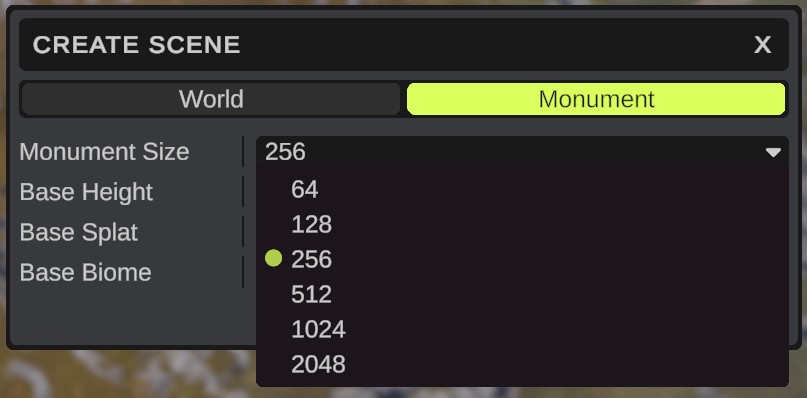
- In the Create Scene dialog, pick Monument at the top.
- Pick a Monument Size: 64, 128, 256, 512, 1024 or 2048 meters. This is the width of the monument's square of terrain.
- Set Base Height, Base Splat and Base Biome for the starting ground.
- Click Create. The new monument opens on top of your map.
Pick the smallest size that holds your build. The map generator keeps other monuments away from the monument's whole square, and a placed monument puts terrain onto the whole square unless you paint a blend map.
You can also make a monument from things already on a map. See Convert to Monument. To turn CopyPaste files into monuments, use . See Prefab tools.
How to open a monument to edit it
Use one of these:
- In the Content Browser, open the Monuments folder, right-click the monument and click Edit Monument.
- In the Hierarchy, right-click a placed monument and click Edit and the monument's name. On a part of a placed monument, this opens the monument the part belongs to.
- Open the monument's
.assetfile with .
and close every monument that is open first, without saving. Edit from the Content Browser or the Hierarchy opens the monument on top of the scene you are in.
The monument's scene
While a monument is open:
- The monument bar shows over the scene view. It has a Back button, the path from your map to the open monument (for example
MyMap / Bunker), a dot when there are unsaved changes, a Save button and a Publish To RustHQ button. - The root. Everything in the monument sits under one root entity at the top of the Hierarchy. It is named after the monument's file, or New Monument until you save a new one. Anything you place, paste or drop goes under the root by itself. The root stays: you cannot delete, copy or rename it. Its position is the monument's pivot, the point that lands where you place the monument.
- The Inspector shows the Monument panel and the Map Generation panel when you select the root. Monument holds the monument's information and the terrain it saves. Map Generation holds the settings for Rust's map generator.
- The Content Browser shows a Procedural folder with the monument attributes.
- The Terrain Tools list a Blend layer for painting the blend map. See Paint the blend map.

You edit the monument with the same tools as a map: place prefabs, sculpt and paint the terrain, wire IO and so on.
Choose the terrain the monument saves
A monument saves only the terrain maps you switch on.
- Select the root in the Hierarchy.
- In the Monument panel, under Terrain saved with the monument, switch on Height, Splat, Biome, Topology and Alpha as you need.
A new monument has all of them off. A monument made with Convert to Monument has the ones you picked in its dialog.
The monument saves the terrain as you see it: the terrain you sculpted and painted, together with the terrain changes of the prefabs in it.
Paint the blend map
The blend map says where a placed copy of the monument puts its terrain onto the map, and how strongly. Where it is full, the map gets the monument's terrain. Where it is empty, the map keeps its own terrain. In between, the two mix. Topology does not mix: a placed copy takes the monument's topology where the blend map is at least half.
- Open the Terrain Tools and click Paint.
- Set Layer to Blend. This layer is only in the list while a monument is open.
- Pick Paint Blend to add to the blend map, or Erase Blend to take away from it.
- Paint in the scene view. The scene view shows the blend map while you paint.
A monument with no blend map puts its terrain onto the whole square at full strength. The first time you pick the Blend layer, the monument gets a blend map, even if you paint nothing, and it starts empty. From then on, placed copies use only the parts you paint. A monument saved with an empty blend map puts no terrain onto the map at all.
A blend map cannot be removed again. If you picked Blend by mistake, paint the whole square with Paint Blend at full strength, so placed copies get all of the monument's terrain again.
How to save a monument
- Click Save on the monument bar, or use (Ctrl+Shift+S).
- The first time, pick a file name. The dialog opens in the Custom Monuments folder. Keep the file in that folder, or in a folder inside it.
saves the monument under a new name. The open monument then uses the new file. Save and Export is off while a monument is open: you export maps, not monuments.
When you go back, every placed copy of the monument in the scene behind it updates from the saved file.
How to go back to the map
Click Back on the monument bar. When the monument has unsaved changes, RustEdit asks first:
- Save saves the monument, then goes back.
- Don't Save goes back and leaves the changes out.
- Cancel stays in the monument.
Undo and selection inside a monument
Each open scene keeps its own undo history and its own selection.
- The monument's undo history starts empty when it opens. Ctrl+Z only undoes what you did in the monument.
- When you go back, the map's undo history and selection come back as you left them. The camera goes back to where it was too.
- The monument's undo history is gone when you close it.
- Changes in the Inspector panels of the root and of monument attributes are not undo steps. They still mark the monument as unsaved.
Monuments inside monuments
You can place a monument inside another monument, from the Content Browser, as on a map. It stays linked to its own file, in blue.
- To edit the inner monument, right-click it in the Hierarchy and click Edit and its name. It opens on top, and the bar shows the whole path, for example
MyMap / Town / House. Back takes you one step back. - When you save the inner monument, its copies update everywhere, also inside other monuments.
- A monument cannot be opened twice. RustEdit logs a message when the monument is already open.
- A monument cannot hold itself. RustEdit does not build a copy of a monument inside itself.
A placed monument inside another monument does not add its own terrain to the map. Its terrain is already in the outer monument's saved terrain. When you change the inner monument's terrain, open the outer monument and save it again, so its saved terrain has the change.