Convert to Monument
Convert to Monument turns entities you selected into a new monument. It copies them, and the terrain around them, into a monument that opens on top of your map. When you save the monument and go back, a placed copy of the monument takes the place of the entities.
Before you start
- Build the group on a map, or in another monument, with its terrain sculpted and painted.
- Select everything that should go into the monument. Entities under a selected entity come with it.
- Parts of placed monuments are left out. To take a whole placed monument along, select the placed monument itself. It goes into the new monument as a monument inside it.
- Convert to Monument is off while the root of an open monument is in the selection.
How to convert a selection
- Select the entities in the scene view or the Hierarchy.
- In the Hierarchy, right-click one of the selected rows and click Convert to Monument.
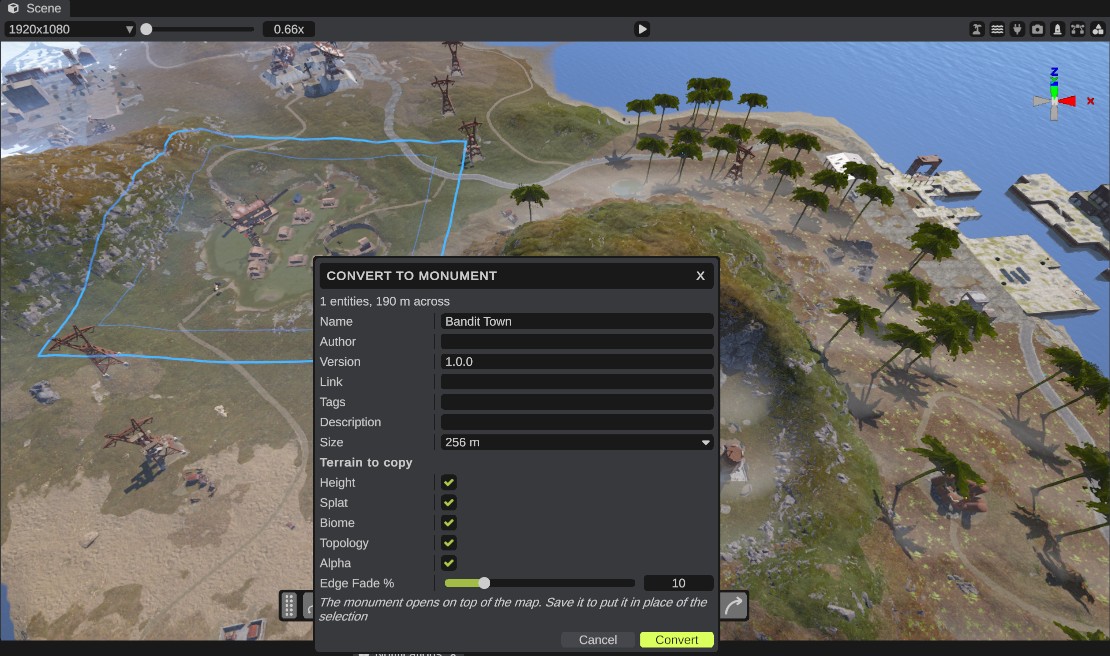
- In the dialog, give the monument a Name and fill in the other options. A blue square on the terrain shows the monument's size.
- Click Convert. The new monument opens on top of the map, with your entities and a copy of the terrain.
- Change the monument if you like, then click Save on the monument bar. RustEdit saves it in the Custom Monuments folder under the name you gave. It does not ask for a file name.
- Click Back. A placed copy of the monument takes the place of the entities you selected, and RustEdit selects it. When the entities had the same parent, the placed copy goes under that parent.
The swap is one undo step. Press Ctrl+Z to get the entities back.
If you go back without saving, nothing changes on the map. RustEdit logs that the monument was not saved in the monuments folder.
The dialog does not stop you from using the scene view. You can move the camera to look at the square while the dialog is open. The dialog closes if you open another scene or monument.
Options
The line at the top of the dialog says how many entities you selected and how wide they are, in meters.
| Option | What it does |
|---|---|
| Name | The monument's file name in the Custom Monuments folder. It starts as the name of the selected entity, or New Monument when you selected more than one. When a file has that name already, RustEdit adds a number. The name cannot be empty, cannot have characters that a file name cannot have, and cannot be the name of a monument that exists. |
| Author | Who made the monument. RustEdit remembers it for the next monument you convert. |
| Version | The monument's version. It starts at 1.0.0. |
| Link | A web address for the monument. |
| Tags | Words about the monument, with commas between them. |
| Description | What the monument is. It can have more than one line. |
| Size | The width of the monument's square of terrain: 64, 128, 256, 512, 1024 or 2048 meters. RustEdit picks the smallest size that holds the selection with 16 meters of room on each side. A smaller size shows a warning: part of the selection is outside the square. When the selection is too wide even for 2048 meters, you cannot convert it. |
| Height | Copy the map's heights into the monument. Off: the monument's ground is flat, at the height of the ground in the middle of the square. |
| Splat | Copy the map's ground textures. Off: grass. |
| Biome | Copy the map's biomes. Off: temperate. |
| Topology | Copy the map's topology. Off: no topology. |
| Alpha | Copy the map's terrain holes. Off: no holes. |
| Edge Fade % | How far in from the edges a placed copy fades into the map, as a part of the square's width, from 0 to 50. It starts at 10. A fainter square on the terrain shows where the fade ends. 0 makes no blend map, so placed copies put the terrain onto the whole square. |
The Height, Splat, Biome, Topology and Alpha switches are all on at first. They also become the monument's Terrain saved with the monument switches, so the saved monument keeps the terrain you copied. See Monument.
What the new monument gets
- The entities. They keep their places around the middle of the square. Their sizes stay as they were on the map.
- The terrain. RustEdit copies the terrain as you see it on the map: the ground you sculpted and painted, together with the terrain changes of the prefabs on it.
- The pivot. The monument's root stands on the ground in the middle of the square. That point lands where the placed copy goes, so the copy fits the map where the entities were.
- A blend map when Edge Fade % is more than 0: full in the middle and fading to nothing at the edges. You can paint it further. See Paint the blend map.
Where the square goes past the edge of the map, the terrain copy repeats the terrain at the map's edge outward.
Wires between the entities you converted and entities you left on the map are not kept, in either direction. The monument has no wires to the map, and the swap takes the wires off the entities on the map. Wires between the converted entities stay.
Tips
- To convert part of a monument into a smaller monument, open the monument and convert there. The smaller monument then takes the place of the entities inside the open monument.
- Turn off the terrain maps you do not want placed copies to change. For example, turn off Topology to leave the map's topology alone where you place the monument.