Monument Attributes
Monument attributes are points you put inside a monument. They tell Rust's map generator where the monument may spawn, how high it sits, and what it keeps clear. They are Rust's own monument parts, with Rust's own settings, so the generator reads them the way it reads Rust's monuments.
Attributes do nothing when you place a monument by hand. They count when the map generator places it. See Map generation settings.
Before you start
- Open the monument. See Create and edit monuments.
- To let the generator spawn the monument, turn on Enabled in its Map Generation panel.
How to add an attribute
- In the Content Browser, open the Procedural folder. It is only there while a monument is open.
- Drag an attribute into the scene view, or double-click it.
- Move it to the right place with the transform tools.
- Set its options in the Inspector.
- Save the monument.
The Procedural folder has these rows: Terrain Anchor, Terrain Check, Terrain Filter, Water Check, Road Connection, Rail Connection, Power Connection, Trail Connection, Boat Connection and Placement Blocker. The five connections are one attribute, Path Connection, with its Type set.
Each attribute is an entity in the Hierarchy, named after its kind. You can rename, copy and move it like any entity. Changes in its Inspector panel are not undo steps, but they mark the monument as unsaved.
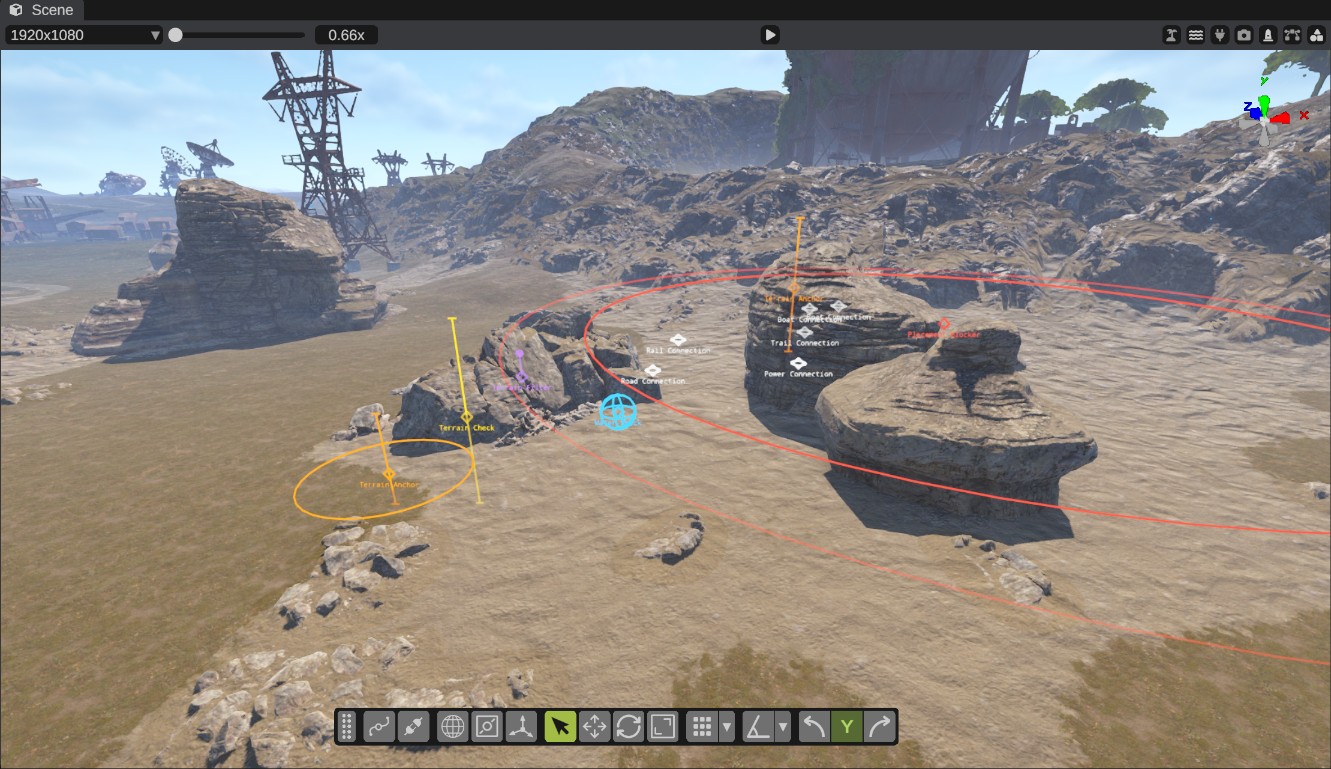
Seeing and picking attributes
Attributes have no model. RustEdit draws each one as a small shape in its own color:
- Near the camera, each shows its kind under it.
- The one under the mouse, and the selected ones, show their name over them.
- Click one to select it. Ctrl+Mouse Left adds it to the selection, and Alt+Mouse Left takes it out.
A button in the scene view's header switches between showing every attribute in the open monument, and only the selected ones. RustEdit remembers your choice.
On a map, select a placed monument to see its attributes. You cannot pick them there: they are parts of the monument.
How the generator uses them
Rust's monument steps try many spots. For each try, the step picks a random spot on the map and a random turn. Then it checks the spot in this order. If any check fails, it tries another spot.
- The monument's tier areas and its distance to other monuments. These come from the Map Generation panel.
- Every Terrain Filter.
- Every Terrain Anchor. Together they set the height of the monument.
- Every Terrain Check and Water Check, at the new height.
- Every Boat Connection needs a way over deep water to the edge of the map.
When the monument spawns, its Placement Blockers mark their ground as taken.
Every Terrain Anchor, Terrain Check and Terrain Filter must be on the map. One outside the map fails the spot.
Terrain Anchor
A Terrain Anchor sets how high the monument sits. At each anchor, the generator looks at the ground. The anchor accepts a height range around the ground: the ground height, lowered by Offset, plus or minus Extents. The monument must fit in the ranges of all its anchors. If the ranges do not overlap, the spot fails. In the scene view, a line with a tick at each end shows the range.
The generator puts the monument at the height where its anchors sit, on average, on the ground. It keeps that height inside the range all anchors accept.
Radius makes the anchor check the ground in a circle around it, not only at its point. Slope Scale gives more room when the monument is tilted.
How to set it up:
- Put anchors where the monument meets the ground, such as under its corners or its foundations.
- Use small Extents for a monument that must sit level with the ground. Use larger ones for a monument that may sink into a slope.
- Use Offset to sink the monument, for example a building whose floor is below the ground.
See Terrain Anchor.
Terrain Check
A Terrain Check says the ground must be near this point. After the anchors set the height, the ground at the point must be within Extents meters above or below it. Otherwise the spot fails.
Put Terrain Checks at the edges of the monument, so it does not hang over a cliff or sit buried in a hill. With Rotate on, the default, the point turns with the monument. With it off, the point stays where it is when the monument turns.
See Terrain Check.
Terrain Filter
A Terrain Filter says what ground must be under this point: which ground textures (Splat), which biomes and which topology (Topology Any, Topology All and Topology Not). A spot passes only when the ground matches. With Check Placement on, the point also fails where another monument, a road or a placement blocker already took the ground.
A new Terrain Filter allows every splat, biome and topology, with Check Placement on.
Do not leave Splat, Biome or Topology Any empty. Rust counts an empty list as a mistake: it logs an error and skips that check. An empty Topology Any also skips Topology All and Topology Not.
Examples: put a filter with Topology Not set to Ocean, River and Lake at the middle of a monument to keep it on dry land. Use Topology Any set to Beach for a monument that belongs on the coast.
See Terrain Filter.
Water Check
A Water Check says this point must be under the water. After the anchors set the height, the point must be at or below the water level. Otherwise the spot fails. Use it for harbors, piers and other monuments that stand in the water. Rotate works as on a Terrain Check.
See Water Check.
Path Connection
A Path Connection marks where a generated path joins the monument. Its Type says which kind: Road, Rail, Power, Trail or Boat. The list also has Rust's Tunnel and Underwater Lab types. A new connection from the Content Browser has its type set, and its name follows the type until you rename it.
- Road, Rail, Power and Trail: in Rust's monuments, Rust's road, rail, power line and trail steps lead their paths to these points.
- Boat: the monument only spawns where deep water leads from this point to the edge of the map.
- A monument in the
monument/roadsidespawn folder lies along a road. Its first two road connections set which way it faces the road. - Tunnel and Underwater Lab do nothing in your monument. Rust reads them only in its own train tunnel entrances and underwater lab entrances.
The Procedural Generation panel's road, rail, power line and trail steps lead their paths to Rust's monuments on the map, both the ones you placed and the ones the generator placed. They do not lead them to your own monuments: on a map, the steps do not see a custom monument or its Road, Rail, Power and Trail connections. Draw the road, rail or power line to your monument yourself. See Path types.
See Path Connection.
Placement Blocker
A Placement Blocker keeps the ground in a circle free. When the monument spawns, the circle is marked as taken. Monuments, decor and roads that the generator places later keep out of it. Radius sets the circle. Fade adds a soft edge outside it, and the inner half of the fade is blocked too. The scene view draws the circle, and a fainter circle where the fade ends.
A new Placement Blocker has a 10 meter radius. Use blockers to keep generated decor and roads out of your monument.
See Placement Blocker.
Attributes inside a monument placed in this monument do not count for this monument. Only the attributes the monument itself holds are saved with it.