The Performance Panel
The Performance panel shows how fast RustEdit draws the scene, what holds it back, and how much of your computer it uses. Open it when a map feels slow, to see what to change.
Open the panel
Open , or press Ctrl+Shift+P. Like other panels, it opens in a window of its own, and you can dock it. See The Interface.
The panel measures only while you can see it. When its tab is behind another tab, or the panel is closed, it stops. When it shows again, its graphs start empty.
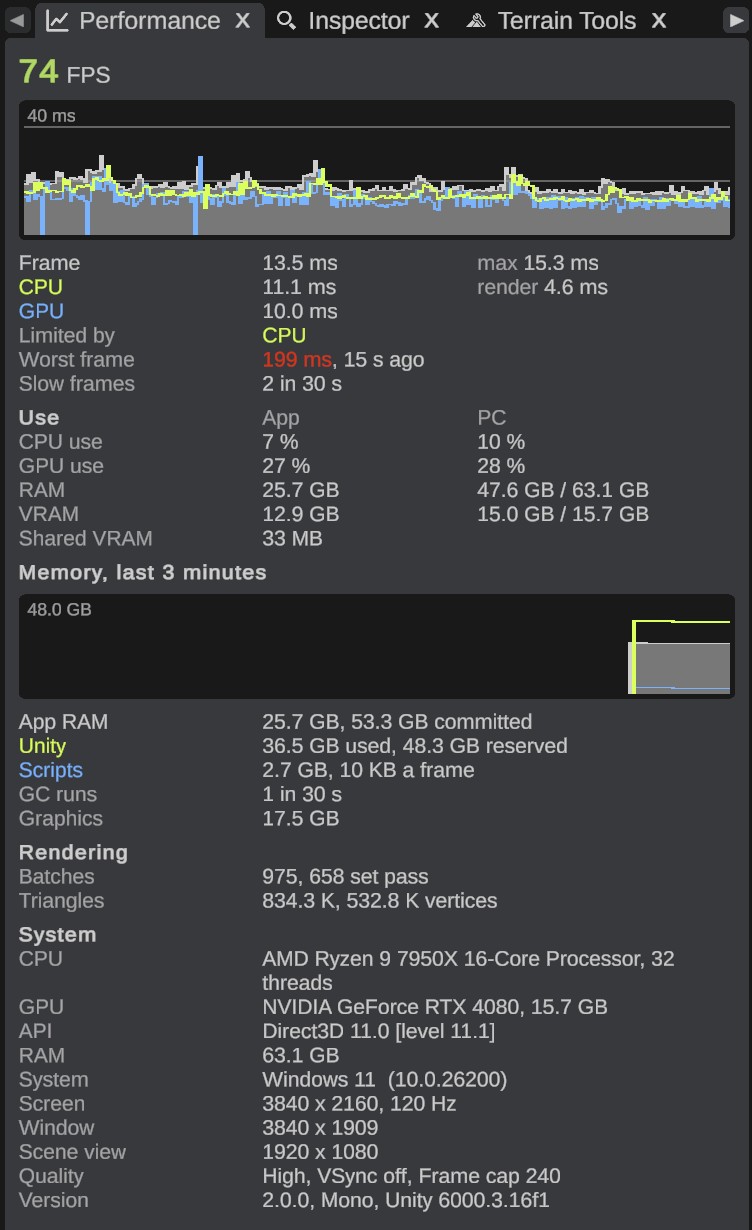
The frame rate
The big number at the top is the frame rate, in frames per second (FPS). In the default color scheme it is green at 50 FPS or more, yellow from 25 FPS, and red below 25 FPS.
Under it is the frame graph. It shows the last 300 frames, about 3 seconds at 100 FPS, with the newest frame on the right:
- The filled area is the time of each frame.
- The two lines are the CPU time and the GPU time.
- The number in the top left corner is the top of the graph. It grows and shrinks to fit the slowest frame shown.
- While the top is 100 ms or less, two faint lines mark 60 FPS (16.7 ms) and 30 FPS (33.3 ms).
The rows under the graph change four times a second. The labels Frame, CPU and GPU have the colors of their part of the graph.
| Row | What it shows |
|---|---|
| Frame | The average time of a frame in the last quarter of a second, in milliseconds. max is the longest frame in that time. |
| CPU | How long the CPU works on a frame, not counting the time it waits for the graphics card. render is the time of the CPU's render thread, which hands the frame to the graphics card. |
| GPU | How long the graphics card works on a frame. It shows - when the graphics card does not report it. |
| Limited by | What holds the frame rate down: CPU or GPU, whichever takes longer. Frame cap and a number: RustEdit draws as fast as Target Frame Rate lets it, and could go faster. VSync and a number: the frame rate waits for the screen. |
| Worst frame | The longest frame of the last 30 seconds, and how many seconds ago it was. It is red at 50 ms or more. |
| Slow frames | How many frames took 50 ms or more in the last 30 seconds. Each one is a stutter you can see. |
Make a big map faster
First look at Limited by:
- Frame cap: RustEdit is not slow. It draws as fast as you let it. To go higher, open , then Graphics, and raise Target Frame Rate. While you work in another window, Lower FPS Minimized caps RustEdit at 10 FPS.
- GPU: the graphics card is the slow part. Lower the graphics settings and the render resolution.
- CPU: drawing many objects and lines is the slow part. Draw less of them: see the list below.
Try these one at a time, and watch FPS and Limited by after each one:
- Hide the splines you do not work on. Turn off the Show all splines button in the scene view header. Only the splines of the selected spline objects are then drawn. See Splines Overview.
- Open , then Camera, and lower Overlay Distance. Splines, paths and other lines drawn over the scene fade out past this distance, so fewer of them are drawn.
- Lower View Distance in the same group. RustEdit draws nothing farther away.
- Keep LOD > Distance Multiplier at
1and Graphics > Occlusion Culling on. - Lower the graphics settings, such as Mesh Quality, Grass Distance and Volume Clouds. See Graphics Settings.
- Pick a smaller render resolution in the scene view header. See The Scene View.
- Hide what you do not need with the view buttons in the scene view header, such as placeholders and IO wires.
If Shared VRAM is yellow, the graphics card's memory is full. Lower Global Quality, which sets the texture detail, and close other apps that use the graphics card.
Use
How much of the computer RustEdit uses. The App column is RustEdit. The PC column is the whole computer, all apps together. Windows gives these numbers, the same ones Task Manager shows, once a second.
| Row | App | PC |
|---|---|---|
| CPU use | RustEdit's share of all CPU cores, in percent. | The share of all apps. |
| GPU use | How busy RustEdit keeps the graphics card, in percent of its busiest part, as in Task Manager. | All apps. |
| RAM | The memory RustEdit uses. | The memory in use, and the computer's total. |
| VRAM | The video memory RustEdit uses on the graphics card. | The video memory in use, and the card's total. |
| Shared VRAM | Video memory that did not fit on the card and is in the computer's memory instead. It turns yellow above 512 MB: drawing is much slower then. |
A value that Windows does not give shows as -. Some older graphics drivers give no GPU values.
Memory and rendering
The memory graph has one value a second for the last 3 minutes. The filled area is App RAM. The two lines are Unity and Scripts. The memory graph goes on while RustEdit loads, because the memory a map takes is real.
The rows under the memory graph and the Rendering rows help most when you report a problem.
What the memory and rendering rows show
| Row | What it shows |
|---|---|
| App RAM | The memory RustEdit uses. committed is all the memory it has taken, in memory or in the Windows page file. |
| Unity | The memory the app's engine uses, and how much it has reserved. |
| Scripts | The memory of RustEdit's own code, and how much new memory it takes a frame. The installed app shows - for a frame. |
| GC runs | How many times RustEdit's code cleaned up its unused memory in the last 30 seconds. |
| Graphics | The memory the engine uses for graphics. The installed app shows - here. |
| Batches | How many batches the frame draws, and its set pass calls. Fewer is faster. |
| Triangles | How many triangles the frame draws, and its vertices. |
System
What your computer is. Add this when you report a slow map.
| Row | What it shows |
|---|---|
| CPU | The processor and its number of threads. |
| GPU | The graphics card and its video memory. |
| API | The graphics system RustEdit draws with, and its version. |
| RAM | The computer's memory. |
| System | The Windows version. |
| Screen | The screen's resolution and refresh rate. |
| Window | The size of the RustEdit window. |
| Scene view | The resolution the scene view draws at. See The Scene View. |
| Quality | The quality level (Global Quality), whether VSync is on, and the frame cap (Target Frame Rate). |
| Version | RustEdit's version. |
When it does not measure
Loading a map, saving and a procedural generation make long frames that are not the speed you edit at. While they run, the panel shows Paused while loading and skips those frames, and half a second after. The memory graph goes on.