The Interface
The RustEdit window has a menu bar at the top, a tool bar on the left and dock panels that fill the rest. You can move, tab, resize and close the panels, and pull them out into windows of their own.
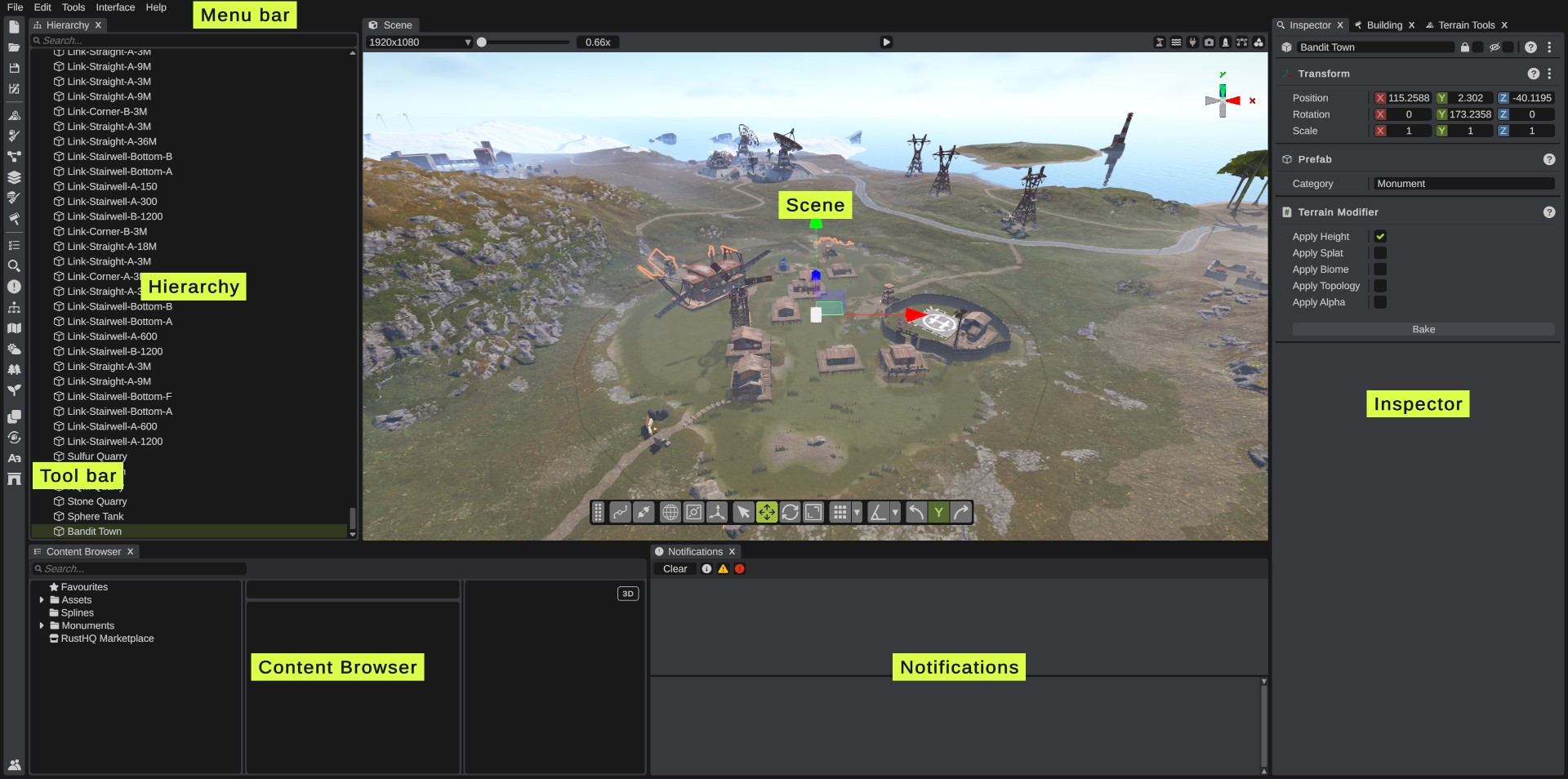
The menu bar
The menu bar has five menus. A menu item shows its keyboard shortcut next to its name. Items that need RustEdit Plus or Pro are grayed out without that tier. Click one to see which tier it needs.
File
| Item | What it does |
|---|---|
| New | Makes a new map or monument. See Create, open and save. |
| Open | Opens a scene (.scene), a Rust map (.map) or a monument (.asset). |
| Open Recent | The last 10 maps and scenes you opened. It says No recent maps when the list is empty. |
| Reload | Opens the map again from its last save. Unsaved changes are lost. |
| Save | Saves the map. A map that was never saved, or that you opened from a .map file, asks where to save the scene. Ctrl+Shift+S |
| Save As | Saves the map to a new file. The dialog starts at the open file's folder and name. Ctrl+Alt+S |
| Save and Export | Saves the scene and writes a .map file for a Rust server next to it. See Export a map. Not available while a monument is open. |
| Publish To RustHQ | Sends the map or monument to the RustHQ marketplace. See Publish. |
| Settings | Opens the Settings dialog. |
| RustHQ Account | Sign in to RustHQ. See Account and sign-in. |
| Quit | Closes RustEdit. It asks first, because unsaved changes are lost. |
Edit
| Item | What it does |
|---|---|
| Undo | Takes back the last change. Ctrl+Z |
| Redo | Does the change again. Ctrl+Y |
| Duplicate Selection | Copies the selected objects. Ctrl+D |
| Delete Selection | Deletes the selected objects. Delete |
| Lock Selection | Locks the selected objects, so you cannot select or move them in the scene view. Ctrl+L |
| Unlock All | Unlocks every locked object. Ctrl+Alt+L |
| Hide Selection | Hides the selected objects. Ctrl+H |
| Unhide All | Shows every hidden object again. Ctrl+Alt+H |
| Snap to Ground | Puts the selected objects on the terrain. Ctrl+Alt+Mouse Middle |
| Reload Socket Files | Reads the socket files in Configuration/sockets again. See Sockets. |
| Reload Custom Data | Reads the custom data manifests in the Custom Prefab Fields folder again. See Custom data. |
While you edit a spline, Duplicate Selection and Delete Selection work on the selected knots. See Editing splines.
Tools
| Item | What it does |
|---|---|
| Loot Profile Editor | Makes loot profiles for loot containers. See Loot profiles. |
| Vending Profile Editor | Makes vending profiles for vending machines. See Vending profiles. |
| Multiplayer RustEdit Pro | Edit a map together with other people. See Multiplayer. |
| Custom Topology Layers | Your own topology layers. See Custom topology layers. |
| Map Tools | Rotate Map, Resize Map, Terrain Resolution and Merge Map. See Map tools. |
| Prefab Tools | Replace Prefab, Remove Duplicates, Generate Text and Convert CopyPaste. See Prefab tools. |
Interface
| Item | What it does |
|---|---|
| Layouts | Save and load panel layouts. See Layouts. |
| Window | Opens any panel. The list has every panel except the scene view. |
| Color Scheme | Changes the colors of the interface. See Color schemes. |
Help
Each item opens a page in your web browser.
| Item | What it does |
|---|---|
| Documentation | Opens these docs. |
| Keyboard Shortcuts | Opens the keyboard shortcuts page. |
| RustEdit Forum | Opens the RustEdit forum on RustHQ. Ask questions and report problems there. |
| Discord Server | Opens the invite to the Discord server. |
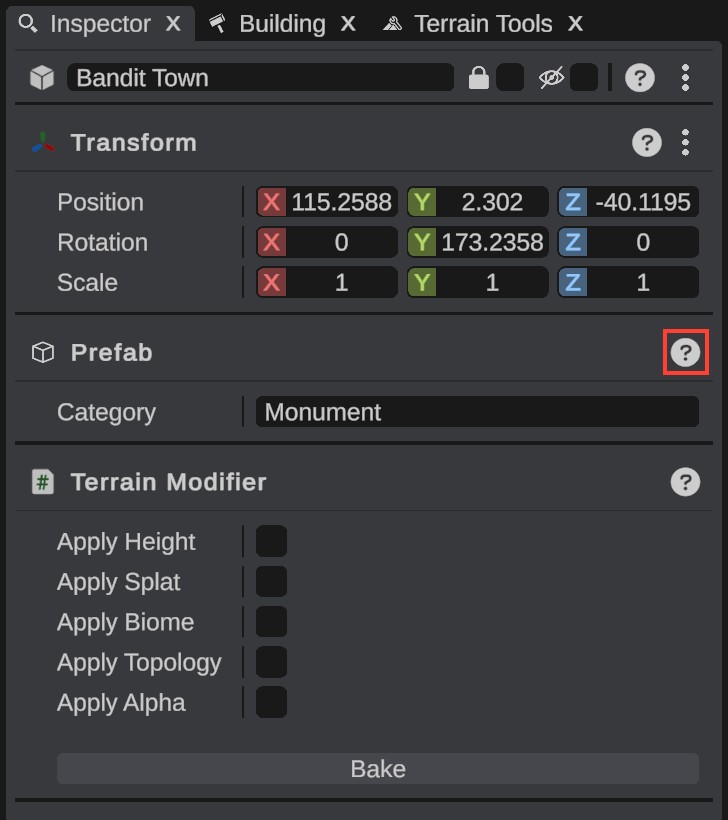
To open the docs page of an inspector panel, use its ? button. See The Inspector.
The tool bar
The tool bar is the column of buttons on the left. Hover over a button to see its name. Click it to open its panel or tool. Thin lines split the buttons into groups:
| Group | Buttons |
|---|---|
| Files | New, Open, Save, Save As |
| Tools | Terrain Tools, Prefab Brush, Terrain Graph RustEdit Pro, Custom Topology Layers, Cliff Brush RustEdit Pro, Building |
| Panels | Content Browser, Inspector, Notifications, Hierarchy, Map, Time and Weather, Spawn Groups, Procedural Generation |
| Map and prefab tools | Merge Map, Replace Prefab, Generate Text, Tunnel Editor RustEdit Plus |
| Bottom of the bar | Multiplayer RustEdit Pro |
A locked tool's icon is grayed out. Click it to see which tier it needs in Notifications.

Dock panels
Every part of the window under the menu bar is a dock panel: the scene view, the inspector, the hierarchy and the rest. Each panel has a tab with its name.
Open a panel
- Click its button on the tool bar, or
- open and click its name.
If the panel is open already, its tab comes to the front. A closed panel opens in a window of its own over the middle of the RustEdit window. Drag its tab into the main window to dock it.
Move and tab panels
Drag a panel by its tab. A preview shows where it goes.
- Drop it on the tab row of another panel to add it there as a tab.
- Drop it near the edge of another panel to put it beside that panel.
- Drop it in the middle of a panel in the main window, or outside every RustEdit window, to open it in a window of its own. In a detached window, the middle of a panel adds it there as a tab.
To make two panels bigger or smaller, drag the border between them.
Minimize, maximize and close
Right-click a tab for these:
| Item | What it does |
|---|---|
| Minimize | Shrinks the panel to a thin bar. Click the bar to bring it back. |
| Maximize | Fills the window with the panel. Restore puts it back in its place. |
| Close | Closes the panel. You can also click the X on its tab. |
The Scene panel always stays in the main window. You cannot close it or minimize it.
Detached windows
A panel in a window of its own is a normal Windows window. Move it to another monitor, resize it, or drop more tabs into it. Closing the window closes the panels in it.
RustEdit saves the layout when you quit and opens it again at the next start, detached windows too. To save layouts with names, see Layouts.
The main panels
| Panel | What it is for |
|---|---|
| Scene | The 3D view of your map. You move the camera, select objects and use the tools here. See The scene view. |
| Inspector | Shows the settings of the selected objects. See The Inspector below. |
| Hierarchy | A list of every object in the map, with groups, locking and hiding. See Hierarchy. |
| Content Browser | All of Rust's prefabs and your custom monuments. Drag one into the scene view to place it. See Content browser. |
| Notifications | Messages from RustEdit. See Notifications below. |
| Map | The map image from above, as the game draws it. Double-click the map to move the camera there. Its buttons show the grid, switch to the train tunnels and underwater lab floors, move the map to the camera, save the image to a PNG file and open the map image settings. See The Map panel. |
Other panels open from their tools: Terrain Tools, Prefab Brush, Terrain Graph, Cliff Brush, Building, Time and Weather, Spawn Groups, Procedural Generation, Tunnel Editor, Merge Map, Gallery and Multiplayer.
The Inspector
The Inspector shows a panel for each part of the selected object: its name, its transform and its game settings, such as the loot of a loot container. Click a panel's title to fold it up or open it. Some panels can edit many selected objects at once.
Click the ? button in a panel's title bar to open that panel's page in these docs in your web browser. The component reference lists every panel.
Notifications
Notifications lists what RustEdit tells you: info, warnings and errors. Many tools write a short line here when they finish, or when something stops them.
- The three filter buttons show or hide info, warnings and errors.
- Click a message to see all of it in the box under the list.
- Clear empties the list.
The list keeps going when you open another map. RustEdit also writes every message to Logs/log.txt in its folder. See Common problems.
Dialogs
Some things open in a dialog over the window, such as Settings and the New map dialog. Most dialogs have their buttons at the bottom right: the main button is the one in the accent color, and Cancel is on its left. Buttons that delete things are dark red.