Map Encryption
RustEdit PlusAn encryption key protects your work. It encrypts your scene file, and the RustEdit data in a map you export. Nobody can open them in RustEdit without the key.
The scene and the exported map each have their own key. You set the scene's key in the Save Scene dialog. You set the map's key in the Export Map dialog.
Before you start
You need RustEdit Plus or higher to encrypt. Opening an encrypted file needs no tier: anyone with the key can open it. See Free, Plus, Pro and Sponsor.
How to encrypt a scene
The Save Scene dialog opens when you:
- save a map for the first time,
- save a map that you opened from a
.mapfile, or - use .
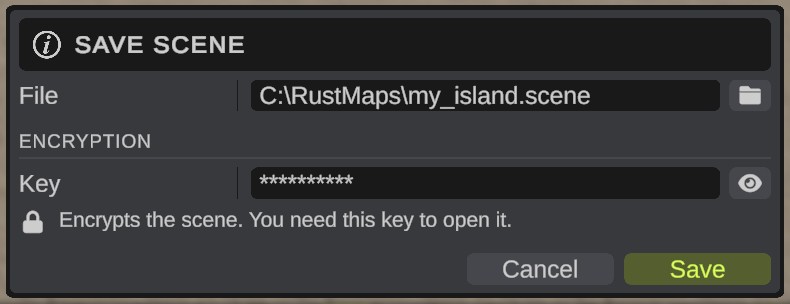
- Start one of the saves above. The Save Scene dialog opens.
- Check the file in File. To pick another file, click the folder button on the right.
- Type the key in Key, under Encryption. Click the eye button to see what you typed.
- Click Save. RustEdit saves the scene, encrypted with the key.
Leave Key empty for no encryption. The empty field shows "No encryption".
A plain of a map that already has a .scene file shows no dialog. It keeps the key the scene has.
Change or remove the scene's key
- Click . The Save Scene dialog shows the current key, hidden.
- Type a new key, or clear the field for no encryption.
- Click Save. RustEdit saves the scene with the new key.
Cancel, or a click outside the dialog, stops the save. Nothing is written.
How to encrypt an exported map
- Click , or press Ctrl+E. The Export Map dialog opens.
- Set Entities to In RustEdit data. The Encryption section shows under the blue note.
- Type the key in Key, or leave it empty for no encryption.
- Click Export. RustEdit writes the map, with its RustEdit data encrypted with the key.
The field starts with the key of your last export in this session. Before your first export, it starts with the scene's key. See Export Map.
The server needs the map's key to run the map correctly. The RustEdit 2 server extension reads the encrypted RustEdit data with it. Give it the key in server.cfg (rustedit.key "your key"), as a startup argument, or in the extension's config. Without the key, the server runs the map without its RustEdit data. See Give the server the map's key.
How to open an encrypted file
- Open the file with or . The Encryption Key Required dialog opens. It says "This file is encrypted. Type its encryption key to open it."
- Type the key in Encryption Key.
- Click Submit. The file opens. RustEdit keeps the key, so the next save of the scene uses it again.
If the key is wrong, the dialog opens again. Cancel stops loading, and the map you had open stays.
The same dialog opens when you pick an encrypted map in Merge Map.
What the key encrypts
| File | With an encryption key |
|---|---|
.scene | The whole file is encrypted. |
.map | All RustEdit data in the map is encrypted. Rust's own data stays readable: the terrain, the prefab list and the paths. RustEdit does not open the map without the key. See What goes into the map. |
.asset (monument) | Never has a key. Maps can place monuments without asking for one. |
A map exported with Entities set to In the map has no RustEdit data, so there is nothing to encrypt. See In the map or in RustEdit data.
Options
| Option | What it does |
|---|---|
| Key (under Encryption) | In the Save Scene and Export Map dialogs: the key, shown as dots. Leave it empty for no encryption. |
| Eye button | Shows or hides the key. |
| Save Encryption Keys (in , Password) | Off by default. On: each time you save or export with a key, RustEdit adds a line to Configuration/passwords.txt in the RustEdit folder: the date, the file and the key. |
Under the key, each dialog says who needs it:
- Save Scene: "Encrypts the scene. You need this key to open it."
- Export Map: "Encrypts all RustEdit data. The server needs this key to run the map."
If you forget the key
Nobody can open the file without its key. Keep your keys somewhere safe.
If you turned Save Encryption Keys on before you saved or exported, open Configuration/passwords.txt in the RustEdit folder and look for the file's name.
passwords.txt is plain text. Anyone who can open your RustEdit folder can read it. Leave Save Encryption Keys off if other people use your computer.
Without RustEdit Plus
- The Save Scene and Export Map dialogs show no Encryption section. RustEdit never encrypts what you save or export.
- When you save a scene that you opened with a key, RustEdit asks: "Encryption needs RustEdit Plus. This scene will be saved without encryption. Save anyway?" Click Confirm to save without the key, or Cancel to stop.
- You can still open encrypted files, when you have the key.
Good to know
- People who join your multiplayer session get a copy of the map without its key.
- Auto Save copies are not encrypted either.
- RustEdit 1 maps that have a password open in the same way: type the password as the key. See RustEdit 1 Maps and Prefabs.
- When you publish a map on the marketplace, the publish dialog asks Map Has A Password, so buyers know they need a key. See Publish To RustHQ.