Browse and Download
The Content Browser has a RustHQ Marketplace folder with the prefab products sold on rusthq.com. You can look at every product without an account. To download one, even a free one, you must be signed in. Downloaded products become custom monuments that you place like any other.
The folder shows prefab products only. To find maps, go to the marketplace on rusthq.com.
Open the marketplace
- Open the Content Browser. See Content Browser.
- Click the RustHQ Marketplace folder (the store icon) at the end of the folder list.
The file list shows every product. The preview area shows the marketplace page: who you are signed in as, how many products there are, and when RustEdit last checked the list ("Up to date at" and a time).
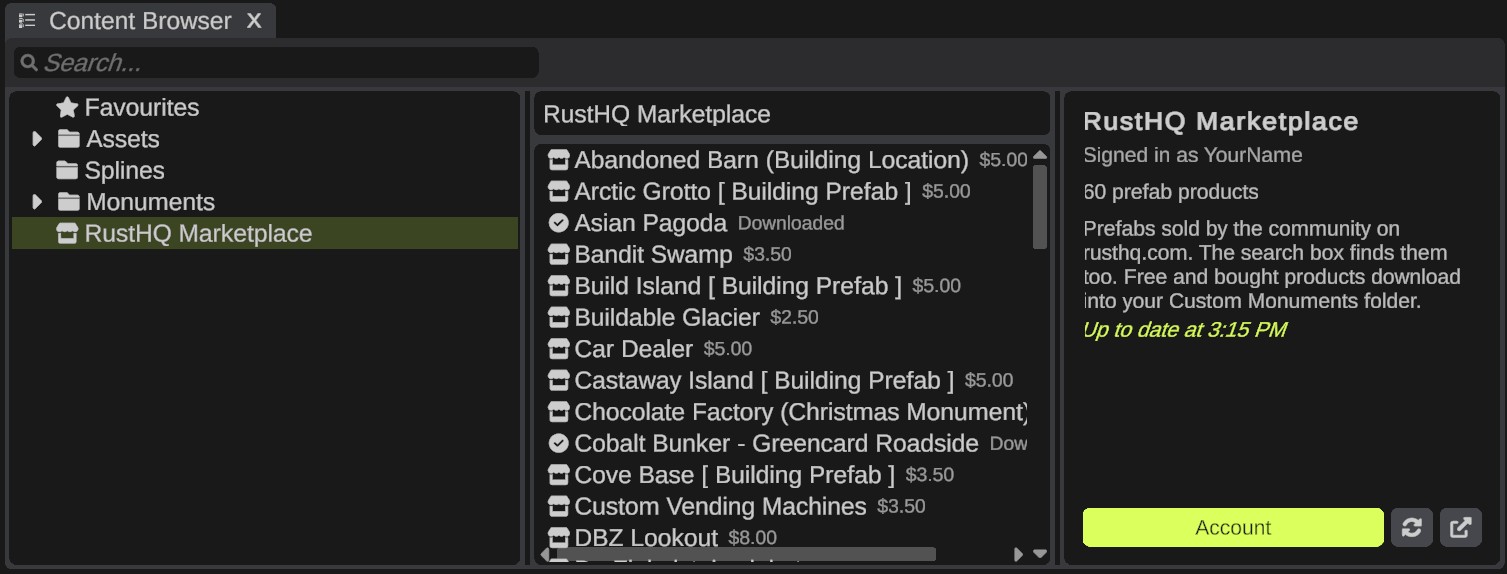
RustEdit reads the product list from RustHQ when you use the marketplace and keeps a copy. A list older than 10 minutes is read again. To read it now, click the refresh icon on the marketplace page.
Search for products
Type in the Content Browser's search box. Marketplace products show in the results after your own prefabs and monuments. The search looks in the product's name, its one-line tagline, the author's name and its tags.
To keep marketplace products out of your search results, turn off .
Each product row
After the product's name, a short badge tells you its state:
| Badge | Meaning |
|---|---|
| Free or a price | You do not have it yet. Prices are in US dollars. |
| Owned | You bought it, and you have not downloaded it on this computer. |
| Yours | You sell this product. |
| Downloaded | It is on this computer and up to date. |
| Update | A newer version is out. |
| A percentage, then Unpacking | It is downloading now. |
The row's icon changes too: a store for products you do not have, a check mark when downloaded, and a cloud with an arrow when an update is out.
The product details
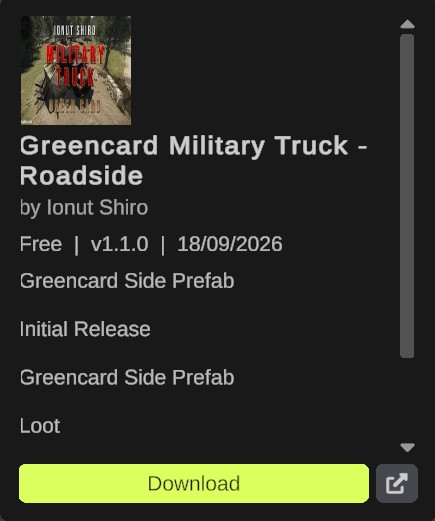
Click a product. The preview area shows its picture, name and author. Under them:
- A line with the price, the version (for example
v1.2.0), the rating with the number of ratings, and the date of the last update. - The tagline, the notes of the newest version and the description. A long description is cut short: the full text is on the product's page.
- A status line, for example "You own this product." or "You have v1.1.0. v1.2.0 is out."
The buttons
The main button shows only when there is something to do:
| Button | When it shows | What it does |
|---|---|---|
| Sign In To Download | You are signed out and the product is free. | Opens the RustHQ Account dialog. |
| Buy On RustHQ | The product costs money and you do not own it. | Opens the product's page in your browser. |
| Download | You can download it: it is free, you own it, or you sell it. | Downloads it. |
| Update To v... | A newer version is out. | Downloads the new version. |
| Stop | A download is running. | Stops it. Files already on your disk stay as they were. |
Small icon buttons follow. Rest the pointer on one to see its name:
| Icon | What it does |
|---|---|
| Show Files | Opens the product's folder in the Content Browser. |
| Download Again | Downloads the product again. On the marketplace page this icon is Refresh instead. |
| Open On RustHQ | Opens the product's page, or the marketplace, in your browser. |
| Remove Download | Deletes the product's files from this computer. |
You can also right-click a product row. The menu has the same actions: Download, Update, Download Again, Buy On RustHQ or Sign In To Download, then Open On RustHQ, Show Files and Remove Download.
How to download a product
- Sign in. See RustHQ Account.
- For a paid product, click Buy On RustHQ and buy it on the website.
- Back in RustEdit, click the refresh icon on the marketplace page, or Refresh in . The product's badge changes to Owned.
- Click the product, then click Download. The badge counts up, then shows Unpacking.
- When it is done, the status line says "Downloaded" with the version and how many prefabs it holds.
- Click Show Files to see the prefabs. Drag one into the scene view to place it. See Placing prefabs.
Where downloads go
Each product goes into its own folder in your Custom Monuments folder:
CustomMonuments\Marketplace\<product>\
The Custom Monuments folder is next to RustEdit unless you chose another one in . In the Content Browser, the products are under Monuments, then Marketplace.
If a product holds monuments that use each other, RustEdit points them at the copies in the product's folder, so they work after the download.
Updates
When the vendor publishes a new version, the row shows Update and the details box shows Update To v and the version.
Click it. RustEdit replaces the product's folder with the new files. Copies you placed in your maps use the new files.
An update replaces everything in the product's folder. If you changed a file in that folder, save your version somewhere else first.
Remove a download
- Click the product, then click the Remove Download icon. Or right-click the row and click Remove Download.
- RustEdit asks "Remove the downloaded files of ...?". Click Remove Download to confirm.
RustEdit deletes the product's folder. Copies you placed in maps stay in the maps, but they are empty until you download the product again.
Troubleshooting
| Problem | What to do |
|---|---|
| The list is empty or old, and the page shows an error. | Check your internet connection, then click the refresh icon on the marketplace page. |
| You bought a product, but RustEdit still shows Buy On RustHQ. | Click the refresh icon on the marketplace page, or Refresh in the RustHQ Account dialog. |
| "Sign in to RustHQ to download." | Sign in first. See RustHQ Account. |
| "The files could not be saved" | RustEdit could not write to the Custom Monuments folder. Check that the folder exists and that you can write to it. |
| "The zip file is damaged or not safe to unpack." or "This download has no prefab files RustEdit can open." | Tell the vendor. The product's file has a problem. |
| Placed copies of a product are empty. | The product's files are missing on this computer. Download it again. |