Map Notes
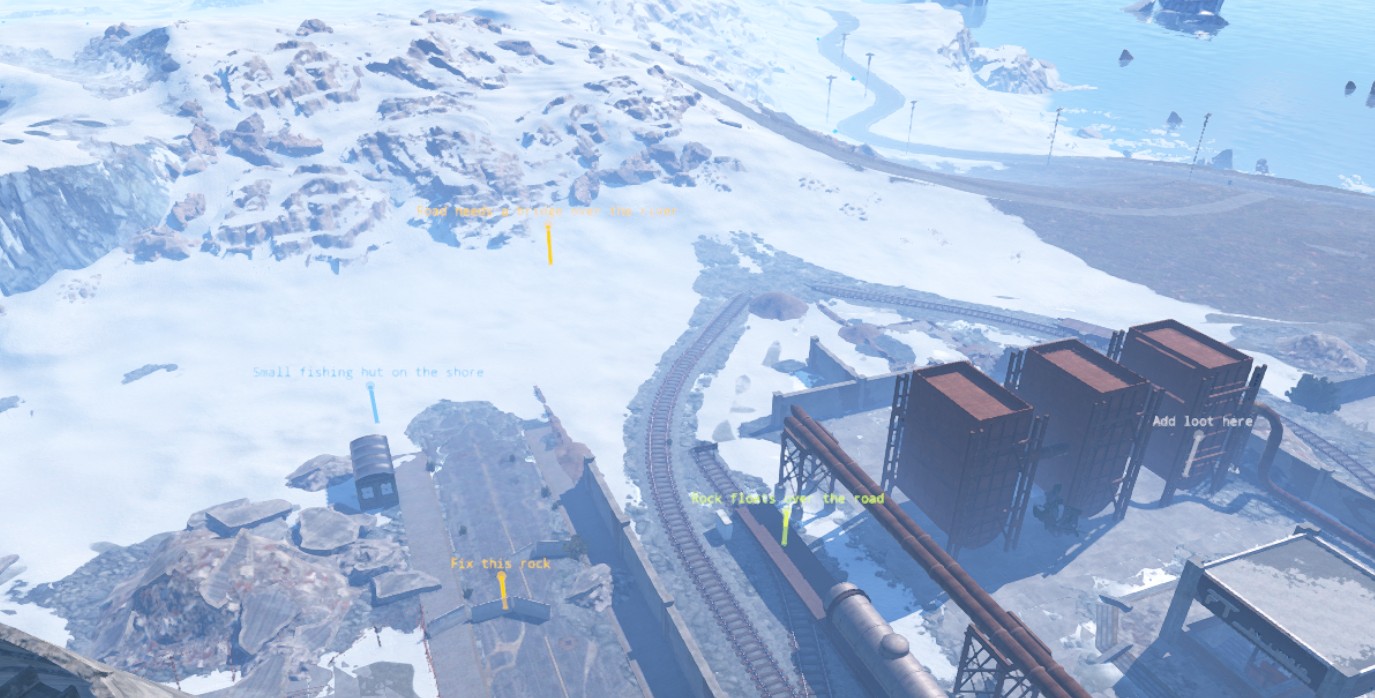
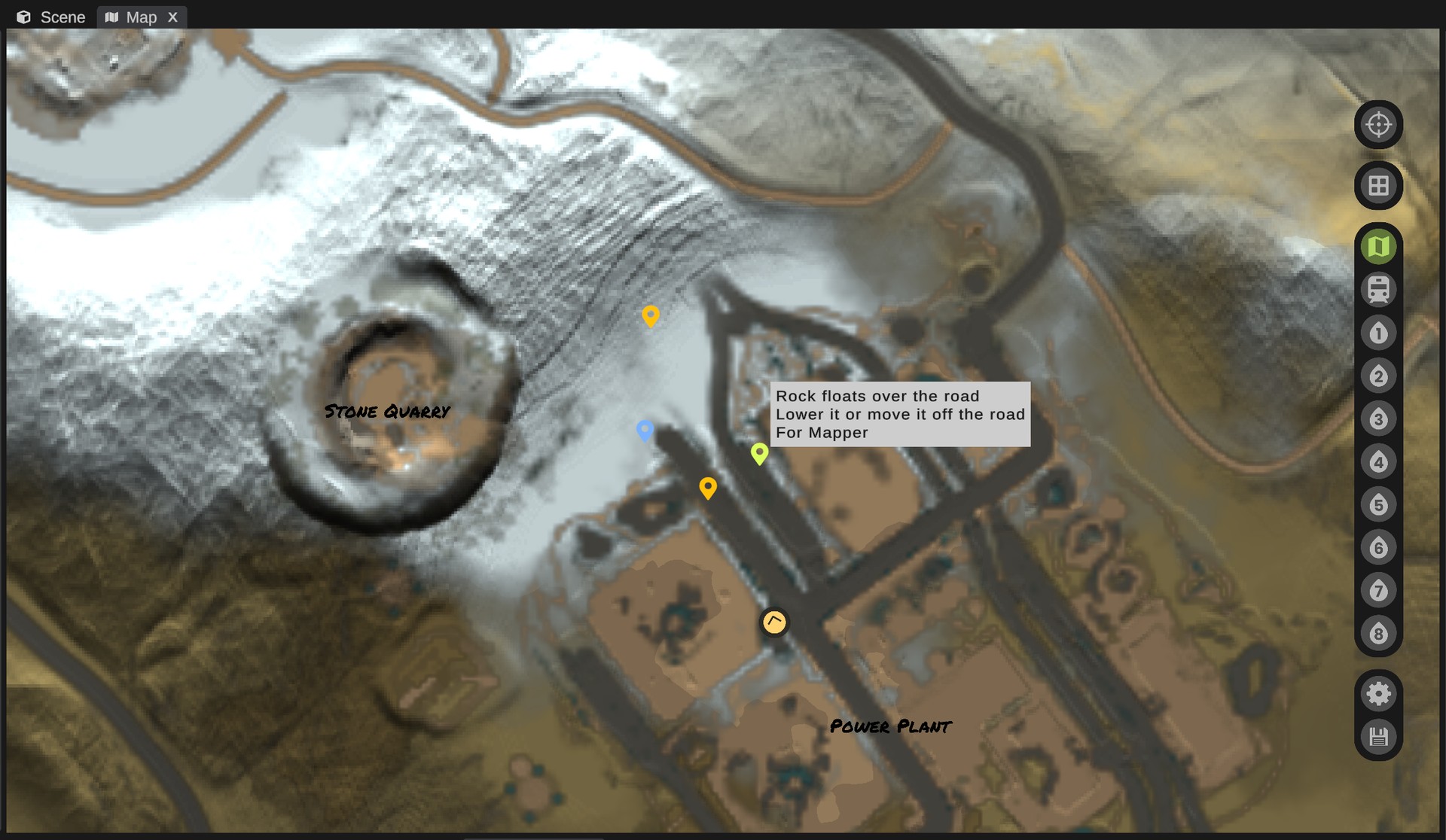
RustEdit ProMap Notes pins notes to places in the map, such as "fix this rock" or "add loot here". Each note shows as a pin in the scene view and on the Map panel. A note can be a to-do, a bug or an idea, and it can be for a person. Check it off when it is done.
Notes are saved in the scene file. They are not in the exported map, so players never see them. In a multiplayer session, everyone in the session sees the same notes, and changes show for the others at once.

The panel has three parts, each under a header:
- New Note (or Note at and a grid cell, while a note is selected): write or change a note.
- Options: your name and what shows.
- Notes: the list, with search, filters and sorting.
Add a note
- Open , or click the Map Notes button on the tool bar.
- Write the note in the box under New Note. The box grows with each line, up to 8 lines.
- Pick its kind: To Do, Bug or Idea.
- Pick who it is for in For, or leave Nobody.
- Click Add Note. The button says Click a spot in the scene view.
- Click a spot in the scene view. A pin shows under the pointer while you choose. The note is made there with your text. It keeps the camera view you had when you clicked.
To stop without a note, press Esc with the pointer over the scene view, or click the button again.
From the Map panel
Right-click a spot on the Map panel and pick Add Note Here. The note is made there with the text, kind and person in the New Note part, and the Map Notes panel opens on it. If the box was empty, type the text in the panel that opens.
A note made on the Map panel has no camera view of its own. Keep View gives it one.
A right-drag still moves the map: the menu only opens on a right-click without a drag.
Kinds
| Kind | Pin color | Icon |
|---|---|---|
| To Do | Yellow | A note |
| Bug | Red | A bug |
| Idea | Blue | A light bulb |
A note that is done is gray with a check mark, whatever its kind. The selected note is drawn in the highlight color.
Who wrote it, and who it is for
Set Your Name under Options. Each note you add is signed with it, and the list shows it as by and the name. It is the same name you use in multiplayer sessions: changing it in one place changes it in the other. In a session, notes are signed with your name in the session.
For lists the names RustEdit knows: yours, the people in the multiplayer session, and every name already in the notes. The list shows a note's person as for and the name.
Find and edit notes
- Click a note in the list. The camera goes to it, and the box at the top shows its text, kind and person. Change them there. The text is saved when you click outside the box.
- Click a pin in the scene view, or a pin on the Map panel. The panel opens on that note, and the list scrolls to it.
- On the Map panel, hold the pointer over a pin to see the note's text and who it is for.
The selected note's row is highlighted. While a note is selected, the button says New Note. Click it to write another note.
The camera view
A note keeps the camera view it was placed from. A click on the note in the list brings back that view: the same place and the same direction. Click Keep View on the selected note's row to give the note the view you have now.
Search, filters and sorting
| Control | What it does |
|---|---|
| Search | Shows the notes with the words in their text, writer, person or grid cell, such as E5. |
| All, To Do, Bug, Idea | Shows the notes of one kind, or all of them. |
| Only For Me | Shows only the notes for the name in Your Name. |
| Sort | Open First: notes not done first, newest first. Grid Cell: as the map grid reads. Nearest: nearest to the camera first. Newest: newest first. |
These change only the list. The pins still show for every note.
The Notes header says how many notes are open, for example Notes (2 open of 5).
Move a note
Drag a pin with the left mouse button, in the scene view or on the Map panel. The note goes where you let go. One undo step.
Done and delete
| Button | What it does |
|---|---|
| Done | Marks the note as done. It stays, gray and faded. |
| Reopen | Marks a done note as not done again. |
| Delete | Deletes the note. |
Right-click a pin on the Map panel for Edit Note, Mark as Done or Reopen, Show in Scene View and Delete Note.
Every change to a note is one undo step: Ctrl+Z brings back a deleted note, its old text or its old place.
Options
| Option | What it does |
|---|---|
| Your Name | The name your notes are signed with. Also your name in multiplayer sessions. |
| Show Pins | Shows a pin at each note, in the scene view and on the Map panel. On by default. |
| Show Done | Shows the notes marked as done, in the list, the scene view and on the Map panel. On by default. |
Notes without RustEdit Pro
A scene keeps its notes for everyone. Without RustEdit Pro, they do not show and cannot be changed, but they stay in the scene file. They show again with RustEdit Pro.