Map Check
RustEdit PlusMap Check looks over the open map for problems before you put it on a server: paths the export leaves out, floating prefabs, stacked copies, monuments without their topology and more. It shows each kind of problem in a list. A click on a row moves the camera to the next place. Some rows can fix what they found.
The Heat Map colors the map by how many models each part of it has, so you can find the spots that are heavy to draw.
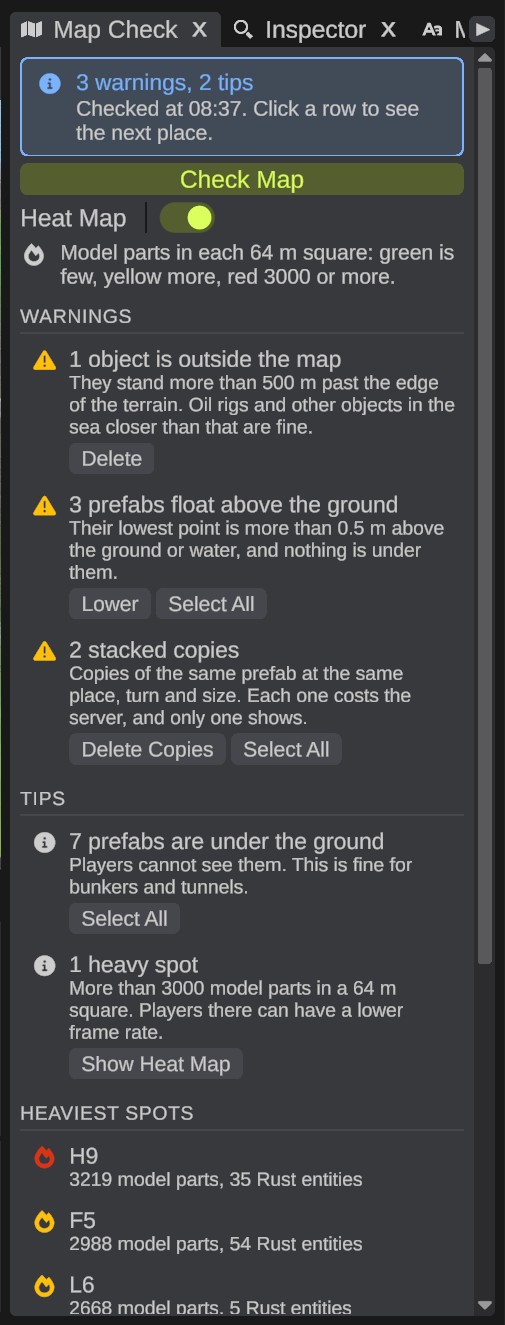
Check the map
- Open , or click the Map Check button on the tool bar.
- Click Check Map. The box at the top says what it found, for example 3 warnings, 2 tips, and when it checked.
- Click a row. The camera moves to the first place, and the object there is selected. Click the row again for the next place.
- Fix what you want to fix: with the row's buttons, or by hand.
- Click Check Map again to see what is left.
The list does not follow your changes. When you change the map after a check, the box says The map changed after this check. A fix from a row's button checks again by itself.
Check the map before every export. The export itself only warns about cargo and APC paths, and about prefabs it left out.
What it checks
Each row is an error, a warning or a tip:
- Errors: the map loses something on export.
- Warnings: most likely a mistake.
- Tips: worth a look, but often on purpose.
| Row | Level | What it means | Buttons |
|---|---|---|---|
| paths are left out of the exported map | Error | A road, river, rail or powerline has fewer than 2 points. The export leaves it out. Add points or delete it. | Select All |
| rail joints are not joined | Error | The end of a rail is by another track, but a server does not join them, so trains stop there. See Rail rows. | none |
| rail warnings | Warning | Joints or tracks that break the rules of Rust's own rail generator. See Rail rows. | none |
| The rails have no sidings | Warning | Trains spawn above ground only on sidings. See Rail rows. | none |
| objects are outside the map | Warning | They stand more than 500 m past the edge of the terrain. Rust puts its oil rigs up to 500 m past the edge, so oil rigs and other objects in the sea closer than that are fine. | Delete, Select All |
| prefabs float above the ground | Warning | The lowest point of the prefab is more than 0.5 m above the ground or water under it, and no other object is under it. | Lower, Select All |
| stacked copies | Warning | Copies of the same prefab at the same place, turn and size. Each copy costs the server, but only one shows. | Delete Copies, Select All |
| objects have a negative scale | Warning | A scale below 0 on an axis mirrors the object, and everything under it. In Rust its collisions and lighting can break. See Negative scale. | Make Positive, Select All |
| monuments have no monument topology | Warning | Rust uses the monument topology to stop players building on monuments. Paint it under them, or place them again. | Select All |
| prefabs are not in your Rust files | Warning | Rust removed or renamed them. The export leaves them out. | Rust Update Check |
| prefabs could not be loaded | Warning | Rust still has them, but RustEdit could not load them. They stay in the scene file. The export leaves them out. | Rust Update Check |
| The map is ... m | Warning | Rust supports maps up to 6000m. A server without the RustEdit extension will fail to load the map. Maps larger than 6000m are also required to disable the deep sea. See Maps larger than 6000 m. | none |
| prefabs are under the ground | Tip | The whole prefab is under the ground, so players cannot see it. This is fine for bunkers and tunnels. | Select All |
| heavy spots | Tip | A 64 m square has more than 3000 model parts. Players there can have a lower frame rate. | Show Heat Map |
Select All shows when a row found more than one object.
Rail rows
- rail joints are not joined: the end of the rail is not on a point of the track, it points another way, or it is too close to another joint. Turn on Check in a rail's row to see why. See Rails.
- rail warnings: sharp joints or turns, branches that leave badly, short sidings, or switches that take trains off their track.
- The rails have no sidings: set a rail's Role to Siding. Or select a knot of a track, click Branch Left or Branch Right, and set the new rail's Role to Siding.
Negative scale
Make Positive makes every scale positive, as one undo step:
- An object with two negative axes gets a half turn instead, so it looks the same.
- An object with one or three negative axes is a mirror image. It loses the mirror.
Which prefabs it checks
The floating, buried and monument checks look at the prefabs you placed in the map. They skip:
- the parts of a placed monument. Check those inside the monument.
- a prefab you placed under another prefab in the Hierarchy. It moves with that prefab.
The buried check also skips prefabs whose path has tunnel, dungeon, underwater, cave or bunker in it. They belong under the ground.
The stacked copies check uses the same rules as with its default settings. Locked prefabs are skipped. See Prefab Tools.
Fix buttons
| Button | What it does |
|---|---|
| Lower | Moves each floating prefab straight down until its lowest point touches the ground or the water. One undo step. |
| Delete | Asks first, then deletes the objects. One undo step. |
| Delete Copies | Asks first, then deletes the extra copies. The oldest copy stays. One undo step. |
| Rust Update Check | Opens the Rust Update Check, which lists the missing prefabs and can replace or delete them. |
| Show Heat Map | Turns on the heat map. |
Press Ctrl+Z to undo a fix.
The heat map
Turn on Heat Map in the panel. The terrain in the scene view and the map in the Map panel get colors:
- No color: few or no models.
- Green: some models.
- Yellow: many models.
- Red: 3000 model parts or more in a 64 m square.
A model part is one model of a prefab. Rust's lower-detail versions of a model count too, so a rock with three levels of detail counts three times.
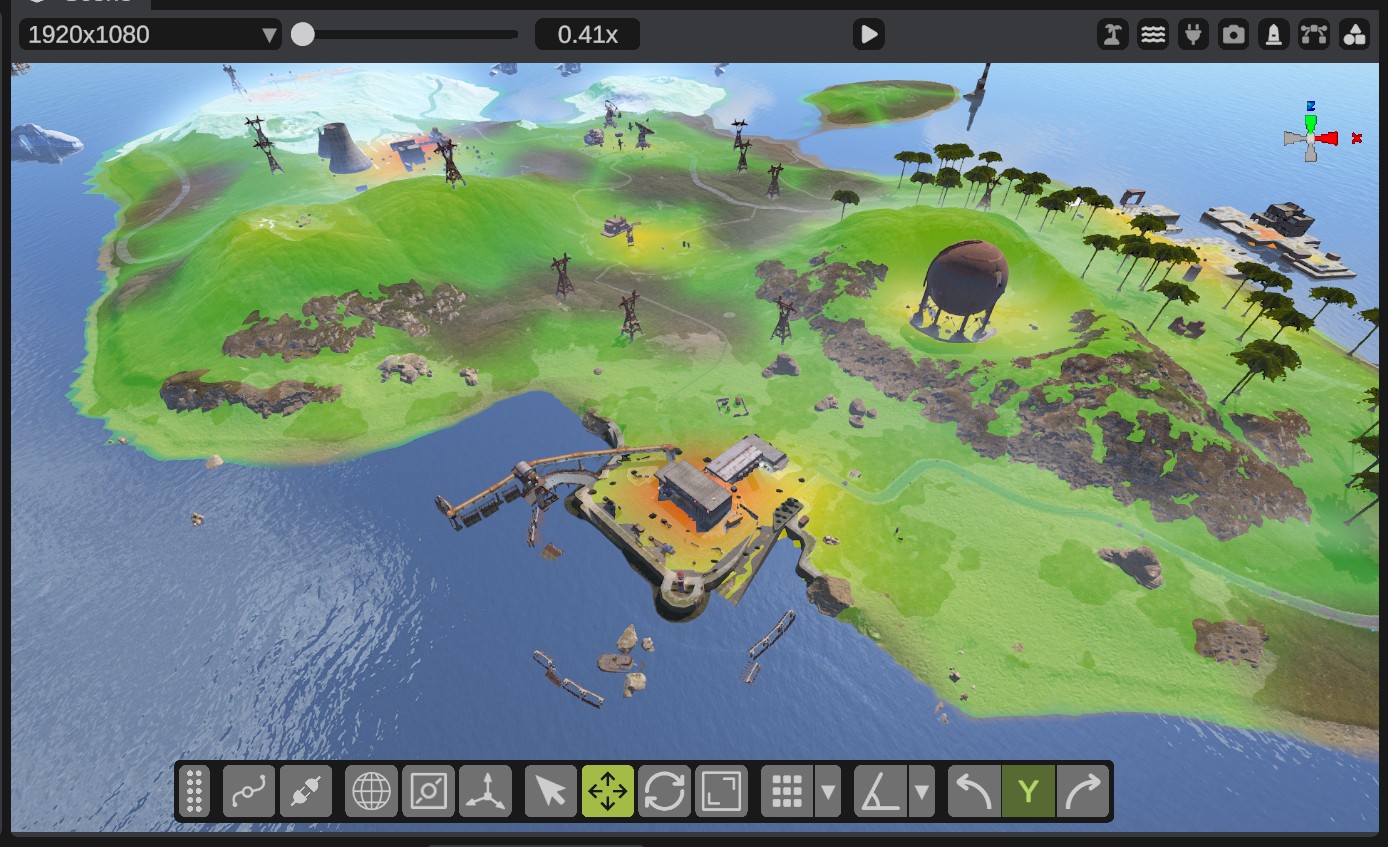
Under the problems, Heaviest Spots lists the 10 heaviest squares, one for each cell of the map grid, such as H9. Each row says how many model parts and Rust entities the square has. The Rust entities in a monument, such as its crates and doors, count too. Click a row to move the camera there.
The heat map counts when you click Check Map, or when you turn it on before the first check. It does not follow later changes: click Check Map to count again. It turns off when you close the panel or open another map.
While the heat map is on, a map image saved with the Map panel's Save button has the heat map colors too. Turn off Heat Map first to save a clean image.