Tool Bar
The tool bar is the column of buttons on the left of the RustEdit window. Its menus call it the sidebar. You can change every button on it except RustHQ Account. The Interface shows the tool bar RustEdit starts with.
Add a button
- Right-click a menu item on the menu bar, or a panel's tab.
- Click Pin to Sidebar.
- Pick a group, or New Group. A menu item has no picture, so RustEdit asks you to pick an icon.
Change a button
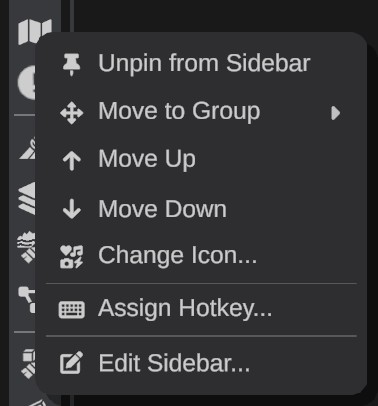
Right-click a button on the tool bar:
| Item | What it does |
|---|---|
| Unpin from Sidebar | Takes the button off the tool bar. |
| Move to Group | Moves the button to the end of another group, or to a new group. |
| Move Up, Move Down | Moves the button in its group. |
| Change Icon... | Opens the Pick an Icon box. |
| Assign Hotkey... | Gives the button's command keys to press. It says Change Hotkey... when the command has keys. See Hotkeys. |
| Edit Sidebar... | Opens the Edit Sidebar window. See Edit the groups. |
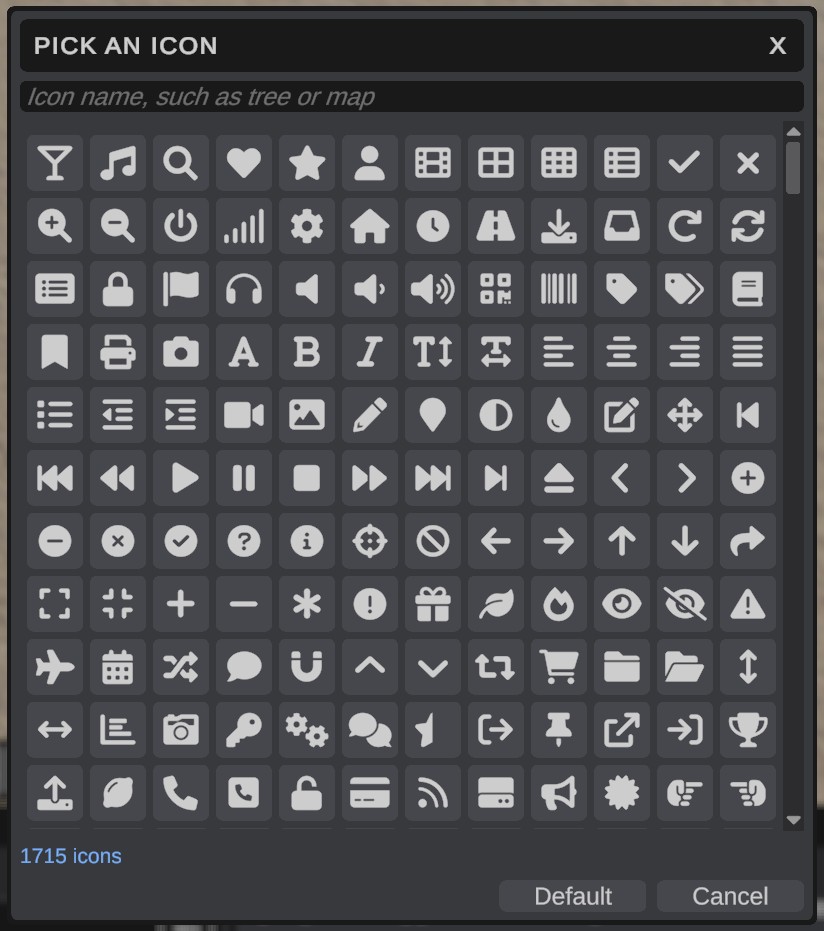
Pick an icon
The Pick an Icon box has about 1700 icons.
- Type a name in the search box, such as
treeormap. - Scroll the list. Point at an icon to see its name.
- Click the icon. The button shows it.
Default puts back the button's own picture, or a square when it has none. Cancel changes nothing.
Edit the groups
Thin lines split the tool bar into groups. To change the groups, right-click the tool bar, then click Edit Sidebar....
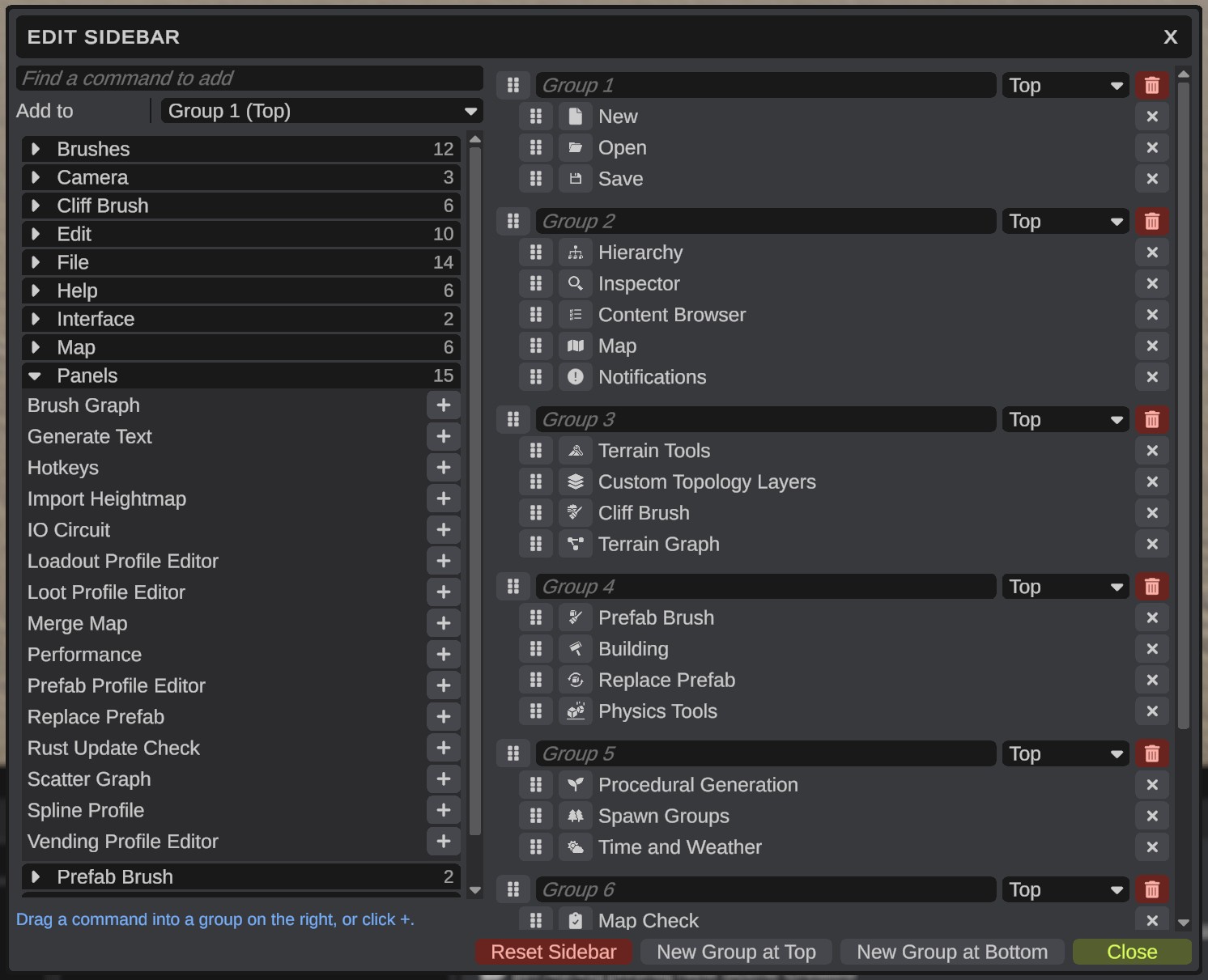
On the left are the commands that are not on the tool bar, in sections by type.
- Click a section's name to open it, or type in the search box.
- Drag a command into a group on the right. Or pick a group in Add to, then click + beside the command.
On the right are the groups. Each group has:
- a name box,
- a list for its part of the tool bar: Top, Middle or Bottom,
- a delete button,
- its buttons under it. Click a button's picture to change its icon, or the cross to take it off.
To change the order:
- Drag a button to move it, also into another group.
- Drag a group by its name row to move the whole group.
A line shows where it goes.
| Button | What it does |
|---|---|
| New Group at Top, New Group at Bottom | Adds an empty group. |
| Reset Sidebar | Puts back the tool bar RustEdit comes with. |
Where it is saved
Your tool bar is saved in Configuration/sidebar.json in the RustEdit folder. It is the same for every layout. A button that a later version of RustEdit adds also comes onto your tool bar.