Hotkeys
You can give your own keys to every main-menu item, to every panel and to the scene view's tools. You can also give keys to a setting in a panel, such as the brush strength. RustEdit comes with keys for the most used commands. See Keyboard Shortcuts for those.
Change the keys of a command
Open . The Hotkeys panel lists every command in groups.
- Click a group's name to open it. Or type in the search box: a search opens every group it finds something in.
- Click the keys box beside the command. The box shows Press keys....
- Press the new keys. Esc or a click somewhere else stops the wait.
When another command uses the same keys in the same place, the Hotkey box opens and asks first.
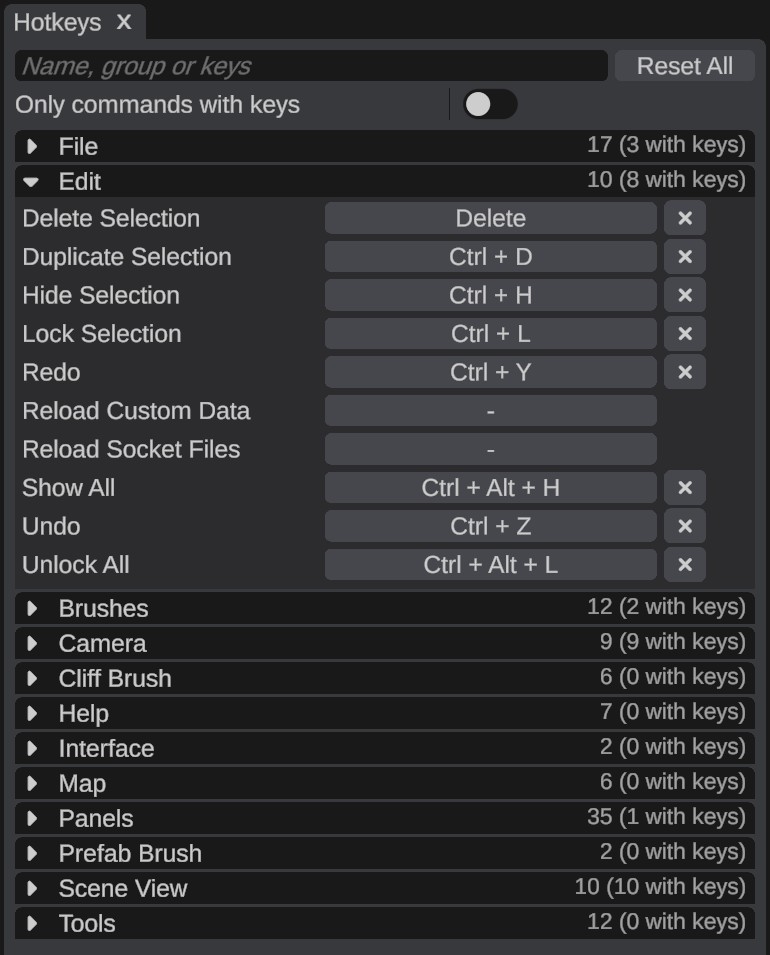
| Button | What it does |
|---|---|
| The cross beside a command | Takes its keys away. |
| The arrow beside a command | Puts back the keys RustEdit comes with. |
| Reset All | Puts back the keys of every command. |
Right-click to give a hotkey
You do not need to find a command in the panel. Right-click it where it is:
- Right-click a main-menu item, a panel's tab or a tool bar button. Click Assign Hotkey.... It says Change Hotkey... when the command has keys.
- Right-click a setting in a panel, then click Hotkey for .... See Hotkeys for panel settings.
The Hotkey box opens:
- Press the keys. Hold Ctrl, Alt or Shift with them if you like.
- Read the line under the keys. It tells you if another command uses the same keys.
- Click Save.
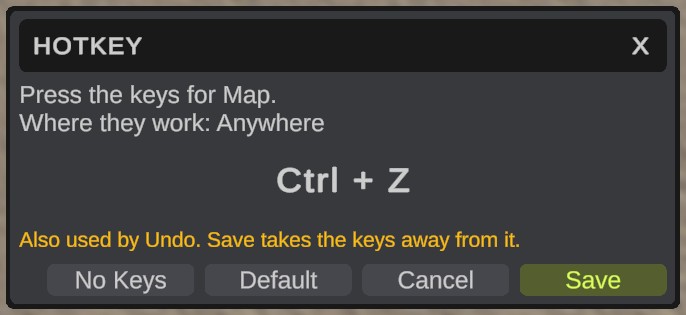
| Button | What it does |
|---|---|
| No Keys | Takes the keys away. |
| Default | Puts back the keys RustEdit comes with. |
| Cancel or Esc | Closes the box and changes nothing. |
Hotkeys for panels
A panel's keys open the panel. Press them again to close it. If the panel's tab is behind another tab, the keys bring it to the front.
Ctrl+Shift+P does this for the Performance panel. Every other panel has no keys at first.
Hotkeys for panel settings
Right-click a setting in a panel, then click Hotkey for ...:
| Setting | Commands it gets |
|---|---|
| A number | Up and Down |
| A switch | Switch |
| A list | Next and Previous |
The keys change the setting as your mouse would.
- They work while the panel is open, also when its tab is behind another tab.
- A setting the panel hides, such as a setting of another mode, does not change.
- For the Terrain Tools, Prefab Brush and Cliff Brush panels, the keys work only while that tool is on.
Tools and brushes
These groups have ready-made commands. Only Brush Size has keys at first.
| Group | Commands |
|---|---|
| Tools | Turn a tool on or off, as its buttons do: Terrain Tools: Sculpt and Paint, Next Terrain Tool and Previous Terrain Tool, Prefab Brush: Paint and Erase, Cliff Brush: Line and Area. They open the tool's panel when it is closed. |
| Brushes | Change the brush of the tool in use: size, strength, rotation, spacing, scatter, and the next or previous brush picture. ] and [ make the brush bigger and smaller. The new value shows beside the pointer. |
| Prefab Brush, Cliff Brush | Change their own settings, such as Min Distance and Cliff Variety. |
| Camera | The fly keys, F to move to the selection and L for the camera light. A fly key is one key on its own: Shift stays the key to fly faster. |
The Brushes, Prefab Brush and Cliff Brush commands work only while their tool is on.
Where keys work
Some keys work only in one place, such as the scene view.
- Two commands can share keys when one works anywhere and the other works only in the scene view. Over the scene view, the scene view's command runs. Elsewhere, the other command runs.
- When two commands want the same keys in the same place, Save takes the keys away from the other command.
- Keys do nothing while you type in a text field. Click outside the field first.
Tab, Enter, the mouse wheel and the left and right mouse buttons count only with Ctrl, Alt or Shift. Esc cannot be a hotkey.
Your keys are saved in Configuration/hotkeys.json in the RustEdit folder.