Team Folders
RustEdit ProA team folder is a cloud folder that you share with other RustHQ members. Everybody in it opens the same files, and editors save new versions of them. The folder's files use the space of its owner.
Before you start
- To make a team folder, you need RustEdit Pro. You can own 1 team folder with up to 5 people, or 5 folders with up to 20 people each with RustEdit Sponsor. The owner and open invites count.
- To be in a team folder, a person needs RustEdit Pro. In a folder of a RustEdit Sponsor, any signed-in RustHQ member can be in it.
Open Team Folders
Open . On the left are your invites and your team folders. Click a folder to see its members on the right.
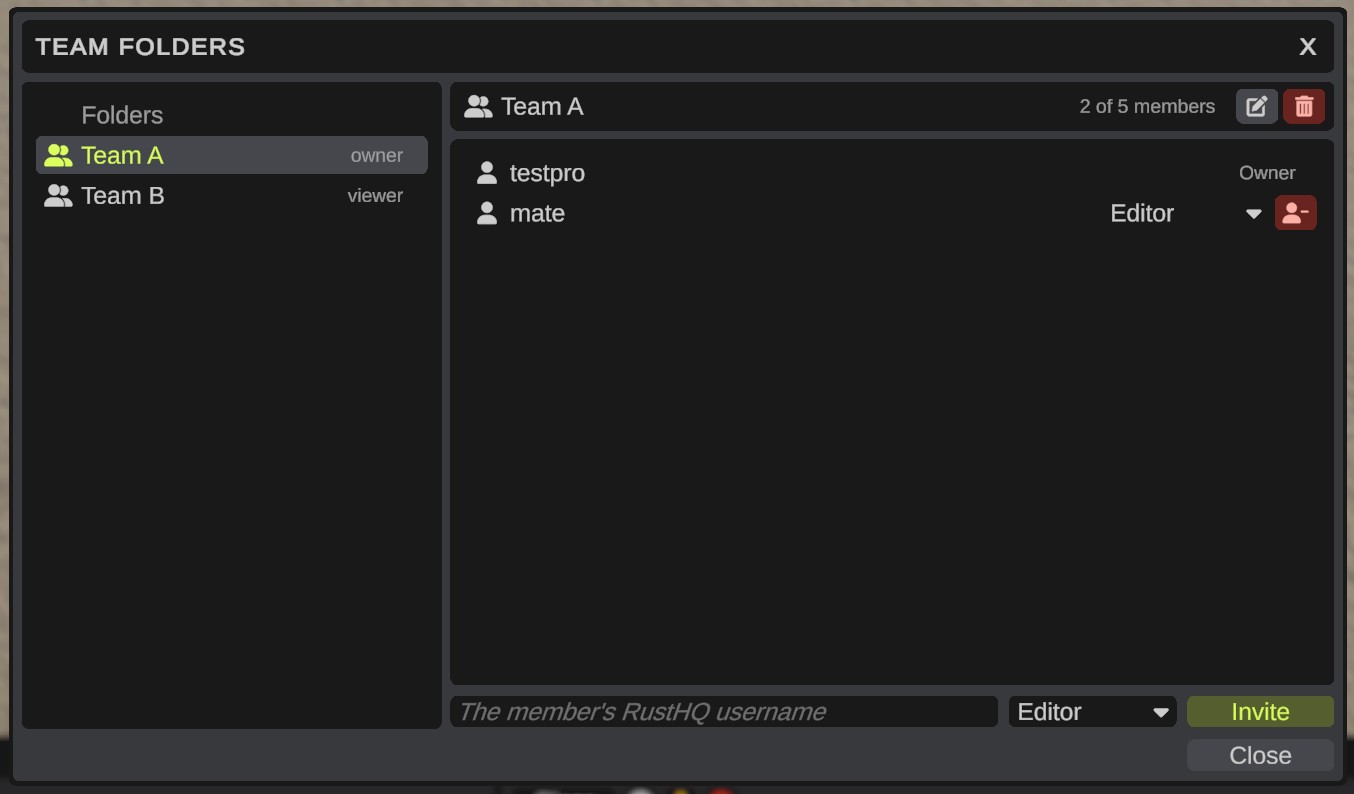
Make a team folder
- Click New Team at the bottom of the list. It shows only when your plan has room for one more folder.
- Type the folder's name and click Save.
Invite people
- Click your folder.
- Under the members, type the person's RustHQ username.
- Pick a role: Editor or Viewer.
- Click Invite. The person shows in the list as invited until they answer.
The person sees the invite at the top of their Team Folders list. They click the check to accept, or the cross to decline. To take back an invite, click the cross on the person's row.
Roles
| Role | What the person can do |
|---|---|
| Owner | Everything: invite, change roles, remove people, rename and delete the folder, and delete files forever. |
| Editor | Open, save, rename and delete files. |
| Viewer | Open files and see their versions. |
The owner changes a member's role in the list on the member's row. The remove button takes the person out of the folder.
Rename, delete or leave a folder
The buttons beside the folder's name:
- Owner: Rename (pencil) and Delete Team Folder (bin). Deleting deletes all the folder's files. It cannot be undone.
- Member: Leave. You cannot open its files after this, until you are invited again.
Work on a file together
Team folders show in under My Files. Open and save their files as in Save And Open Cloud Files. Their monuments come to your Custom Monuments folder under Cloud/<folder name>. See Cloud Monuments.
When you open a file from a team folder, the others see that you work on it. Open From Cloud shows for example "testpro is working on this file now, on WORKSHOP-PC."
- While somebody else works on a file, you can open and look at it. Your saves stay on your computer until they are done, and the Notifications panel says so.
- Your claim on the file ends when you open another file, or within 10 minutes after RustEdit closes.
- When two people save at the same time anyway, RustEdit asks the second one what to do. See When somebody else saved first.