Cloud Monuments
RustEdit ProYour cloud monuments are in the Content Browser on every computer you sign in on. RustEdit copies them into your Custom Monuments folder for you, so you place them like any other monument.
Before you start
- Sign in to RustHQ. Cloud monuments need RustEdit Pro. See RustEdit Cloud.
- The monuments must be saved in your Custom Monuments folder. See Create and Edit Monuments.
Send monuments to the cloud
You do not have to open a monument to send it. Use one of these:
- : all the monuments in your Custom Monuments folder.
- In the Content Browser, right-click a monument and pick Send To Cloud.
- In the Content Browser, right-click a folder in Monuments and pick Send Folder To Cloud: all the monuments in that folder.
Then:
- In Folder, pick My Files or a team folder.
- Check the list. State says what happens to each monument.
- Click Send. The button says how many monuments go, for example Send 2.
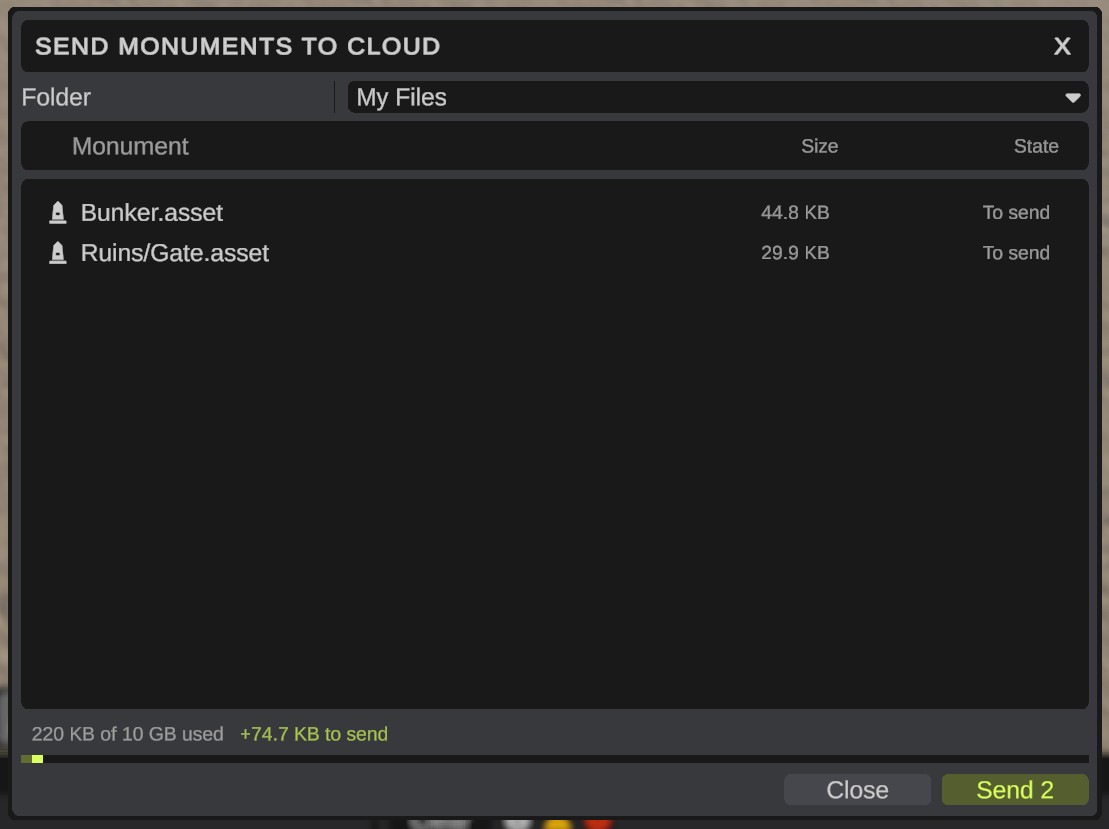
| State | What it means |
|---|---|
| To send | The monument is not in the cloud yet. It goes into the folder you picked. |
| Changed, to send | The monument is in the cloud, and this computer has changes that are not sent yet. It goes as a new version. |
| In the cloud | Nothing to send. |
| Sent | Sent now. |
| Name already used | Another file in the cloud has this name. Nothing is sent, and nothing in the cloud is changed. |
| Not sent | Something went wrong. The line at the bottom says what. |
The monuments go under Monuments/ in the cloud, with their folders kept. For example Ruins/Gate.asset becomes Monuments/Ruins/Gate.asset. Click Stop to stop sending. The monuments that were not sent stay To send.
After a monument is sent, each normal save of it sends a new version, the same as for maps. You can also open a monument and use . See Save And Open Cloud Files.
Get your cloud monuments on another computer
Sign in. RustEdit copies your cloud monuments into your Custom Monuments folder:
Cloud/My Files/...for your own monuments.Cloud/<team folder name>/...for the monuments in each team folder you are in.
In the Content Browser, they are under Monuments > Cloud. Drag them onto the map like any other monument.
RustEdit looks for new and changed monuments soon after it starts, then every 15 minutes.
- A copy with changes that are not sent yet is never replaced.
- A file of your own at the same place is never replaced.
- When you delete a cloud monument, its copy on your computers stays. Delete the copy from your Custom Monuments folder if you do not want it.
To stop the copying, turn off Keep Monuments Here in , group Cloud.
Edit a cloud monument
Open the monument from the Content Browser (right-click > Edit Monument), from , or from the Cloud tab of the Start screen. When you save it, the new version goes to the cloud, and your other computers get it at their next look.