Save And Open Cloud Files
RustEdit ProSave a map or monument to the cloud once. After that, each normal save also sends a new version, and you can open the file on any computer you sign in on.
Before you start
- Sign in to RustHQ. Cloud files need RustEdit Pro. See RustEdit Cloud.
- Only
.scene(maps) and.asset(monuments) files go in the cloud. To put a.mapfile online for a server, see Hosted Maps.
Save a map to the cloud
- Open the map or monument.
- Open .
- In Folder, pick My Files or a team folder.
- In Name, type the name in the cloud. Use
/for folders, for exampleMaps/Winter. You do not need to type.scene. - In Note, you can type what changed. The note shows in the version list.
- Click Save. RustEdit saves the file on your computer first, then sends it.
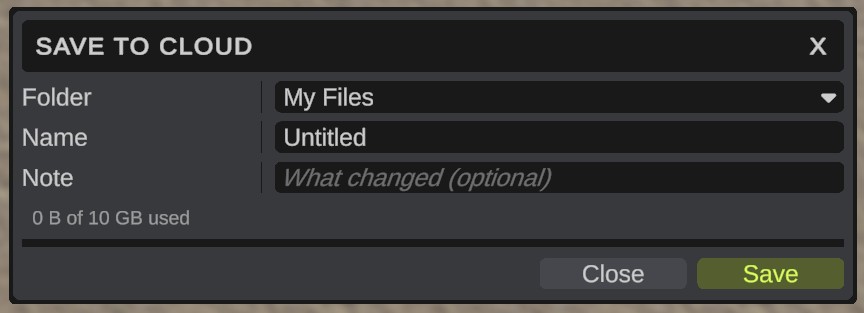
The bar under the fields shows the space you use, and in green how large the saved file is. When a file with that name is already in the cloud, RustEdit asks if you want to save over it. Your file then becomes its newest version, and its older versions stay.
A map that was never saved gets a file in RustEdit's own cloud folder on your computer.
Your next saves are sent too
After the first time, every normal save (Ctrl+Shift+S) also sends a new version. It happens in the background, and the Notifications panel says when it is done, for example "[Cloud] Sent Winter.scene to the cloud (version 4, 1.2 MB sent)".
- To send only when you choose, turn off Send Saves To Cloud in , group Cloud. Then use Save To Cloud each time.
- When a send fails, the file is still saved on your computer. Open From Cloud then says "This computer has changes that are not sent yet." Your next save sends it again.
- If you quit while a file is being sent, RustEdit asks first.
When somebody else saved first
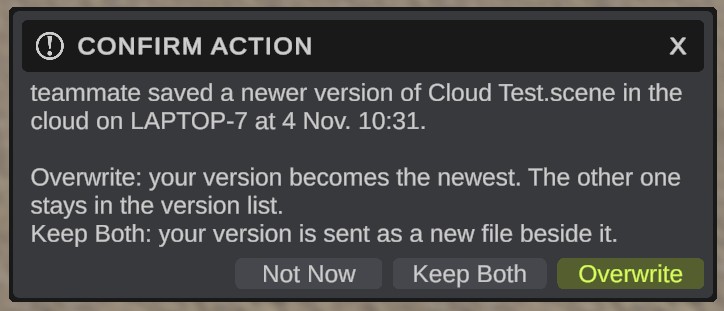
When someone saved a newer version from another computer, RustEdit asks what to do before it sends yours:
| Choice | What happens |
|---|---|
| Overwrite | Your version becomes the newest. The other one stays in the version list. |
| Keep Both | Your version is sent as a new file beside it, with your computer's name after the file name. |
| Not Now | Nothing is sent. Your file stays saved on your computer. |
Open a cloud file
- Open .
- On the left, pick My Files or a team folder.
- Click a file. The line at the bottom says which version it is, who saved it, on which computer, and when.
- Click Open, or double-click the file.
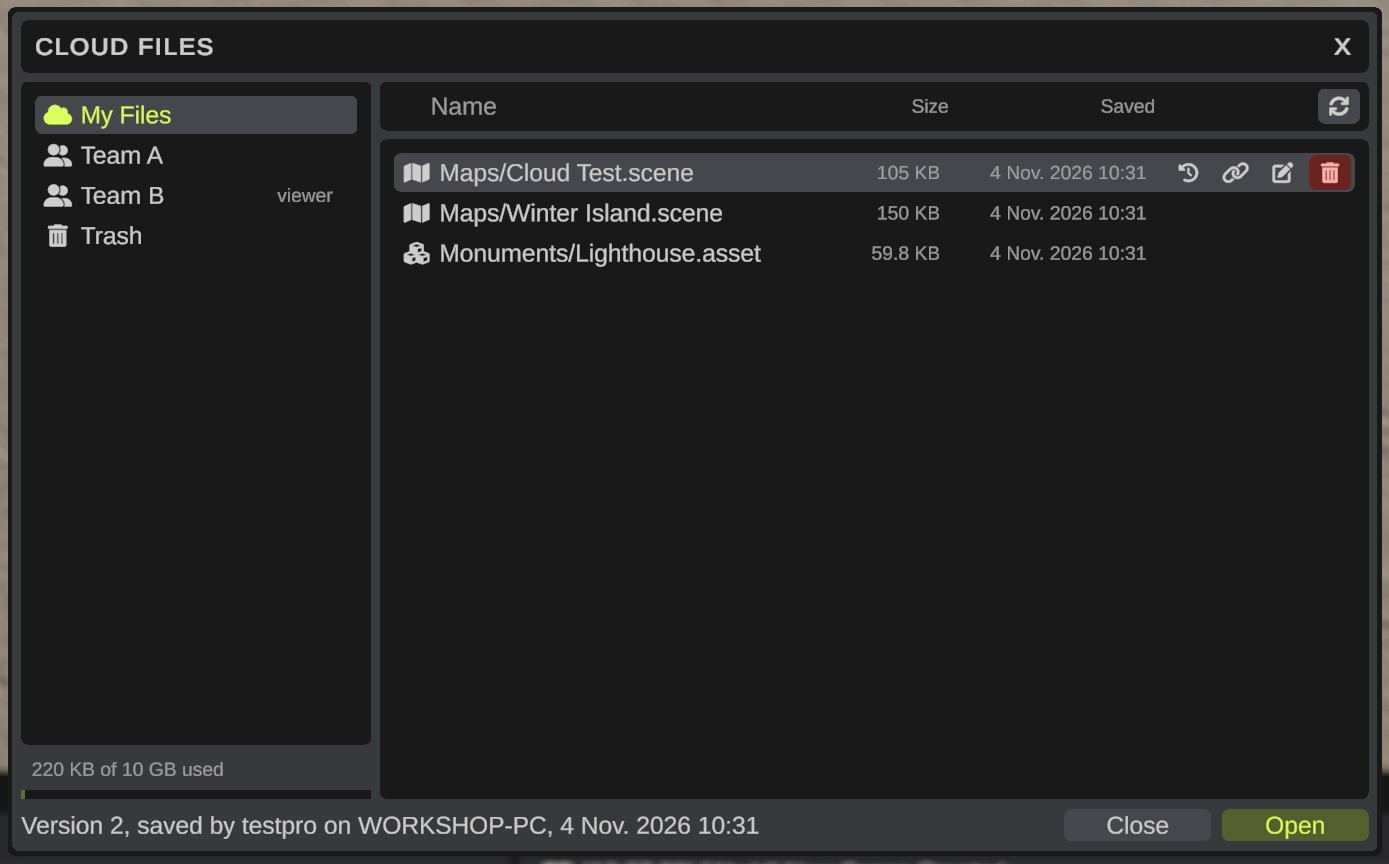
If the open map has unsaved changes, RustEdit asks first. When the copy on your computer is the same as the cloud's newest version, nothing is downloaded. When your copy has changes that are not in the cloud, RustEdit asks before it opens the cloud version.
You can also open cloud files from the Cloud tab of the Start screen.
The buttons on a file
Click a file to show its buttons:
| Button | What it does |
|---|---|
| Versions (clock) | Lists the file's versions. See below. |
| Share (link) | Makes a link for other people. See Share Links. |
| Rename (pencil) | Gives the file a new name or folder. The copy on your computer keeps its file. |
| Delete (bin) | Moves the file to the trash. |
Right-click a file for the same items, and for Copy To, which copies the newest version into another of your folders. Viewers of a team folder see only Versions.
Go back to an older version
- Click the file, then click the Versions (clock) button.
- The list shows each version, who saved it, on which computer, and its note. The newest says (newest).
- Click a version, then:
- Open This Version opens it as a copy, named for example "Winter (version 3)". Saving the copy never changes the cloud file.
- Make Newest (the clock button on the row) makes that version the newest again. Nothing is deleted: the versions after it stay in the list.
- Click the arrow at the top to go back to the files.
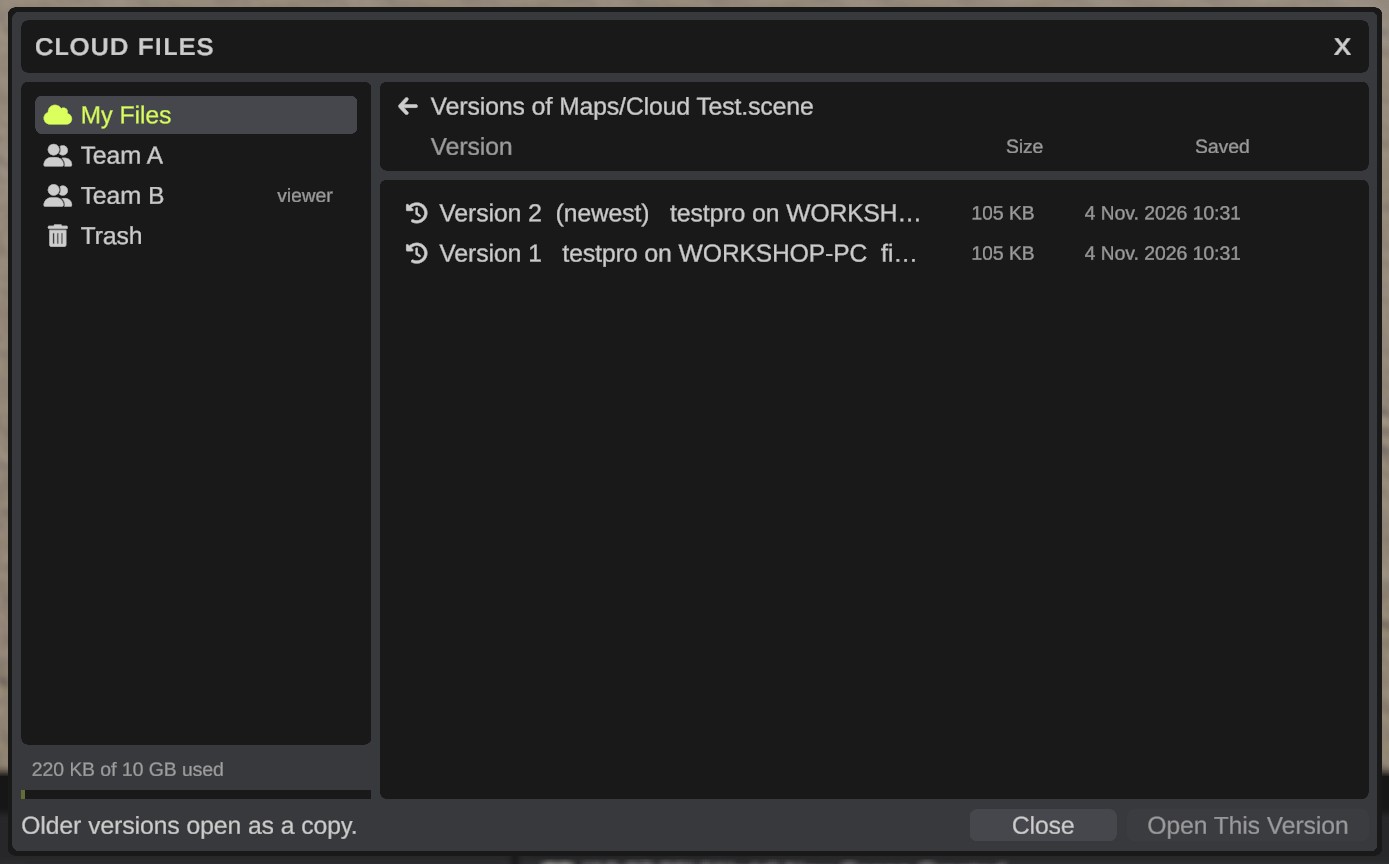
The cloud keeps the newest 10 versions of each file (30 with RustEdit Sponsor). Older ones are dropped. A version that a share link points to is kept.
The trash
Delete moves a file to the trash. Trash on the left shows the deleted files of all your folders.
| Button | What it does |
|---|---|
| Restore (arrow) | Puts the file back where it was. It cannot go back when another file now has its name. |
| Delete Forever (bin) | Deletes the file and all its versions at once. Only the owner of the folder can do this. It cannot be undone. |
A file stays in the trash for 30 days, then RustHQ deletes it. A file in the trash still uses your space. After you delete a file forever, the space comes back after RustHQ's daily clean-up, within about a day.