Start Screen
When RustEdit has loaded, the Start screen shows your recent maps and monuments as cards on the left, and the patch notes of each RustEdit version on the right. Click a card to open its map or monument. Click New Map or New Monument to start a new one.
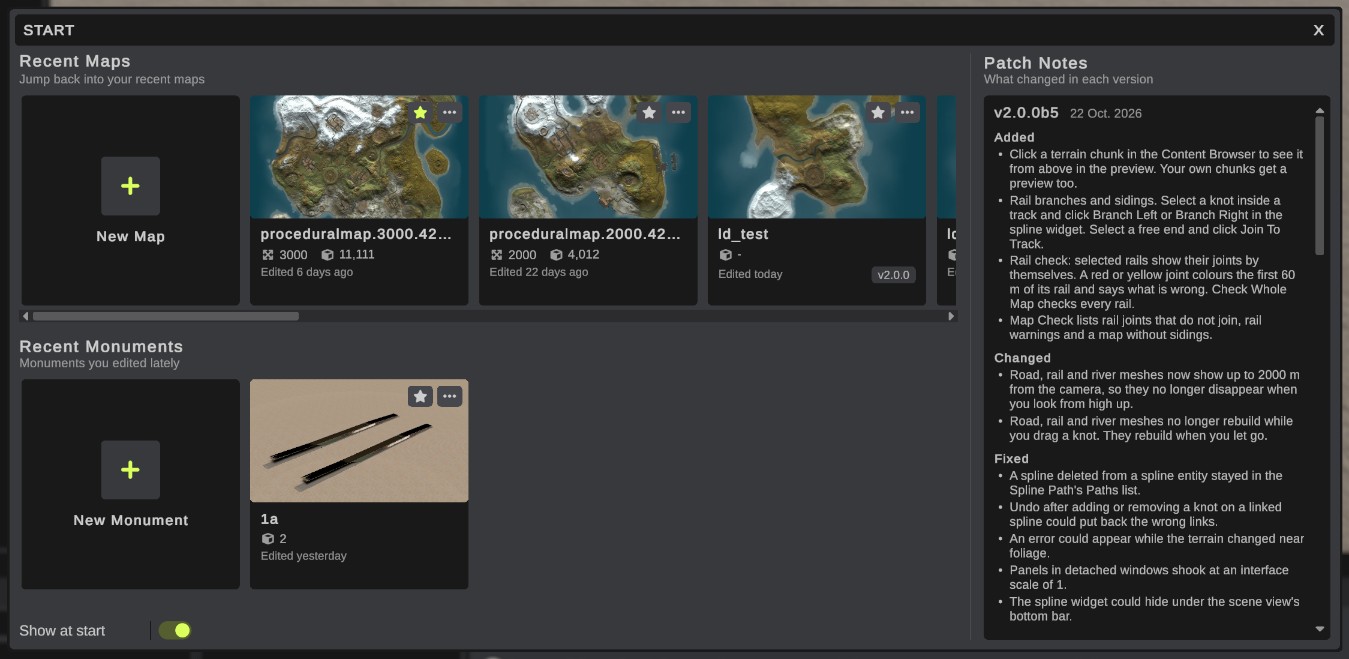
To show it again at any time, open . To close it and go on with the empty map, click X.
Start a new map or monument
The first card in each row starts a new one:
- New Map opens the Create Scene dialog set to World.
- New Monument opens the Create Scene dialog set to Monument.
The dialog is the same as . See New Map.
The cards
Recent Maps has a card for each map and scene you opened or saved, and Recent Monuments a card for each monument. The newest are first. Each row keeps 12 cards, and starred cards do not count. Scroll a row sideways to see more.
A card shows:
| Part | What it shows |
|---|---|
| Picture | The map from above, as the Map panel draws it, or the monument's preview from the Content Browser. |
| Name | The file's name. Rest the pointer on it to see the whole path. |
| Size | The map's size in meters, for example 3000. Maps are square. Monuments do not show it. |
| Prefabs | How many prefabs the map or monument has. |
| Edited | When the file was last changed, for example Edited 6 days ago. |
| Version | The RustEdit version that last saved the file, for example v2.0.0b5. A file you only opened has no version. |
A card's details update each time you open or save the file. A map gets a new picture each time you open or save it, after its terrain is built. A monument gets a new picture when you save it.
Maps you opened before the start screen existed show without a picture and details. They get both the next time you open them.
Open a card
- A map replaces the open map. If the open map has unsaved changes, RustEdit asks first.
- A monument opens on top of the open map, as Edit Monument in the Content Browser does. See Create and Edit Monuments.
- A file that was moved or deleted shows File not found on its card. Clicking the card takes it off the list.
- A map or scene with an encryption key asks for the key, as does.
Star a card
Click the star on a card's picture. A starred card stays first in its row, after New, and is never taken off the list, even when you open many other files. Click the star again to take it off.
The card menu
Click ... on a card's picture:
| Item | What it does |
|---|---|
| Open | Opens the map or monument, as a click on the card does. |
| Open Folder | Opens the file's folder in Windows Explorer. |
| Star or Remove Star | Stars the card, or takes the star off. |
| Remove from List | Takes the card off the start screen. The file is not changed. |
Patch notes
Patch Notes lists what changed in each RustEdit version, newest first. Scroll down to see older versions. The version you have shows installed after its date.
The notes come from the RustEdit update server, with the update check. RustEdit keeps a copy, so the notes also show when you have no internet connection. If you turned off Check For Updates in the Updates settings, the start screen shows the notes RustEdit has kept. gets the newest notes.
A beta install shows the notes of the beta versions. See Beta Builds.
Update notice
When a newer RustEdit version is available, a notice shows under the patch notes.
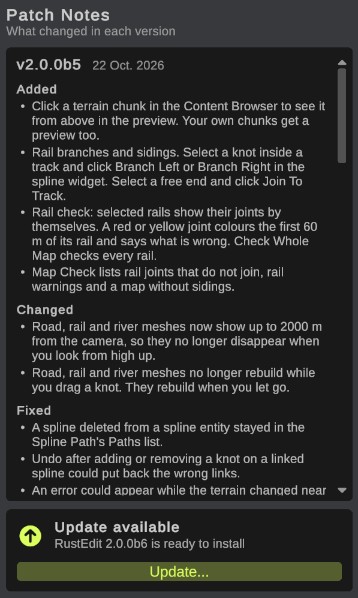
Click Update... to open the update window, which shows what is new and installs the update. See Updates.
Turn the start screen off
Clear Show at start under the monument cards, or turn off Show Start Screen in the Interface settings. still shows it.