Updates
RustEdit updates itself. When a new version is out, a button on the menu bar tells you, and one click installs it. Your settings, maps and other files stay as they are.
Install an update
- Save your map.
- Click Update Available on the menu bar. The Update Available dialog opens. It shows the new version and yours, for example RustEdit 2.0.2 is ready. You have 2.0.1. Under it are the patch notes of every version newer than yours, newest first.
- Click Update. RustEdit closes, and the RustEdit Update window opens.
- Wait. The window installs the new version and starts RustEdit again.
To update later, click Later. The button stays on the menu bar.
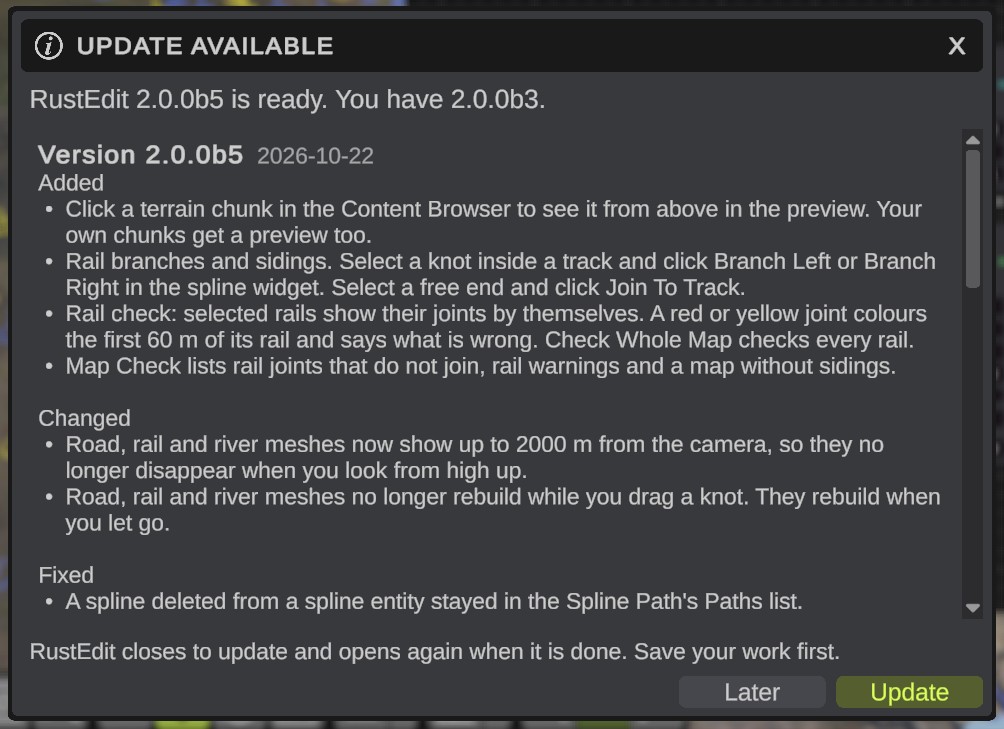
RustEdit does not ask about the open map before it closes for an update. Save your map first, or its unsaved changes are lost.
A Terrain Graph, Brush Graph, Scatter Graph or Spline Profile window with unsaved changes does ask. Click Save, Don't Save, or Cancel to stop the update.
What an update keeps
An update changes only RustEdit's own program files. It never changes or removes your settings in Configuration, the Logs and Localization folders, your maps, or your own folders such as CustomMonuments and Brushes.
RustEdit's files are cut into small pieces. The updater downloads only the pieces that changed and takes the rest from the files you already have. So an update is often much smaller than the full app. It checks every piece it downloads, and downloads a damaged piece again.
How RustEdit finds updates
After RustEdit has loaded, it asks the RustEdit update server once if there is a newer version. If there is none, or the server cannot be reached, you see nothing.
When there is a newer version, the Update Available button shows at the right end of the menu bar. It stays there until you update or close RustEdit.

To check at any time, open :
- With a newer version, the Update Available dialog opens.
- Without one, RustEdit says You have the newest version of RustEdit, and your version.
- If the check fails, RustEdit says Could not check for updates: and the reason.
Updates only go forward. RustEdit never installs an older version than the one you have. If a version has a problem, a newer version fixes it.
The update window
The RustEdit Update window shows each step with a progress bar.
What each step means
| It says | What happens |
|---|---|
| Waiting for RustEdit to close | RustEdit is still closing. |
| Checking the install | The updater looks for an update that was cut off before, and puts its old files back. |
| Reading the update list | It reads which version is the newest. |
| Getting a newer updater | The new version needs a newer updater. The updater gets it, and the new one goes on with the update. |
| Checking files | It compares your files with the new version. Files that are the same are not touched. |
| Downloading | It downloads the changed pieces. Under the bar: the MB done and the MB in all. |
| Building files | It makes the new files next to your install. |
| Replacing files | It puts the new files in place. Under the bar: the files done and the files in all. |
| Starting RustEdit | The update is done. The new version starts and the window closes. |
To stop the update, click Cancel before Replacing files. The window says The update was cancelled and RustEdit was not changed. Click Start RustEdit to start the version you had, or Close. From Replacing files on, the update cannot be stopped and the window cannot be closed.
If RustEdit has not closed after a minute, the window says RustEdit is still open. Close it, or force it to close (unsaved work is lost). Wait, or click Force close.
If an update fails
If something goes wrong, the updater puts the old files back. The window says The update did not finish, the reason, and RustEdit was not changed. The log has the details.
| Button | What it does |
|---|---|
| Retry | Tries the update again. |
| Start RustEdit | Starts the version you had. |
| Open log | Opens the update log in Notepad. |
| Close | Closes the window. |
If the computer turns off or crashes while the files are replaced, the next time the updater runs it puts the old files back first. See Repair or Uninstall.
Turn off the update check
- Open , then Updates.
- Turn off Check For Updates.
RustEdit then does not check when it starts. still works. See Settings.
Beta updates
A beta build is its own install and gets only beta updates. Your normal RustEdit never gets them. See Beta Builds.
Troubleshooting
The updater writes what it does to update.log, in the .update folder of your RustEdit folder. Open log opens it. Add this file when you ask for help on the RustEdit forum.
| Problem | What to do |
|---|---|
| Could not check for updates: and a reason | RustEdit cannot reach the update server. Check your internet connection, and that no firewall blocks RustEdit, then try again. |
| Update in the dialog cannot be clicked | RustEditUpdater.exe is missing from the RustEdit folder. Run the setup and pick your RustEdit folder to repair it. For the beta, use RustEditBetaSetup.exe. |
| Could not move a file, and It is open in: names a program | Another program holds a RustEdit file. Close that program, then click Retry. |
| An antivirus program holds or blocks the files | Antivirus programs look at new program files. The updater waits up to 15 seconds for each file. If that is not enough, let the scan finish, or allow the RustEdit folder in your antivirus, then click Retry. |
| Not enough free disk space on a drive | The message says how many MB the update needs. Free up space on that drive, then click Retry. |
| RustEdit does not start after the computer turned off during an update | Run RustEditUpdater.exe in the RustEdit folder. It puts the old files back first, then installs the update. See Repair or Uninstall. |
| The update server could not be read in the setup | Check your internet connection, then click Retry. |