Manage Profiles
Profiles are lists you make once and use in many places. All four kinds work the same way: you make, open, rename, copy and delete them in the Content Browser, and the map carries a copy of the profiles its objects use. This page explains what they share. Each kind's own page explains its editor.
The kinds of profile
| Kind | File | Used by | Folder |
|---|---|---|---|
| Loot profile | .lprof | Loot containers, in Custom Loot Profile. | Loot |
| Vending profile | .vprof | NPC vending machines, in Custom Vending Profile, and NPC Vendors, in Vending Profile. | Vending |
| Loadout profile | .ldprof | NPC Spawners, NPC Vendors and Vehicle Vendors, in Loadouts. | Loadouts |
| Prefab profile | .palette | The Prefab Brush and prefab splines, in Prefab Profile. | Prefabs |
Each kind has its own editor, in , and its own folder in the Content Browser, under Profiles.
Make a profile
- In the Content Browser, open the Profiles folder.
- Right-click the kind's folder, for example Loot Profiles, and click New Profile. RustEdit asks for a name.
- Type a name and click Save. The kind's editor opens with the new, empty profile.
Right-click the Profiles folder itself for New Profile with each kind in it. Cancel makes nothing and opens nothing. Characters that a file name cannot have are left out of the name.
Open a profile
- Double-click it in the Content Browser, in Profiles.
- Click the profile field at the top of its editor and pick one. Or drag one onto that field from the Content Browser.
- Right-click a profile field, such as Custom Loot Profile in the Inspector, and click Open in Editor.
- Open the editor from . It opens the profile you had open last time.
Save, next to the profile field at the top of the editor, lights up when the profile has changes. An asterisk (*) after the name also shows them. If you open another profile while the open one has changes that are not saved, RustEdit asks first.
With no profile open, or when the open profile was deleted, the editor shows only the field and a line that says how to open one.
Use a profile
A profile field, such as Custom Loot Profile or Prefab Profile, takes a profile of its own kind.
- Drag a profile onto the field from the Content Browser. Or click the field and pick the profile in the list.
- The list shows None first, then your saved profiles and the map's own, A to Z, and New Profile at the end.
- A long list has a search box at the top: type part of a name, then press Enter to pick the first profile left.
- Right-click the field for Open in Editor and Clear.
- A name that no profile has shows as "... (missing)", with a warning sign. The object keeps the name until you pick another profile.
Objects use a profile by its name.
Rename, copy and delete
Right-click a profile in the Content Browser:
| To | Do this |
|---|---|
| Rename a profile | Click Rename. The name turns into a text box. Type the new name and press Enter, or click somewhere else. Esc keeps the old name. The objects in the open map that use the profile take the new name, so they keep using it. The Prefab Brush and the profile editors keep it too. |
| Copy a profile | Click Duplicate. The copy has a number after its name, such as "Crates 2", ready for you to type a new name. |
| Delete a profile | Click Delete, then confirm. RustEdit deletes only the profile's file. Objects that use it keep its name and show it as missing, and a map that has a copy keeps the copy. A profile that came with the map has no file to delete. |
When you rename a profile, a name that another profile of the kind has, or that a file cannot have, is refused, and the old name stays.
Where the files are
RustEdit saves profiles in the Profiles folder next to the app, each kind in its own folder: Loot, Vending, Loadouts and Prefabs. To use another Profiles folder, open , then Paths, and set Profiles. See Settings.
Palettes from RustEdit 1 open as prefab profiles: copy them into the Prefabs folder. See Coming from RustEdit 1.
Profiles in the map
- When you save a scene, or export a map with In RustEdit data, RustEdit writes a copy of each loot, vending and loadout profile that the map's objects use into the map. A map exported with In the map has no profiles. See In the map or in RustEdit data.
- A saved scene also carries a copy of each prefab profile its prefab splines use. A prefab spline keeps its own copy of its profile's prefabs, so the scene opens the same on a computer that does not have the profile.
- A saved monument carries the profiles of its objects in the same way.
- In a multiplayer session, RustEdit sends the profiles that objects use to the other people.
A profile that RustEdit cannot find when you save or export is left out of the map. The objects that use it get Rust's own loot, orders or items in the game.
Profiles that come with a map or monument
A map or monument from someone else can bring loot, vending and loadout profiles you do not have. RustEdit saves them as profile files in your Profiles folder, so you can use them at once, in this map and in others. It does this when you open a map or monument, and when you place a monument from the Content Browser. The Notifications panel says "Saved ... loot and vending profiles from" the map's name, and lists them.
RustEdit compares each profile with your saved profiles of the same kind. Two profiles are the same when they have the same items and settings, whatever their names.
- A name that none of your profiles has: RustEdit saves it under its name.
- The name of one of yours, and the same: nothing changes. The map's objects use your profile.
- The name of one of yours, not the same, but another of yours is the same under another name: the map's objects use that other profile. RustEdit does not ask.
- The name of one of yours, and not the same as any of yours: RustEdit asks which one to use.
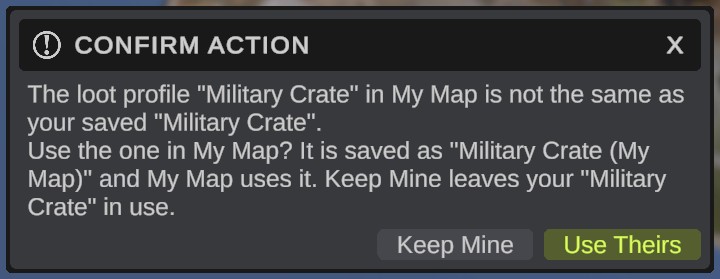
RustEdit asks after the map has opened, one question for each profile. For a loot profile "Crates" in a map file Island.map, it asks:
The loot profile "Crates" in Island is not the same as your saved "Crates". Use the one in Island? It is saved as "Crates (Island)" and Island uses it. Keep Mine leaves your "Crates" in use.
- Use Theirs saves the map's profile as "Crates (Island)": its name, then the map's or monument's file name in parentheses. If that name is taken, RustEdit adds a number. The objects that used "Crates" in that map or monument now use "Crates (Island)". Your own "Crates" does not change. The map now has unsaved changes: save it to keep the new names.
- Keep Mine changes nothing. The objects use your "Crates". RustEdit asks again the next time you open the map.
After Use Theirs, RustEdit finds "Crates (Island)" among your profiles the next time, and uses it without asking.
When you join someone's multiplayer session, RustEdit saves none of the host's profiles on your computer. For a profile that you have no file of, click Save in its editor to write its file.
Troubleshooting
| Problem | What to do |
|---|---|
| A profile is missing from a profile field's list or the Profiles folder | Only saved profiles and the map's own profiles are listed. Make it with New Profile in the Profiles folder. |
| A profile does not drop on a field | A field takes only its own kind: a loot profile goes onto Custom Loot Profile. The Notifications panel says which kind the field takes. |
| A field shows "... (missing)" | No profile has that name. Make one with that name, or pick another profile. |