IO Circuit
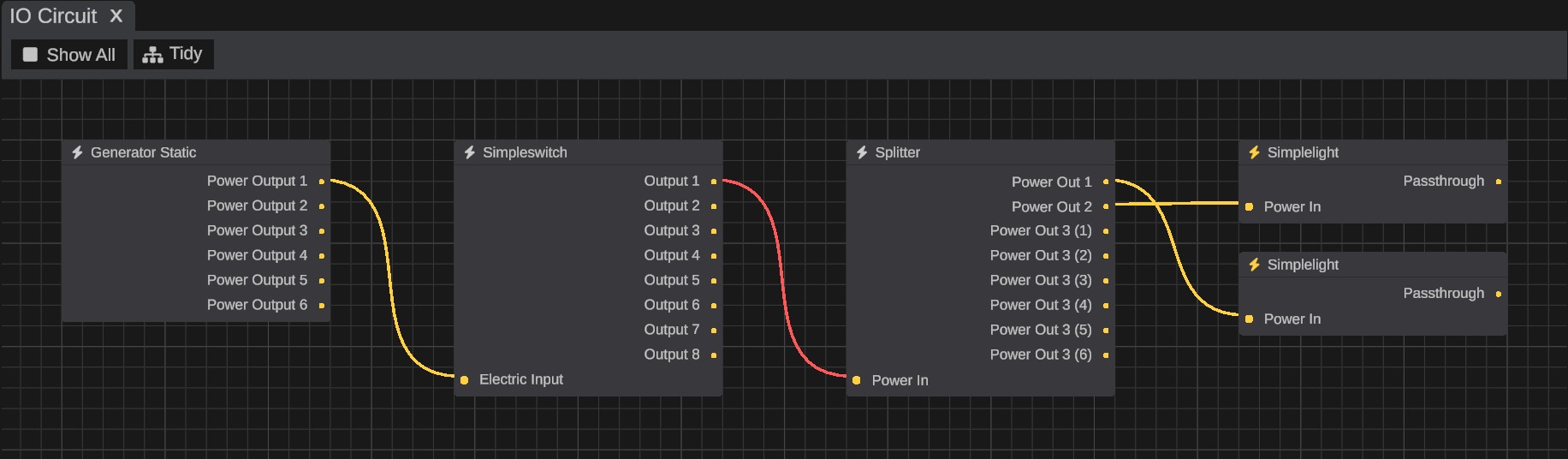
RustEdit PlusThe IO Circuit window shows the IO wiring of your map as a graph. Each IO entity is a node, each of its slots is a port, and each wire is a line between two ports. You can wire, unwire and color wires right in the graph. The graph is a view of the map: there is no file to save, and every change is made in the map itself.
Open the window
Open .
The graph shows the IO entities you select in the scene, with every IO entity wired to them. Select a switch, and you see the whole circuit it is part of, from the power source to the lights.
What the graph shows
- Nodes. Each node is one IO entity. Its title is the IO entity's name, as in the Hierarchy. The picture in the title is the icon of the Rust item that places the IO entity, or of an item that places the same kind of IO entity. Without one, it is the icon of the slot type, as in the Inspector.
- Ports. Each port is a slot of the IO entity, with the slot's name from the Inspector. Inputs have their socket on the left, outputs on the right. Each slot takes one wire.
- Placed monuments with IO ports. Each is one node, named after the monument. Its ports are the monument's IO inputs (left) and IO outputs (right), named after them. Wire the map's IO entities to them as to any node. Select the monument in the scene to show it.
- Wires. Each wire of the map is a line from an output to an input. A wire with a color (Red, Green, Blue or Yellow) is drawn in that color. A Black wire is drawn in the colors of its slot type.
The port colors show the slot type:
| Port color | Slot type |
|---|---|
| Yellow | Electric power |
| Blue | Water |
| Purple | Kinetic |
| Orange | Industrial (items) |
| Gray | Generic |
These are not in the graph:
- Hidden objects, and wires to them.
- The parts of a placed monument. They come from the monument's file. Open the monument to see them: the window then shows the monument's IO entities and IO ports. On the map, only its IO ports show, on the monument's node.
- IO entities inside Rust's own monument prefabs, and the wires inside those prefabs. See IO Wiring.
Choose what is shown
| Option | What it does |
|---|---|
| Show All | Shows every IO entity of the map. Off (the default): the IO entities selected in the scene, and everything wired to them. |
| Tidy | Lays every node out again: sources on the left, what they feed on the right. |
Both are on the bar at the top of the window, and in the menu when you right-click the empty canvas.
With Show All off:
- When you select IO entities in the scene, the graph shows them and their circuits, and frames them in the view.
- When you select something that is not an IO entity, or nothing, the graph stays as it is.
- An IO entity stays in the graph after you take its wire out, so you can wire it again. It goes when you select other IO entities.
- An IO entity you place or import from the graph stays in the graph with the nodes that are there.
To place new IO entities from the graph, or to import a circuit you built on rustrician.io, see Add and Import IO.
How to wire two entities
- Drag from an output port to an input port. You can also drag from an input to an output. While you drag, the ports that cannot take the wire are drawn faint.
- Let go on the port. The wire is made in the map, as if you had connected it in the Inspector. It shows in the scene view too.
The graph keeps the same wire rules as the Inspector. When the graph refuses a wire, the Notifications panel says why.
An output takes one wire. If you drag a new wire from an output that has one already, the wire moves to the new input and keeps its color.
Move or remove a wire
- Drag from the socket of a wired input. The wire comes off with the pointer. Let go on another input to move it there. Let go anywhere else, or on an input that cannot take it, to take the wire out. The map changes only when you let go.
- Or right-click a port and pick Disconnect.
When you let go of a wire on the empty canvas, the menu of IO entities that can take it opens. Close it with Esc or a click outside it to only take the wire out.
Wire color
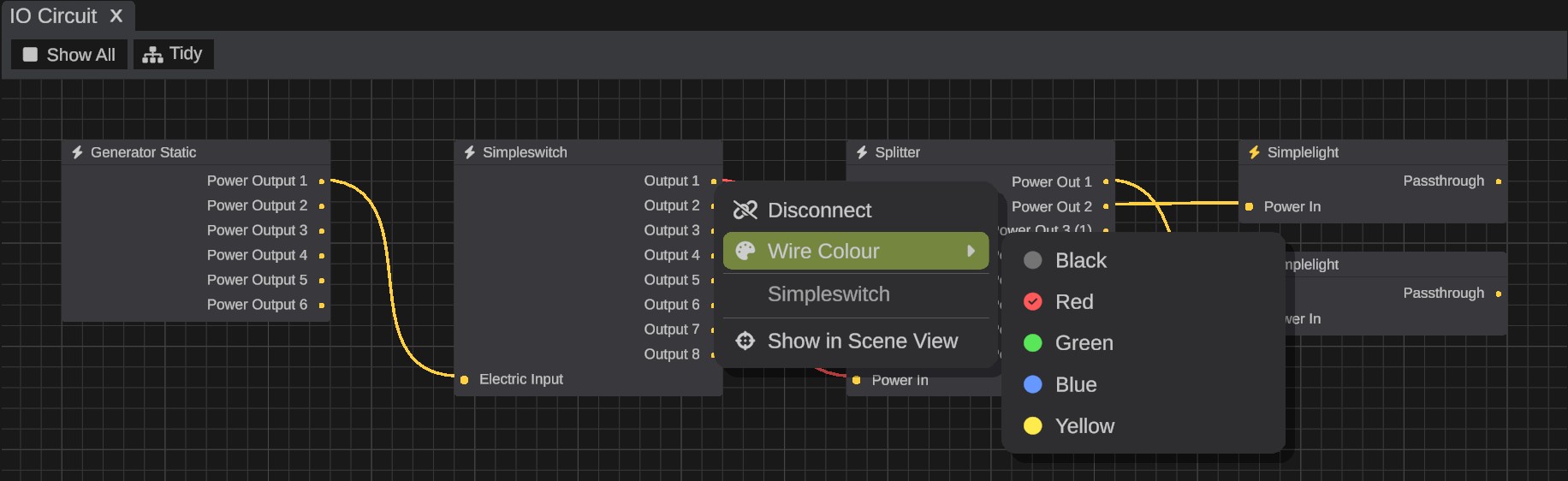
Right-click an output port and pick Wire Colour, then Black, Red, Green, Blue or Yellow. The current color has a check mark. The wire is drawn in its new color in the graph and in the scene view.
Undo
Making, moving and removing a wire, changing its color, adding an IO entity (with its wire) and importing a circuit are one undo step each in the map's history. Ctrl+Z and Ctrl+Y undo and redo them, also while the pointer is over the graph. The graph has no undo history of its own.
You cannot delete or copy nodes in the graph. Delete and copy IO entities in the map: the graph follows.
Select and find entities
- Click a node to select its IO entity in the scene. The Inspector shows it.
- Select IO entities in the scene, and their nodes are selected in the graph.
- Ctrl+A with the pointer over the graph selects every node, and so their IO entities.
- Clicking the empty canvas clears the selection, in the graph and in the scene.
- Double-click a node to move the camera to its IO entity. Right-click the node and pick Show in Scene View to do the same.
Moving around the canvas, box selection and Ctrl+Mouse Left work as in the Terrain Graph.
Changes made elsewhere
The graph follows the map. Wires you make or change in the Inspector or the scene view, undo and redo, IO entities you place, delete, hide or show, and changes other people make in a multiplayer session all show in the graph. While you hold the left mouse button down, the graph waits, so it never changes under a wire or a node you drag.
Where the nodes go
The first time an IO entity shows in the graph, RustEdit places its node: right of a node that feeds it, or left of a node it feeds. A new circuit goes under the nodes that are there. Tidy lays out all the shown nodes again: each circuit in columns, sources on the left, and the circuits side by side.
Drag a node's title bar to move it.
- RustEdit saves where the nodes are in the scene file. The exported map does not have them.
- Moving a node or clicking Tidy is a change to the map, so save the scene to keep it. These are not undo steps.
- Each monument file keeps its own node places.
- In a multiplayer session, when you move a node, it moves for everyone. While you have a monument open, the moves of other people are not applied.
Simulate
Click Simulate on the bar to run the map's IO without playing. A pulse runs along each wire as power goes along it, and you can pause, step and feed inputs power. See Simulate IO.
In Play mode
While you play, the window shows the power of each port, and a double-click on a node uses its IO entity. See IO in Play Mode.
Troubleshooting
| Problem | What to do |
|---|---|
| The graph is empty | Select an IO entity in the scene, or turn on Show All. |
| An IO entity is not in the graph | It may be hidden, a part of a placed monument, or a part of Rust's monument prefab. See What the graph shows. |
| "... already has a wire. Take that wire out first" | The input is taken. Take its wire out, or pick a free input. |
| "... cannot be wired to ...: only slots of the same type connect" | The slots are of different types, for example water and power. |
| "Two entities can have one wire between them" | The two IO entities are wired already. Move that wire instead. |
| "... has a wire to an entity the graph does not show" | The output's wire goes to a hidden object or to a part of a monument. Take that wire out in the Inspector first. |
| "Wires cannot be changed while playing" | Stop Play mode first. |
| "Wires cannot be changed while the simulation runs" | Click Stop on the bar first. |
| Wire Colour is grayed out | You are in Play mode, or your license does not have RustEdit Pro or higher. |