Cargo Paths
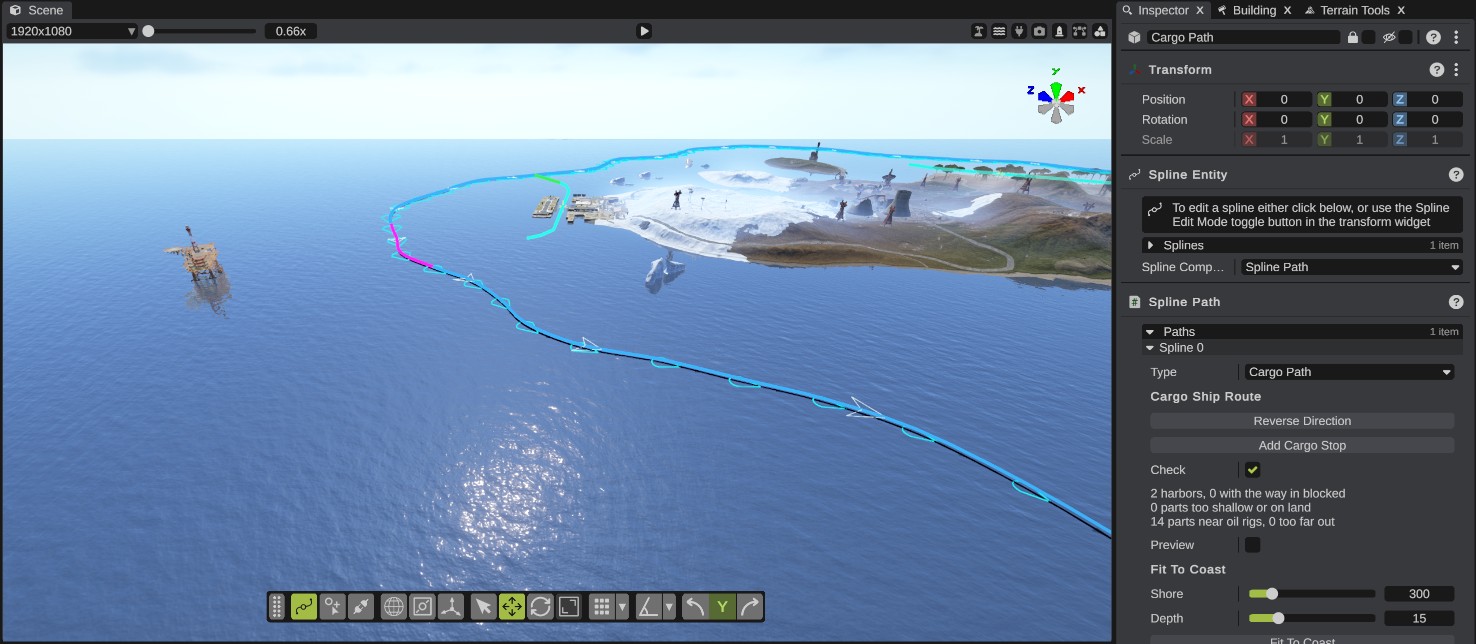
The Cargo Path is the loop the cargo ship sails round the map. Cargo Stop splines are extra places where the ship docks, like Rust's harbors. RustEdit checks the route against the water depth, the oil rigs and the harbors, and can run the ship along it with the game's own steering.
Before you start
Cargo paths and cargo stops are server data, not part of Rust's map format. Rust does not read them by itself. The server needs the RustEdit 2 server extension, Oxide.Ext.RustEdit.dll: it uses them for the cargo ship. See What the export adds.
See the extension's GitHub page for how to install it. See also The RustEdit 2 server extension.
How to make the cargo path
A map has one cargo path.
- Make a spline entity, for example a Circle Spline, and turn on spline edit mode. See Editing splines.
- Set Spline Component to Spline Path.
- Under Paths, set the spline's Type to Cargo Path.
- Set Shore and Depth under Fit To Coast, then click Fit To Coast. RustEdit remakes the spline as a loop round the map.
- Turn on Check and fix the red parts.
You can also draw the path yourself. Keep it closed: Rust sails the patrol round and round. An open path makes the ship sail straight back from its end to its start, and the export warns you.
The ship sails the path the way it was drawn. Arrows on the path show that way. Reverse Direction turns it round.
A second cargo path in a scene, for example a copy, opens as a plain spline. The app says: "A map can have 1 Cargo Path".
Cargo Ship Route options
| Option | What it does |
|---|---|
| Reverse Direction | The cargo ship sails the path the way it was drawn, shown by the arrows. This turns it round. |
| Add Cargo Stop | Adds a cargo stop spline to this entity at the patrol nearest the middle of the view. See Cargo stops. |
| Check | Colors the path and shows the way into each harbor. See below. |
| Preview | Runs the cargo ship along the path and draws where it goes. See below. |
| Shore | How far from the land the path keeps, in meters, for Fit To Coast. |
| Depth | The least water depth within the shore distance, in meters, for Fit To Coast. |
| Fit To Coast | Remakes the path as a loop round the map, as close to the land as Shore and Depth allow. |
Fit To Coast makes a knot every 4 degrees round the map, and the loop runs anticlockwise seen from above. It replaces the spline's knots and is one undo step. Reverse Direction is one undo step too.
The route check
Turn on Check to color the path, part by part:
| Color | Meaning |
|---|---|
| Blue | Deep water: 20 m or more. |
| Yellow | Shallow: 10 to 20 m. |
| Red | Too shallow, on land, or more than 10 km from the middle of the map, where Rust removes the ship. |
| Pink | Within 350 m of an oil rig. |
The check also finds the harbors in the scene: Rust's harbor monuments, then the cargo stops. For each one it draws a line from the patrol point where Rust sends the ship in: green when the way is clear, red when land blocks it. A yellow cross marks where the ship docks.
The label under Check sums it up, for example how many harbors have the way in blocked and how many parts are too shallow.
The route preview
Turn on Preview to run the cargo ship along the path, with the game's speed, turning and docking. RustEdit draws the ship's track, and a box goes round it at 60 times the ship's speed. The label lists what happened:
| Line | Meaning |
|---|---|
| "One lap: ... min" | The time for one lap without docking. |
| "Docks at harbor ... after ... min" | The ship docked there. |
| "Docks at harbor ... AGAIN" | The harbor's way out joins the patrol before its way in, so the ship docks there twice. Harbors later on the patrol may be missed. |
| "Leaves the map after ... min" | The ship left at the end of its time. |
| "Goes round and round after ... min" | A turn is too sharp for the ship. A red cross marks the place. |
Check and Preview are not saved. They find Rust's harbors from the harbor monuments placed in the scene, so a harbor that is not placed in the scene is not checked.
Cargo stops
A cargo stop is an extra place where the ship docks. Draw it from the sea in, past the dock and out again. The ship leaves its patrol at the patrol point nearest the first knot, docks, sails on to the last knot and goes back to its patrol.
A cargo stop works only as a spline of the cargo path's spline entity. The type dropdown lists Cargo Stop only there.
How to add a cargo stop
- Move the view so its middle is near the place for the stop.
- In the cargo path's settings, click Add Cargo Stop. RustEdit adds a spline of three knots: in from the patrol, a dock knot towards the middle of the map, and out again. The middle knot is the dock.
- Move the knots to where the ship should sail and dock.
- Check the line from the patrol to the first knot: green is clear, red is blocked by land.
Adding a cargo stop is one undo step.
Cargo Stop options
Select knots of the cargo stop in spline edit mode, then use the buttons. The label shows the dock knot and how many knots set a speed. It counts knots from 0.
| Option | What it does |
|---|---|
| Dock At Selected Knot | The ship stops at this knot for the server's cargoship.dock_time (8 minutes by default). |
| No Dock | The ship sails through without stopping. |
| Throttle | The ship's throttle from a knot on, 0.1 to 1 of its 5 m/s approach speed. Rust's harbors start at 0.3. |
| Set On Selected Knots | Sets the throttle on the selected knots. It holds until a later knot sets another. |
| Clear Selected Knots | Takes the throttle off the selected knots. |
Each of these is one undo step.
What the export adds
The export writes the cargo path and its stops into RustEdit's server data, not into the map as splines:
- The patrol is a list of points every 25 m, at sea level. They are in the order Rust's cargo ship uses, so the ship sails the way you drew the path.
- Each cargo stop is a list of points every 20 m at sea level, in sailing order, with the throttle where a knot sets it and the dock.
- A cargo stop without a dock knot is written with a warning: the ship sails through it without stopping.
- A cargo stop that is not in the cargo path's spline entity is left out, with a warning.
The scene file keeps the full splines. When you open an exported map without its scene, RustEdit makes the cargo path and its stops again from the points, with fewer knots.