Prefab Splines
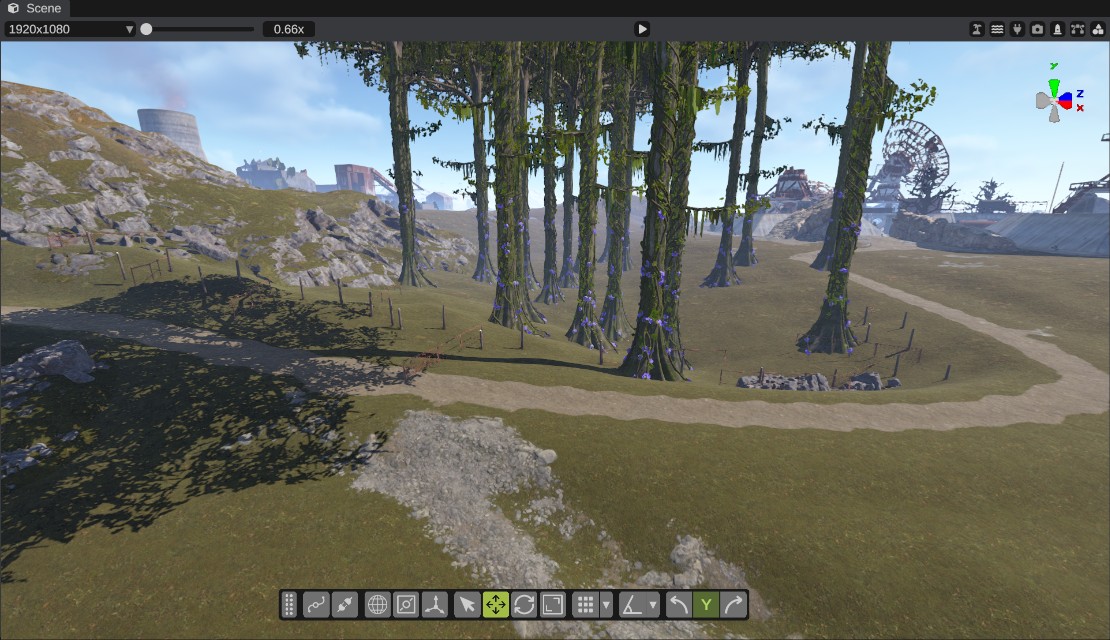
RustEdit ProA prefab spline places prefabs for you: in a row along the line, such as a fence or lamp posts, or scattered inside a closed line, such as a forest. The prefabs come from a prefab brush list. While Live is on, RustEdit makes them again each time you change the spline or a setting.
Before you start
- You need RustEdit Pro. Without it, the prefab types are greyed out in the type dropdown, their settings cannot be changed and no prefabs are made.
- Save a prefab brush list with the prefabs you want, with their weights and random scale and rotation. See Prefab brush.
How to place prefabs along a spline
- Make a spline entity and draw the line. For an area, close the spline. See Editing splines.
- Turn on spline edit mode and set Spline Component to Prefab Spline.
- Under Paths, open the spline's row and pick a Type: Prefab Line or Prefab Area.
- In List, pick a prefab brush list. The list's prefabs are copied into the spline. With Live on, the prefabs are made.
- Change the options until the layout looks right.
The made prefabs are normal prefabs. They go under a new empty entity in the Hierarchy, named after the spline entity, for example "Spline prefabs 0". They are saved and exported like any other prefab.
The types
| Type | What it does |
|---|---|
| Prefab Line | Places prefabs along the line, a set distance apart: on the line, on one side, or on both sides. |
| Prefab Area | Scatters prefabs inside the closed line. Areas of the same entity marked as Hole keep them out. |
Options
| Option | Types | What it does |
|---|---|---|
| List | All | A prefab brush list. Its prefabs and weights are copied into the spline. |
| Reload List | All | Copies the list again, after it was changed in the prefab brush. |
| Spacing | Line | Meters between two prefabs along the line. |
| Side | Line | Meters to the side of the line. |
| Both Sides | Line | Prefabs on both sides of the line, facing each other's way. Needs Side above 0. |
| Follow Line | Line | Prefabs turn with the line, not at random. |
| Density | Area | Prefabs for each 1000 square meters. |
| Hole | Area | This area places nothing and keeps the other areas of the entity out. |
| Min Gap | Area | The least meters between two prefabs. The row also shows for a Prefab Line, where it does nothing. |
| Jitter | All | Random meters each prefab moves. |
| Max Slope | All | The steepest ground a prefab goes on, in degrees. |
| On Ground | All | Prefabs sit on the ground, not at the line's height. |
| Seed | All | Another number gives another random layout. The same seed gives the same layout. |
| Live | All | The prefabs are made again by themselves when the spline or a setting changes. |
| Make Prefabs | All | Makes the prefabs again now. |
| Remove Prefabs | All | Removes the made prefabs. |
The label at the top shows how many prefabs the list has, the list's name, and how many prefabs are made.
The prefab brush list also sets each prefab's own options: its weight, whether it is on, its scale range, height offset, random rotations and whether it tilts with the ground.
Live and hand changes
With Live on, the prefabs are made again a moment after your last change. While you hold a mouse button, for example while you drag a knot, RustEdit waits until you let go.
Making the prefabs again throws the old ones away. A prefab you moved or changed by hand is lost at the next change of the spline or its settings. To keep hand changes, turn Live off first, or move the prefabs out of the group.
Make Prefabs and Remove Prefabs are not undo steps. If you removed the prefabs by mistake, click Make Prefabs: the same spline, settings and Seed give the same layout. With Live on, undoing a change to the knots makes the prefabs again from the old spline.
Copies
A copy of a prefab spline makes its own prefabs. It does not take over the prefabs of the spline it was copied from.
Tips
- An area with On Ground off places its prefabs at the average height of its line.
- One area can hold at most 20,000 prefabs.
- To clear a space in an area, add a second closed spline to the same entity, make it a Prefab Area and turn on Hole.