Player Reports
RustEdit ProPlayer Reports lets players on a game server tell you about problems with your map. A player types /mapreport and what is wrong, for example /mapreport this rock floats. The report goes to RustHQ. In RustEdit, it shows in the Reports tab of Map Notes, with a pin at the spot the player looked at.
Use it when people test your map on a server before you release it.
Before you start
- Sign in to RustHQ in RustEdit. RustHQ keeps the reports.
- You need RustEdit Pro. Players and server owners need nothing.
- Save your map as a
.scenefile. - The server needs the newest RustEdit 2 server extension.
Turn reports on
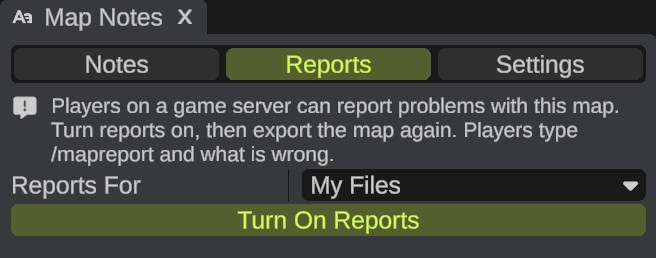
- Open , then click the Reports tab.
- In Reports For, pick who sees the reports: My Files (only you), or one of your team folders. Reports For shows only when you own or edit a team folder.
- Click Turn On Reports. RustHQ makes a report list for the map. It has the map's name, for example "my_island".
- Save the scene. The scene keeps the link to the report list.
- Export the map. See Export Map.
The exported
.mapfile holds the map's report key. - Put the new
.mapfile on the server.
A map you exported before you turned reports on has no report key. Its server cannot send reports. Export the map again.
The file name does not matter
The report key is inside every export, so you can give the .map file any name. A Rust server and its players download a map again only when its file name changes. Turn on Add Number in the Export Map dialog to get a new name each time: my_island_1.map, my_island_2.map and so on. See Export Map.
The key works with both Entities choices, In the map and In RustEdit data, and also when you export with an encryption key.
What players do
On the server, a player types the command and what is wrong:
/mapreport the wall floats above the ground here
The report holds:
- the text, up to 500 characters,
- where the player stands, and where they look,
- what they look at, up to 100 m away, such as a prefab or the terrain,
- the player's name and Steam ID,
- the server's name.
The player sees "Report sent. Thank you!" in the chat. When a player joins, the chat says "Found a problem with this map? Type /mapreport and what is wrong."
A player can send one report every 20 seconds, and 20 in an hour. The server owner can change the command, the limits and the join message. See Server Extension Settings and Commands. RustHQ also takes at most 20 reports an hour from one player, 30 from one server and 60 for one map, from all its servers together. A player who sends the same text again within 10 minutes sees "Report sent. Thank you!", but RustHQ keeps only the first.
See the reports
The Reports tab shows the open reports. Its name counts them, for example Reports (4). The pins in the scene view and on the Map panel are pink, with a speech bubble icon.
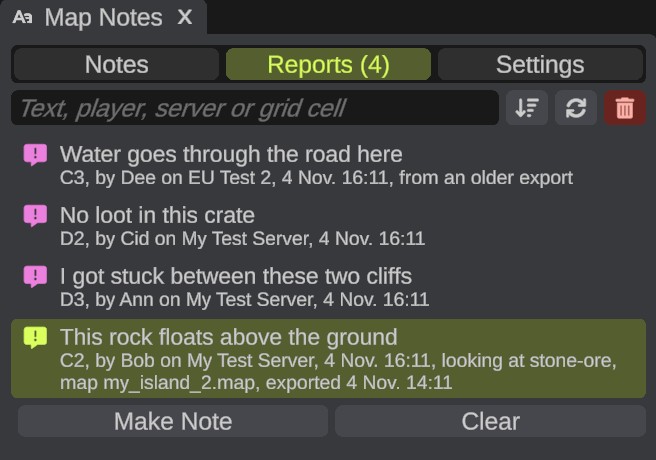
RustEdit gets the reports when you open the map, and every 2 minutes while the Map Notes panel is open. Click the refresh icon to get them now.
Each row shows:
- the first line of the report,
- the grid cell, the player's name, the server's name and the time,
- what the player looked at,
- "from an older export" when the server ran a map that is older than your newest export. The problem may already be fixed.
Click a report. The camera goes to where the player stood, and looks where the player looked. The report also shows the map file the server ran and when you exported it, for example "map my_island_2.map, exported 4 Nov 15:40".
You cannot change a report. To work on it, click Make Note.
Find reports
| Control | What it does |
|---|---|
| Search box | Shows the reports with the words in their text, player, server or grid cell. |
| Sort | Newest: newest first. Grid Cell: as the map grid reads. Nearest: nearest to the camera first. |
| Refresh | Gets the reports from RustHQ now. |
Make Note and Clear
| Button | What it does |
|---|---|
| Make Note | Copies the report into a normal Bug note in Map Notes, signed with the player's name, then clears the report. The note keeps the player's view. |
| Clear | Deletes the report on RustHQ. Ctrl+Z brings it back. |
| Clear All (the trash can in the search row) | Deletes all open reports of the map on RustHQ. RustEdit asks first. Ctrl+Z brings back the ones that showed. |
Right-click a report's pin on the Map panel for Show in Map Notes, Show in Scene View, Make Note and Clear.
RustHQ keeps a cleared report for 7 days, so Ctrl+Z can bring it back.
Team folders
Pick a team folder in Reports For, and its members see the map's reports too:
- The owner and the editors of the team folder can Make Note, Clear and change the report key.
- A viewer can read the reports, but has none of the buttons.
The reports use a report list of the team folder's owner, and the owner needs RustEdit Pro.
Settings
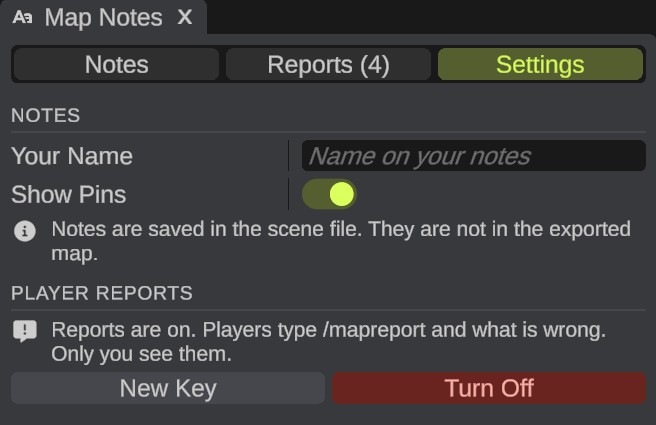
The Settings tab of Map Notes shows who sees the reports, for example "Reports are on. Players type /mapreport and what is wrong. Only you see them."
| Button | What it does |
|---|---|
| New Key | Makes a new report key. Servers that run a map you exported before stop sending reports. Export the map again for them. Use it when somebody sends unwanted reports. |
| Turn Off | Deletes all reports of the map on RustHQ. Servers stop sending reports. RustEdit asks first. |
Who can see what
- The report key only sends reports. Anyone who has the map file can find the key, but nobody can read reports with it. To read them, a person needs a RustHQ account with access to the map's report list.
- RustHQ keeps the player's name and Steam ID, the server's name and the server's address with each report. Open reports are deleted after 180 days.
Troubleshooting
| Problem | What to do |
|---|---|
| "Sign in to RustHQ to see this map's player reports." | Sign in to RustHQ in RustEdit. |
| "You have as many maps with reports as your plan allows. Turn reports off for another map first." | Click Turn Off in the Settings tab of another map. RustEdit Pro has 25 maps with reports, RustEdit Sponsor 100. |
| "You cannot see this map's reports." | The reports belong to a team folder you are not in, or to another member. Ask the owner, or click Remove From This Map to take the link out of your scene. |
| "RustHQ does not have this map's reports any more." | The reports were turned off, for example on another computer. Click Remove From This Map, then Turn On Reports again and export the map again. |
| A player sees "This map does not take reports now." | The server runs a map with an old key, or the map's owner has no RustEdit Pro. Export the map again and put it on the server. |
| A player sees "This map has too many open reports. Try again later." | The map has 500 open reports. Clear some. |
| No reports come in | Check that the server runs a map you exported after you turned reports on, and the newest server extension. In the server console, rustedit.reports says if the map has a report key. |