Server Objects
Server objects are RustEdit's own objects, not Rust prefabs. Each one tells the RustEdit 2 server extension to make something on the server, such as an NPC or a shop. Rust itself does not know them.
Before you start
- The server needs the RustEdit 2 server extension.
- Export the map with Entities set to In RustEdit data. A map exported with In the map has no server objects. See Export Map.
The server objects
| Object | What it makes on the server | How to use it |
|---|---|---|
| NPC Spawner | One of Rust's NPCs, a person or an animal. When it dies, the next one spawns. | NPC Spawners |
| NPC Vendor | A shopkeeper that sells from a vending profile, as at Rust's safe zones. | Vendors |
| Vehicle Vendor | A vendor that sells vehicles, as at the bandit camp and the fishing villages. | Vendors |
| CH47 Landing Zone | A CH47 that drops off heavy scientists when a player starts to hack a crate, as at the oil rigs. | CH47 Reinforcements |
| AI Zone | Places for scientists to walk to and hide behind, and sleep for its NPCs while no player is near. | AI Zones |
| Custom Entity | Nothing by itself. A named point with your own fields, for server plugins. | Custom entities |
Place a server object
- In the Content Browser, open the Server Objects folder.
- Drag the object into the scene view. Or right-click it and click Place in Scene.
- Select it, and set it up in the Inspector.
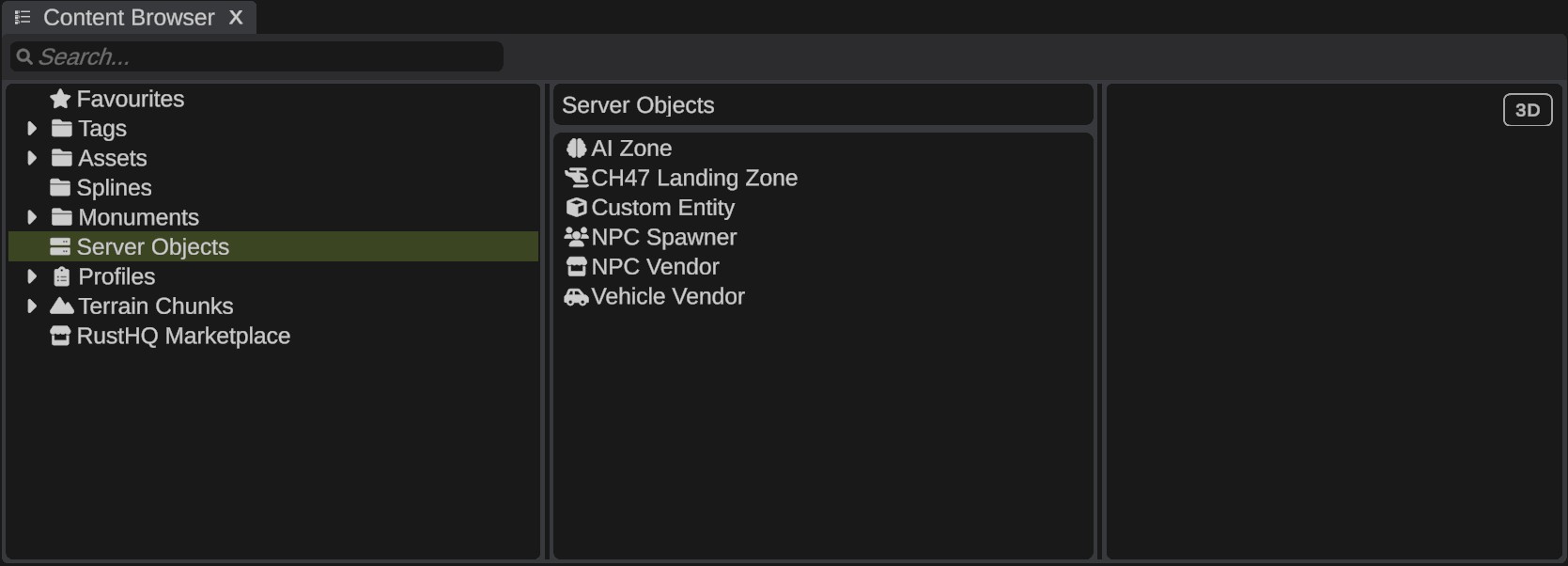
You can place server objects on a map or in a custom monument.
Server objects have no model of their own, so RustEdit draws a marker for each one:
| Object | In the scene view |
|---|---|
| NPC Spawner | The NPC it spawns, with its name over it. An orange sphere while NPC is None. |
| NPC Vendor | The shopkeeper. A green shape the size of a person when Rust's shopkeeper cannot be shown. |
| Vehicle Vendor | The vendor. A blue shape the size of a person when the vendor cannot be shown. |
| CH47 Landing Zone | A pad with an H, and an arrow for the way the CH47's nose points. |
| AI Zone | Its box, with a small block at its center. Its points show when the camera is near. |
| Custom Entity | A small blue box with its name over it. |
Click the marker to select the object. A box selection takes it too. Move and turn it with the transform gizmo, as you do a prefab.
Link server objects
Some server objects link to other objects in the scene:
| Object | Field | Links to |
|---|---|---|
| NPC Spawner | Walk Path | An NPC path for its NPC to walk. |
| NPC Spawner | AI Zone | An AI zone for its NPCs to use, wherever they are. |
| Vehicle Vendor | Vehicle Spawner | The spawner that makes the vehicles players buy. |
| CH47 Landing Zone | Crates, Alarms | The hackable crates that call the CH47, and the alarm switches that go on. |
To link, drag the other object from the Hierarchy onto the field in the Inspector. A field takes only its own kind of object. When you drop another object on it, the link does not change, and most fields say why in the Notifications panel. To remove a link, right-click the field and click Clear.
- While you select the object, the scene view shows its links: a dashed line from a spawner to its walk path, and arrows from a vehicle vendor to its spawner and from a landing zone to its crates and alarms.
- If you delete a linked walk path, vehicle spawner, crate or alarm, the field shows it as missing. An undo brings it back.
- Duplicate a spawner together with its walk path or AI zone, and the copy uses the copies. A vehicle vendor duplicated with its spawner links to the copied spawner.
- A link can go to a part of a placed custom monument, such as the crate of your own oil rig. The link stays when you open the map again, and when the monument's file changes.
Custom entities
A custom entity is for your own server plugins, or for a plugin that asks for one. It does nothing in the game by itself. The server extension gives plugins every custom entity, with its name, place, rotation, scale and fields. Use one to mark a place and its settings, such as an event area with a radius, or a door with a code.
- Place a Custom Entity where the plugin needs it.
- In the Inspector, type its Name. The plugin finds it by this name. The Hierarchy and the scene view show the name too.
- Click + under Fields to add a field.
- Give the field a name, a type and a value.
| Type | Value |
|---|---|
| Bool | On or off |
| Int | A whole number |
| Float | A number |
| String | A text |
| Vector3 | Three numbers: X, Y and Z |
| Color | A color |
Several custom entities can have the same name. The plugin gets all of them, for example every spawn point of an event.
Ask the plugin's author for the name and the fields their plugin reads. To give fields to one of Rust's prefabs in place of a point, use Custom Data.
Troubleshooting
| Problem | What to do |
|---|---|
| Nothing from the server objects is on the server | The map was exported with In the map, or the server has no extension. Export again with In RustEdit data, and put the extension on the server. |
| An NPC spawner spawns nothing | Its NPC is None: the scene view shows an orange sphere. Pick an NPC. |
| A field does not take the object you drop | It takes only its own kind of object. Read the line in the Notifications panel. |