Monument Connections
Monuments have path connections: the points where Rust's map generator joins a road, trail, rail or power line to the monument. In spline edit mode, the knots of your own roads, rails and powerlines snap to these points. A knot on a connection is linked to it, so it moves when you move or turn the monument.
Which knots snap to which connections
| Spline type | Snaps to |
|---|---|
| Road | Road and trail connections |
| Rail | Rail connections. The knot also turns to point the way the rail leaves the monument. |
| Powerline | Power connections |
Boat connections show in the scene view, but nothing snaps to them: Rust has no boat path. Other spline types do not snap.
The connections of Rust's monuments and of your placed custom monuments both work. In a custom monument, a connection is a Path Connection attribute.
See the connections
- Select a road, rail or powerline spline entity.
- Turn on spline edit mode. See Editing Splines. The connections of the monuments near the camera show as rings.
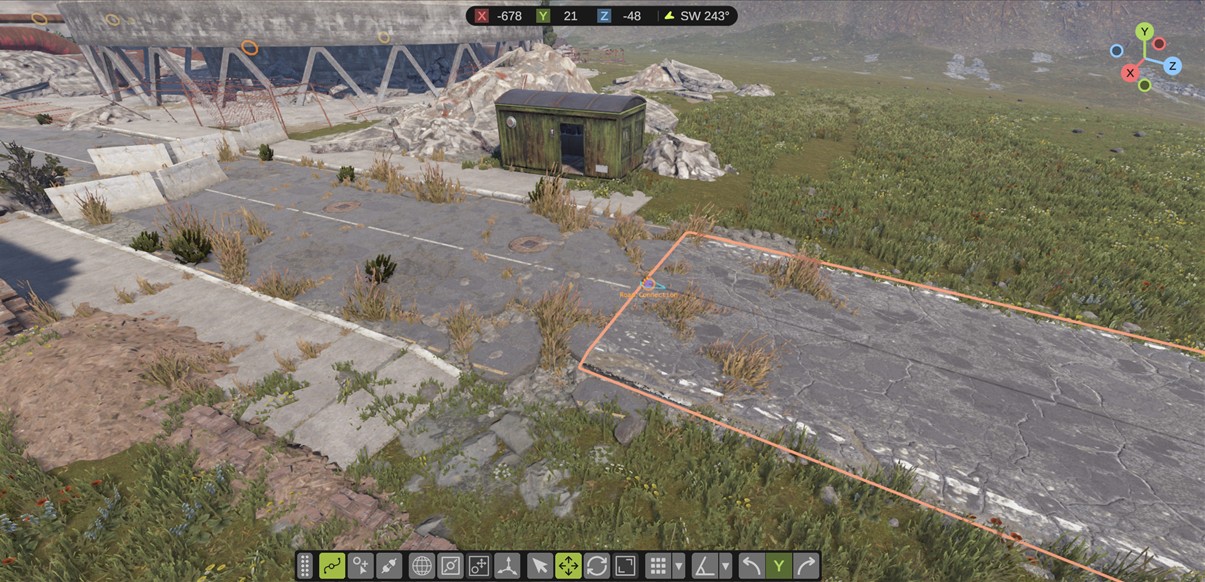
| Look | What it means |
|---|---|
| Bright ring, name under it | The spline you edit snaps to this connection. The name shows when the camera is near. |
| Faint ring | The spline you edit does not snap to this connection. |
| Purple dot in the ring | A knot is linked to this connection. |
| Ring in the highlight color | The knot you move is on this connection now. |
| Arrow | A rail connection: the way the rail leaves the monument. |
The ring colors are: road orange, trail light brown, rail light blue, power yellow and boat blue.
Snap a knot to a connection
Do one of these:
- Drag a knot near the connection.
- Select one knot and move it near the connection with the transform gizmo.
- Draw a new knot near the connection. See Draw a spline.
When the knot comes near the connection on the screen, it jumps onto it. Let go of the mouse. The knot is now linked to the connection.
To move a knot near a connection without a snap, hold Shift while you drag.
You can also use the spline widget:
- Select one knot.
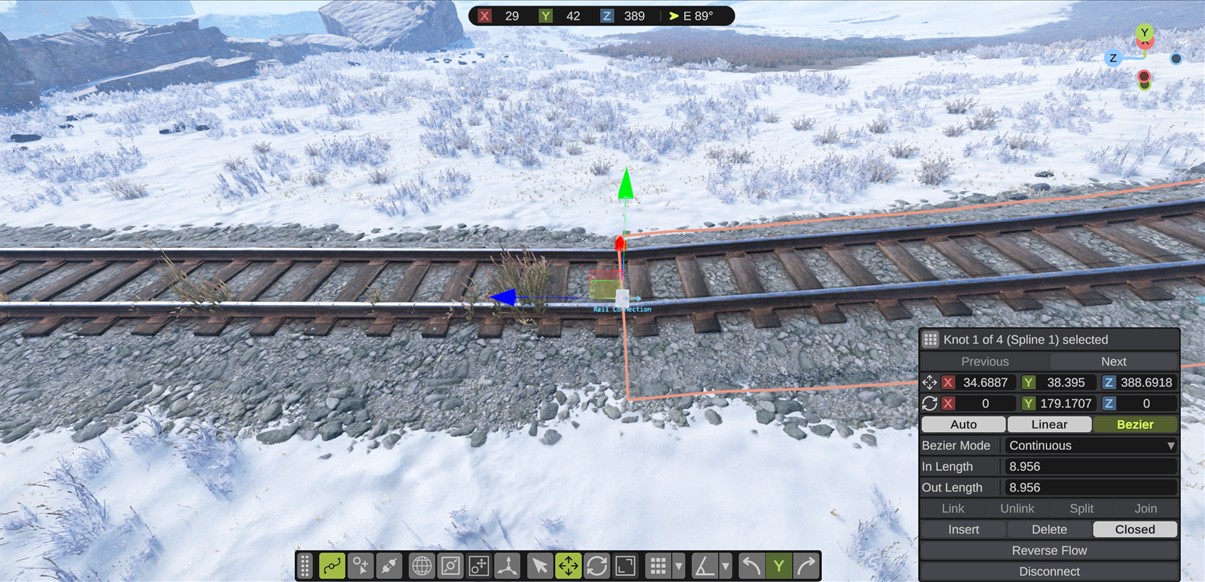
- Click Snap To Connection. The knot moves onto the nearest connection that its spline snaps to, within 100 m, and is linked to it.
A rail knot on a rail connection points the way the connection does, so the rail leaves the monument straight. Drag its tangent handles to make them longer or shorter. Their direction stays.
Move a monument with linked knots
Move or turn the monument as usual. Each linked knot moves with its connection, and the spline changes shape. The move and the knots are one undo step.
End a link
A link ends when:
- You drag the knot away from its connection, or move it away with the gizmo.
- You move the whole spline entity away from the connection.
- You select the knot and click Disconnect in the spline widget. The knot stays where it is.
When you delete a monument, the links to it wait. When you undo the delete, the links work again.
Saving
The links are saved in the .scene file. An exported .map file has the knots where they are, on the connections.