Spline Widget
The spline widget shows the values of the selected knots in spline edit mode, with buttons to link, split, join and close splines. This page also explains the Splines and Knots lists in the Inspector, and the keys of spline edit mode. To draw and move knots, see Editing Splines.
The spline widget
The spline widget shows when you select knots, tangents or segments of an APC or NPC path. With only segments selected, it shows Speed alone. Its header says what is selected, for example "Knot 2 of 5 (Spline 1) selected". Drag the header to move the widget.
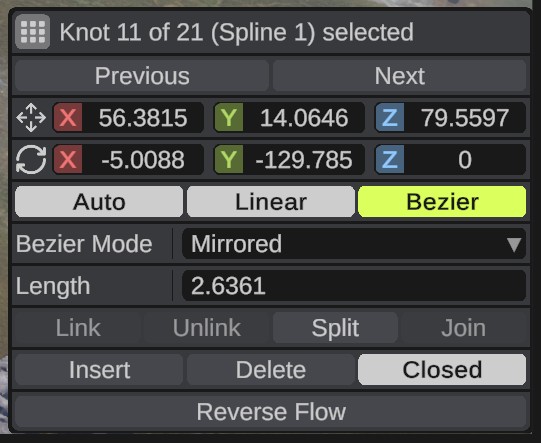
| Option | What it does |
|---|---|
| Position | The knot's place in the world, in meters. With several knots selected, a typed value is given to all of them. |
| Rotation | The knot's rotation in degrees. Hidden when an Auto knot is selected. |
| Roll | The tilt of an Auto knot around the curve, in degrees. |
| Previous, Next | Select the knot before or after the selected one. Around a loop, they wrap. |
| Auto | The curve sets the tangents itself. Only the roll can be changed. |
| Linear | No tangents. The spline goes straight to the next knot. |
| Bezier | Shape the curve with the tangent handles. |
| Bezier Mode | Mirrored: both tangents have the same length. Continuous: each tangent has its own length. Broken: each tangent has its own length and direction. |
| Length | The length of both tangents of a Mirrored knot. |
| In Length, Out Length | The tangent lengths of a Continuous knot. |
| Tangent In, Tangent Out | The tangents of a Broken knot. |
| Link | Links the selected knots so they move together. |
| Unlink | Removes the links from the selected knots. |
| Split | Splits the spline in two at the selected knot. Not on the end knot of an open spline. |
| Join | Joins two selected end knots of two splines into one spline. |
| Reverse Flow | Reverses the direction of the selected splines. |
| Insert | Puts a new knot halfway to the next knot. On the last knot of an open spline, it adds a knot past the end. |
| Delete | Deletes the selected knots. |
| Closed | Closes the selected splines into a loop, or opens them. The Loop switch in the Splines table does the same. |
| Speed | On an APC path: the top speed of the selected segments, in meters a second. Empty or 0 is full speed. See APC Paths. On an NPC path: one of Rust's NPC speeds, such as Walk or Run. See NPC Paths. |
| Branch Left, Branch Right | Rails only. Start a new rail that leaves the track at the selected knot. See Rails. |
| Join To Track | Rails only. Joins the selected end knot to the nearest point of the nearest track within 100 m. |
| Snap To Connection | Roads, rails and powerlines. Moves the selected knot onto the nearest monument connection that its spline snaps to, within 100 m, and links it there. See Monument Connections. |
| Disconnect | On a knot linked to a monument connection. Ends the link. The knot stays where it is. |
The direction of a spline matters for some paths. The cargo ship sails its path the way it was drawn, and a river gets wider along its length.
The Inspector
When you select a spline entity, the Inspector shows the component buttons, the Splines table and the settings of the selected spline. You do not need spline edit mode for them. See Spline Entity.
The Splines table has one row for each spline of the entity, numbered from 1. A row has the spline's Type, how many Knots it has, and its Loop switch, which joins the ends of the spline into a loop, like Closed in the spline widget. Click a row to select its spline. The settings of the selected spline show under the table, in tabs. The last tab is Knots.
The + button in the title row of Splines copies the selected splines. The x at the end of a row deletes that spline, or all the selected splines when that row is selected.
In spline edit mode, the Knots tab lists the knots of the selected spline: one row for each knot, five to a page, from Knot 1, with its tangent mode, such as Linear. Open a knot's row to see its Position, Rotation, the Auto, Linear and Bezier buttons, Bezier Mode and its tangents. Position is the knot's place in the world, in meters, the same as in the spline widget. Outside spline edit mode, the Knots tab has the Activate Spline Edit Mode button.
The + button in the title row of Knots puts a knot after the selected knot, or at the end. A knot row's remove button deletes that knot, or all the selected knots when that row is selected. Selecting knots in the list selects them in the scene view, and selecting a knot in the scene view opens its row.
Keys
In spline edit mode, with the mouse over the scene view:
| Keys | What they do |
|---|---|
| Mouse Left | Select a knot or tangent. Drag one to move it. On an APC or NPC path, click between two knots to select a segment. |
| Ctrl+Mouse Left | Add a knot to the selection, or take it out. |
| Alt while dragging | Move the knot or tangent up or down. |
| Ctrl while dragging | Put the knot on the ground. |
| Shift while dragging | Move a road, rail or powerline knot without a snap to a monument connection. |
| Mouse Right | Clear the knot selection. While drawing, finish the spline. On an APC or NPC path segment, open its menu. |
| W, E | Move or turn the selected knots with the gizmo. |
| Ctrl+D | Add a knot before each selected knot. |
| Delete | Delete the selected knots, APC interest nodes and NPC stop points. |
| Esc, Enter | Stop drawing. |
| Ctrl+Z, Ctrl+Y | Undo, redo. |
For every key of RustEdit, see Keyboard Shortcuts.