Physics Scatter, Create and Arrange
RustEdit ProThese Physics Tools do one thing to many prefabs at once, then let physics settle them: scatter them, make new ones, or put them in order. Open the Physics Tools panel and pick the tool in its tool list.
Scatter
The Scatter tools each do one thing to the selection, then let it settle: Explode, Randomize, Nudge and Gather.
- Select the prefabs.
- Pick the tool in the tool list.
- Point at a spot in the scene view. An orange circle shows where the tool acts.
- Press Space (hold it for Gather). The prefabs move, then settle.
| Tool | What Space does |
|---|---|
| Explode | Throws the selection away from the spot under the pointer. A prefab near the spot flies fastest. Prefabs outside the circle (Reach) are not thrown. Press Space again for another blast. |
| Randomize | Puts each selected prefab at a random place in the circle, Height meters over the ground or prefab there, clear of the others where it can, and drops them. Press Space again for another try. |
| Nudge | Gives each selected prefab a small random push and spin. Use it to make a neat row or pile look natural. |
| Gather | While you hold Space, pulls the selection to the spot under the pointer, where it piles up. Release Space and it settles. |
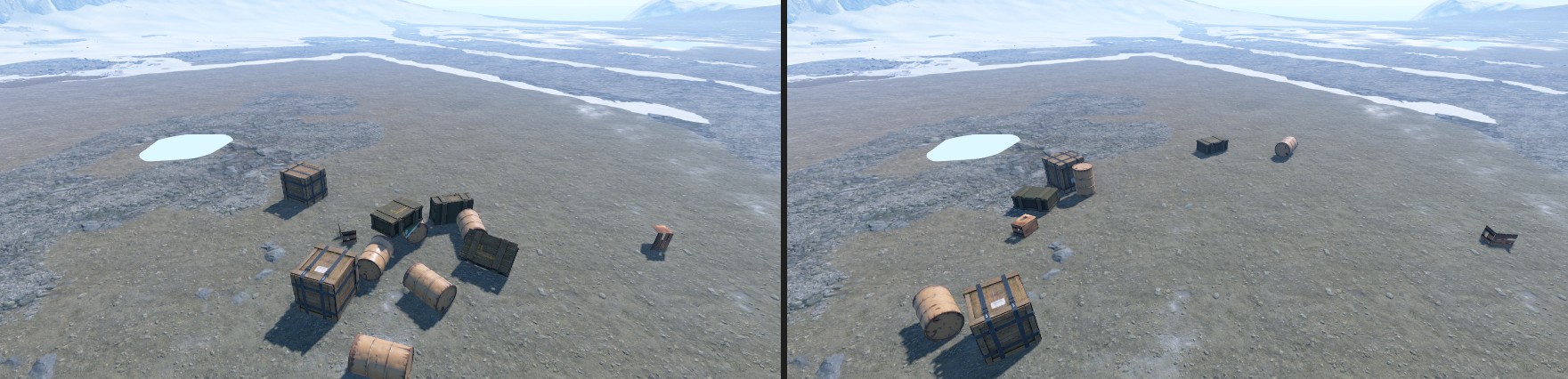
Each tool has a button that does the same at the middle of the selection, without the pointer: Explode From Selection Center, Randomize Around Selection Center, Nudge Selection and Gather To Selection Center.
After a press, the prefabs move until all of them are at rest, or until Max Time has passed. All the presses of one run are one undo step.
| Setting | Tool | What it does |
|---|---|---|
| Direction | Explode | Upward: up and away from the spot, like a fountain. Outward: straight away from it, a little up. |
| Force | Explode | How fast a prefab at the spot is thrown, in meters per second. Prefabs farther out are thrown slower. |
| Reach | Explode | How far the explosion reaches, in meters. |
| Radius | Randomize | The radius of the circle, in meters. |
| Height | Randomize | How high over the ground the prefabs start to fall, in meters. |
| Turn | Randomize | Each prefab gets a random turn around its up axis. |
| Strength | Nudge | How hard each prefab is pushed, in meters per second. |
| Pull | Gather | How fast the prefabs are pulled to the spot, in meters per second. |
Create
The Create tools make new prefabs and drop them with physics.
- Pick the tool in the tool list.
- For Drop Copies and Throw, pick a prefab profile in Prefab Profile: drag one in from Profiles > Prefab Profiles in the Content Browser, or click the field and pick one. For Duplicate, select the prefabs to copy.
- Point at a spot in the scene view and press Space. The new prefabs fall and settle. They become the selection, so you can scatter them next.
| Tool | What Space does |
|---|---|
| Drop Copies | Makes Count prefabs of the Prefab Profile at random places in the circle under the pointer, Height meters over the ground, and drops them. |
| Throw | Makes Count prefabs of the Prefab Profile and throws them from the camera at the spot under the pointer. When the camera is more than 30 meters away, they are thrown from 30 meters away on the camera's side. |
| Duplicate | Copies the selected prefabs, puts the copies beside them (to the right as the camera looks), and drops them. The Duplicate Selection button does the same. |
Drop Copies and Throw pick each new prefab from the profile's switched-on prefabs by their weights, with the profile's random turns and sizes, the same as the Prefab Brush.
Each press is one undo step: Ctrl+Z removes the new prefabs again. Press Esc while they move and they are deleted at once. Duplicate copies only prefabs that can move with physics. The Notifications panel lists the others.
| Setting | Tool | What it does |
|---|---|---|
| Prefab Profile | Drop Copies, Throw | The prefab profile the new prefabs come from. |
| Count | Drop Copies, Throw | How many prefabs each press makes. |
| Radius | Drop Copies | The radius of the circle they land in, in meters. |
| Height | Drop Copies | How high over the ground they start to fall, in meters. |
| Speed | Throw | How fast they fly, in meters per second. A higher speed makes a flatter throw, and they slide farther when they land. |
Arrange
The Arrange tools put the selection in order, then let it settle.
- Select the prefabs.
- Pick the tool in the tool list.
- Point at a spot in the scene view. An orange mark shows where the tool acts.
- Press Space. The prefabs move into place, then settle.
| Tool | What Space does |
|---|---|
| Line | Puts the selection in a row through the spot, from left to right as the camera looks, with Gap between each two. They keep the order they stand in now. |
| Circle | Puts the selection in a ring around the spot, just wide enough for all of them with Gap between each two. |
| Grid | Puts the selection in rows and columns around the spot, as square as the number of prefabs allows. Each cell is as big as the biggest prefab, plus Gap. |
| Upright | Stands each selected prefab up straight, still facing where it faced. It does not need the pointer. While they settle, they only turn around their up axis, so they do not tip over again. |
| Face Point | Turns each selected prefab around its up axis, so its front faces the spot. |
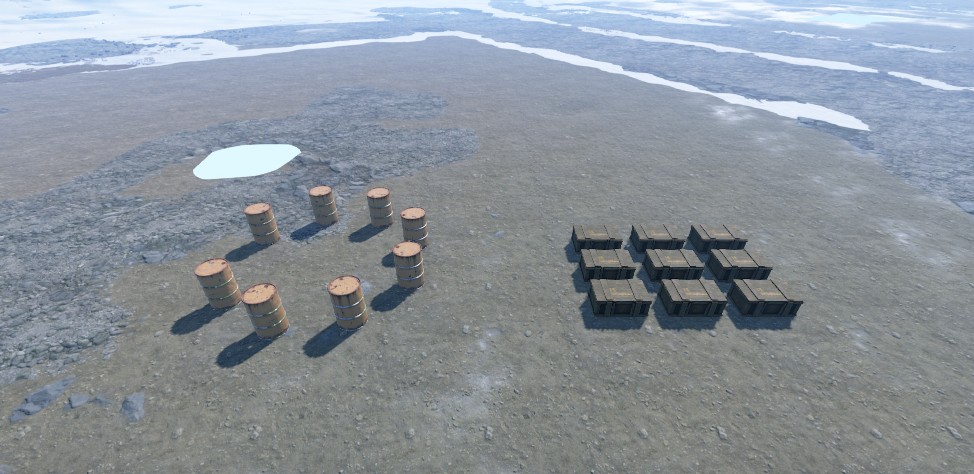
Line, Circle and Grid put each prefab Height meters over the ground or prefab there, then drop it. Press Space again to put the same prefabs somewhere else.
Each tool has a button that does the same at the middle of the selection, without the pointer: Line Up At Selection Center, Circle Around Selection Center, Grid At Selection Center, Stand Selection Upright and Face Selection Center.
| Setting | Tool | What it does |
|---|---|---|
| Gap | Line, Circle, Grid | The space between two prefabs, in meters. |
| Height | Line, Circle, Grid | How high over the ground the prefabs are put before they settle, in meters. |
| Line Up | Line, Grid | All prefabs turn to face the same way: toward the camera. When it is off, each keeps its own turn. |
| Face Center | Circle | Each prefab turns to face the middle of the ring. |
| Face Away | Face Point | The backs of the prefabs turn to the spot, not their fronts. |