Physics Tools
RustEdit ProThe Physics Tools move prefabs with real physics. Drop a group of crates and they fall, tip over and come to rest on the ground, on rocks and on each other. Drag a prefab and it slides over the ground and bumps into walls instead of going through them. Use them to make piles, spill props across a floor or set a prefab down on uneven ground in a natural way.
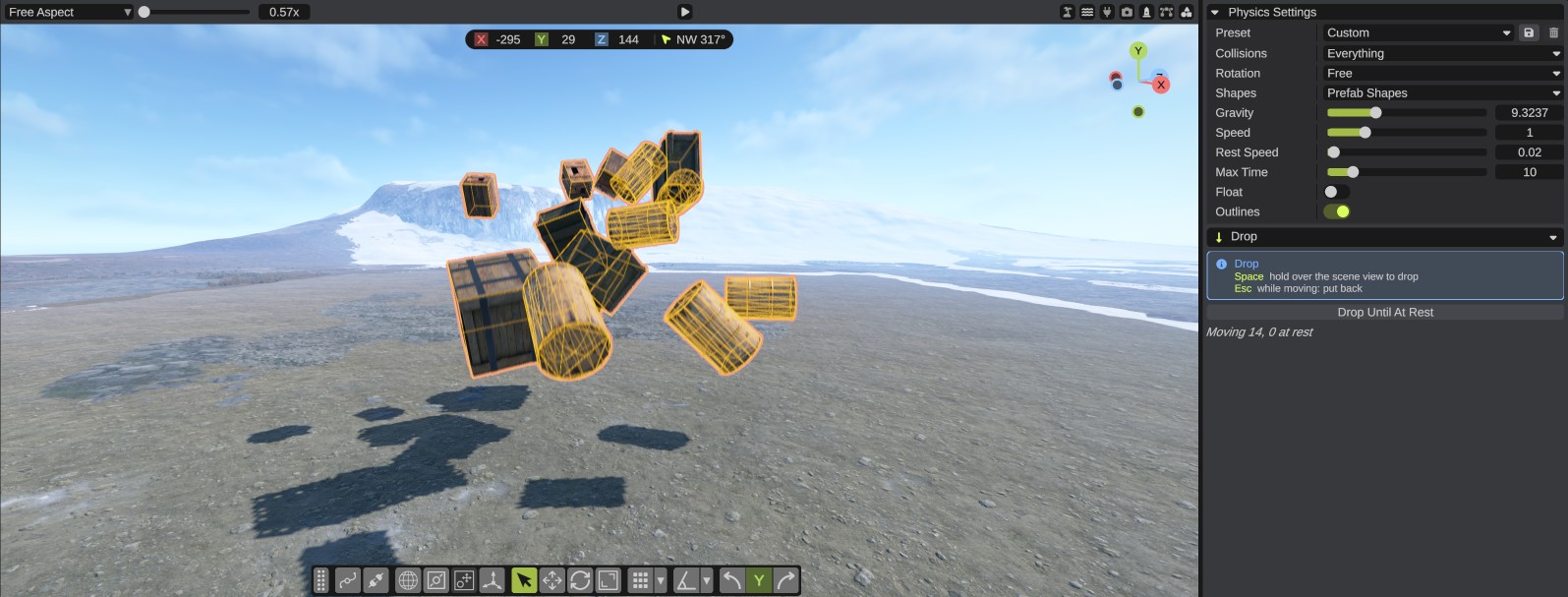
Open the Physics Tools
Click the Physics Tools button on the tool bar, or open .
The panel has, from top to bottom:
- Physics Settings, folded away at the start. They are the same for every tool. See Physics Settings.
- The tool list. Click it, then click a tool to turn it on. Type in its search box to find a tool.
- A box with the keys of the tool that is on, each with what it does.
- The settings and buttons of that tool.
- A line that says how many prefabs are selected, or how many move and how many are at rest.
The tool list has four groups:
| Group | Tools | See |
|---|---|---|
| Place | Drop, Move | Drop, Move |
| Scatter | Explode, Randomize, Nudge, Gather | Scatter |
| Create | Drop Copies, Throw, Duplicate | Create |
| Arrange | Line, Circle, Grid, Upright, Face Point | Arrange |
Drop
- Select the prefabs you want to drop. To drop them from a height, lift them first with the move tool.
- Pick Drop in the tool list.
- Point at the scene view, then press and hold Space. The selection falls. Each prefab hits the ground, other prefabs and the other selected prefabs, and tips over or rolls the way it would in the game.
- Release Space when you like where they are. They stay there.
Each time you hold Space is one undo step. Press Ctrl+Z to put them all back where they were before it.
To let physics run on its own, click Drop Until At Rest. The selection falls until all of it is at rest, or until Max Time has passed.
Space with the right mouse button held moves the camera up, as always. It does not drop anything.
Move
- Pick Move in the tool list.
- Press the left mouse button on a prefab and drag. A selected prefab drags the whole selection with it. A prefab that is not selected is selected and dragged on its own. The prefabs follow the pointer over the ground. Each prefab bumps into walls, rocks and other prefabs on its own way. A white line shows where the pointer pulls them.
- Release the button. The prefabs settle for a few seconds, then stay where they are.
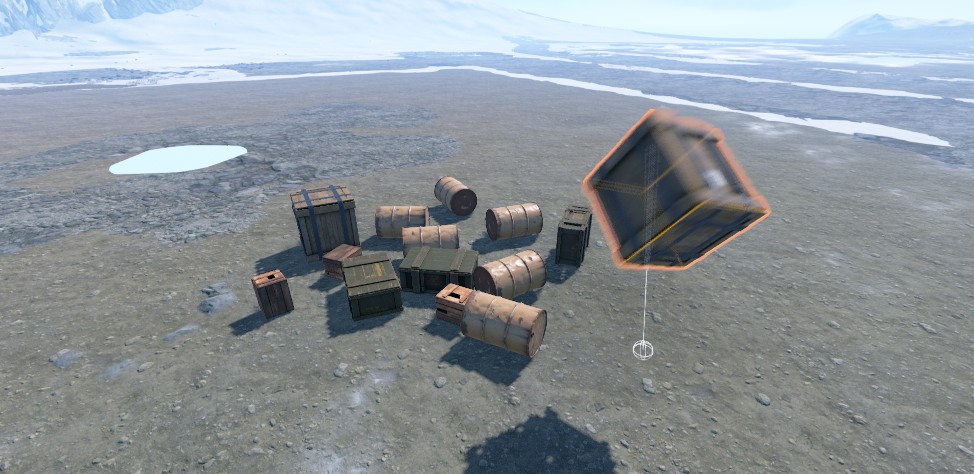
Each drag is one undo step. You can start the next drag at once, while they still settle. A press on the ground works as usual: it clears the selection or starts a box selection.
Scatter, create and arrange
The other tools scatter the selection, make new prefabs, or put the selection in order, and then let physics settle it. See Physics Scatter, Create and Arrange.
Stop a run
Press Esc with the pointer over the scene view while the prefabs move. They go back where they were before the run, and nothing is added to the undo history.
When nothing moves, Esc turns the tool off. The tool also turns off when you close the panel or start play mode, and when another scene view tool turns on, such as the Prefab Brush or the terrain tools. Only one tool is on at a time. See The Scene View.
While a tool is on, the transform gizmo has no arrows, so a press always reaches the prefabs. Its arrows come back when the tool turns off.
Some prefabs never move, such as locked prefabs and prefabs with Apply Height on. See What moves and what blocks.
Tips
- To scatter props on a floor, select them, pick Randomize, point at the floor and press Space.
- To fill a room with clutter, use Drop Copies with a prefab profile of small props, then a short Nudge.
- To make a heap, use Gather and hold Space on the spot. Then a short Nudge makes it look less tidy.
- Use the Tidy preset to set many prefabs down on uneven ground without them stacking or tipping over.
- To spill crates into a harbor, use the Floating preset with Explode or Throw.
- A barrel or pipe lying on its side can roll for a long time on a slope. Release Space when it is where you want it, or use Keep Upright.
Related
- Physics Scatter, Create and Arrange
- Physics Settings
- Move, Rotate and Scale
- AI Tools: Physics Drop, Physics Scatter, Physics Create and Physics Arrange do the same for an AI app
- Free, Plus, Pro and Sponsor