Scatter Graph
RustEdit ProThe Scatter Graph places prefabs over the whole map by rules. You build the rules as a node graph: masks from the map (height, slope, biome, splat, topology) decide where things can go, point nodes decide how many and how far apart, and prefab nodes decide what goes there. Before you apply, the scene view shows every prefab the graph would place. Apply places them in the map in one step, and Apply again replaces them.
It uses the same graph editor as the Terrain Graph. It never changes the terrain.
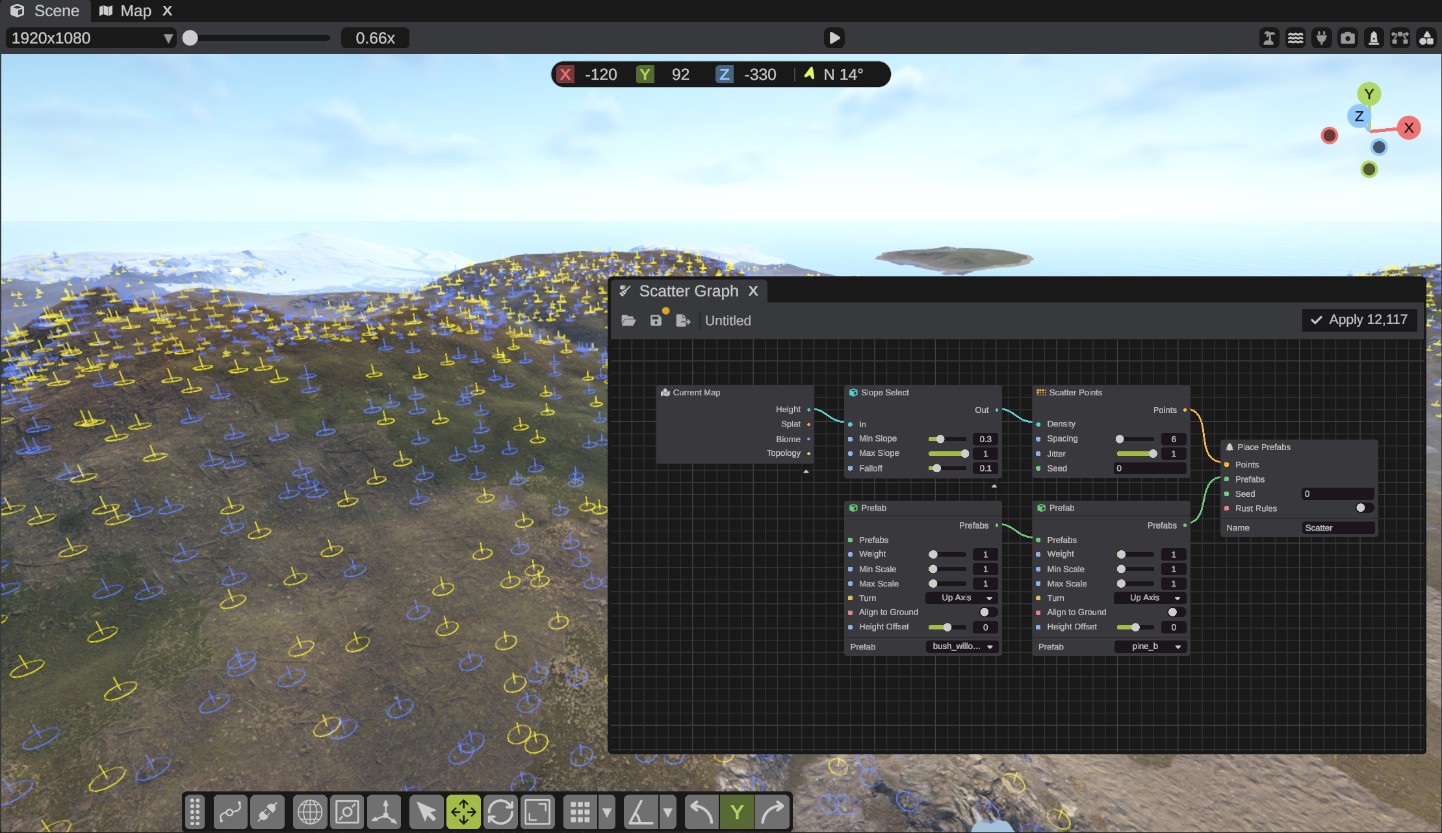
Open the Scatter Graph
Open .
A new graph starts with three nodes: Scatter Points, a Prefab node and a Place Prefabs node, already wired.
How to scatter prefabs
- Drag a prefab from the Content Browser onto the Prefab node. The node shows the prefab's name.
- On Scatter Points, set Spacing: the meters between points before the density mask thins them.
- Wire a mask into Density, for example a Slope Select or a Height Select node fed by Current Map. Where the mask is 1, every point stays. Where it is 0, none do.
- Look at the scene view. A ring and a short line show where each prefab would go, in the prefab's own color. Only the rings near the camera are drawn.
- Click Apply. The button shows how many prefabs it will place, for example Apply 12,340. A loading bar shows while RustEdit places them. They go into a group named after the layer, in the Hierarchy.
Apply is one undo step: Ctrl+Z takes back everything it placed.
Layers
Each Place Prefabs node is one layer: for example one for trees, one for rocks and one for bushes. A graph can have as many layers as you need. Give each layer a Name: its group in the map is called after it.
Apply places every layer. Apply again first deletes what the same layers placed before, then places the new result. Prefabs you placed in other ways are never touched.
To keep some prefabs a layer placed, drag them out of the layer's group in the Hierarchy before the next Apply. Apply only replaces what is still in the group.
A copy of a Place Prefabs node (copy and paste, or duplicate) is a new layer: its Apply does not replace the first one's prefabs.
A copy of a layer's group (Ctrl+D in the Hierarchy) is a plain group. The next Apply leaves it and its prefabs where they are.
Nodes
Points
- Scatter Points: points over the whole map on a grid, one in each cell at a random place in it.
- Density (a mask, 0 to 1) is the chance a point is kept there. With nothing wired, every point is kept.
- Spacing is the cell size in meters (1 to 100, default 8).
- Jitter moves each point in its cell: 0 puts them on a grid, 1 anywhere in the cell (default 1).
- Seed gives other places.
- Filter Points: keeps the points where a mask says so.
- Threshold keeps the points where the mask is at or over the value (default 0.5).
- Chance keeps each point with the mask as its chance.
- Invert keeps the other points.
- Thin Points: drops points closer than Distance meters to another point, so prefabs do not overlap. Avoid Map Prefabs also drops points that close to a prefab already in the map. Prefabs this graph placed before do not count, because the next Apply replaces them.
- Merge Points: the points of up to three wires together.
- Jitter Points: moves each point a random way, up to Amount meters.
Prefabs
- Prefab: one prefab, added to the list that comes into its Prefabs input. Chain Prefab nodes to make a list.
- Weight: how often it is picked next to the others (default 1).
- Min Scale and Max Scale: the random size range (default 1 to 1).
- Turn: Up Axis (default), All Axes for rocks and debris, or None.
- Align to Ground tilts it to the slope.
- Height Offset: meters up, or down below 0.
- Prefab Profile: a saved prefab profile, added to the list that comes in. Click its List button and pick a prefab profile. The node keeps a copy of the profile: changing the saved profile later does not change the graph until you pick it again. Each prefab keeps the weight, size and turn the profile gives it.
To set a Prefab node's prefab, drag a prefab from the Content Browser onto the node. Drop it on an empty part of the canvas to add a new Prefab node with it. You can also right-click a prefab in the Content Browser and click Add to Scatter Graph: it goes into the selected Prefab node if that node has no prefab yet, or into a new node. Click a Prefab node's Prefab button to show its prefab in the Content Browser.
Output
Place Prefabs is one layer: a prefab from the list at each point, on the ground, with a random size and turn.
- Seed picks other prefabs, sizes and turns for the same points.
- Rust Rules also uses Rust's own rules for each prefab: the sizes and turns Rust gives it, and its terrain filters and checks, the way Rust places decor on its own maps. Off by default.
- Name names the layer's group.
Masks
The Terrain Graph nodes that read the map or make a mask work here too: the generators, filters, masks, math and value nodes, Current Map, Spline Mask, Texture, Split Splat, Split Biome and Topology Mask. See Nodes.
Nodes that change the terrain are not in the Scatter Graph's menu, because a scatter graph never changes the terrain. These are the erosion nodes, Flow, Beach, Ledge and Terrace, and the nodes that make splat, biome and topology.
Custom nodes made in the Terrain Graph can be placed here when every node inside them is one the Scatter Graph can hold.
Save and open
Scatter graphs are saved as .scattergraph files, with the Save, Save As and Open buttons of the window, as in the Terrain Graph. The file holds the graph only; the placed prefabs are part of the map.
Limits
- One Apply places at most 100,000 prefabs. With more, Apply says so in the Notifications panel and places nothing. Use a larger Spacing, a mask, or Thin Points.
- In a multiplayer session, only the host can click Apply.
- The preview follows changes to the terrain about half a second after they stop. It does not follow prefabs you add or remove by hand: edit the graph to run it again.
- Big layers take time. A big Apply can take half a minute behind the loading screen. Undo and redo take a few seconds.
Troubleshooting
| Problem | What to do |
|---|---|
| Apply says the graph places nothing. | Each Place Prefabs node needs points in Points and a list in Prefabs. A Prefab node with no prefab adds nothing to the list. |
| No rings show in the scene view. | Move the camera closer: only rings within about 600 meters of the camera are drawn. Check that the window's tab is shown: the preview ends when it is hidden. |
| With Rust Rules on, most prefabs are gone. | Rust's rules for that prefab do not allow it there (for example a rock that must be on a cliff). Turn Rust Rules off, or use the masks to choose the places yourself. |